> For the complete documentation index, see [llms.txt](https://storeberry-docs.gitbook.io/user-guide/llms.txt). Markdown versions of documentation pages are available by appending `.md` to page URLs; this page is available as [Markdown](https://storeberry-docs.gitbook.io/user-guide/social-media-management/4.1-facebook.md).
# 4.1 Facebook 管理
### **(i) Facebook 專頁串接**
STOREBERRY 為店家輕鬆整合網店與社交電商,您只需一個平台即可同時管理網店、新增 Facebook 貼文及在 Facebook Messenger 回覆顧客問題。
商家可先到 **STOREBERRY 後台**** ****→**** ****「設定」**** ****→**** ****「連接 Facebook」** 將您的 Facebook 專頁與網店串連,再透過 STOREBERRY 後台的 **「Facebook」** 及 **「FB Messenger」** 工具直接管理,令您的網店營運更順暢!
開設 Facebook 專頁:
1)商家需先到[ Facebook ](https://www.facebook.com/)官網,在主頁面的左側點擊 **「選單」** , 然後在 **「建立」** 一欄點擊 「專頁」 來新增專頁。
.png?alt=media&token=96be94b6-478d-49c7-ba3b-12556739011d) 2)輸入您的專頁名稱及說明,並根據您的商店選擇類別,再點擊
**「建立專頁」** 即可成功開設您的專頁。
2)輸入您的專頁名稱及說明,並根據您的商店選擇類別,再點擊
**「建立專頁」** 即可成功開設您的專頁。
 連接 Facebook 專頁至 STOREBERRY 平台:
1)到 **STOREBERRY 後台**** ****→**** ****「設定」**** ****→**** ****「連接 Facebook」** 點擊 **「連接」**。
連接 Facebook 專頁至 STOREBERRY 平台:
1)到 **STOREBERRY 後台**** ****→**** ****「設定」**** ****→**** ****「連接 Facebook」** 點擊 **「連接」**。
 2)然後跟從指示登入您的 Facebook 帳戶,再選擇想與 STOREBERRY 串接的專頁及相關權限,最後點擊
\ **「完成」**
。
2)然後跟從指示登入您的 Facebook 帳戶,再選擇想與 STOREBERRY 串接的專頁及相關權限,最後點擊
\ **「完成」**
。
 3)回到 STOREBERRY 後台點擊灰色的「✓」按鈕,當按鈕轉為綠色即表示您已成功連接專頁至 STOREBERRY。
.jpg?alt=media&token=76ac3755-be27-4453-8c57-049a8ecc6cf2) ### **(ii) 發布 Facebook 貼文**
1)商家可先到 **STOREBERRY 後台**** ****→**** ****「設定」**** ****→**** ****「連接 Facebook」** 確認您已成功將您的 Facebook 專頁與 STOREBERRY 串連。
### **(ii) 發布 Facebook 貼文**
1)商家可先到 **STOREBERRY 後台**** ****→**** ****「設定」**** ****→**** ****「連接 Facebook」** 確認您已成功將您的 Facebook 專頁與 STOREBERRY 串連。
 2)到
**STOREBERRY 後台****
****→**** ****「Facebook」**** ****→****
****「Facebook Posts」**
頁面,點擊右上方的
**「將貼文添加到 Facebook」**
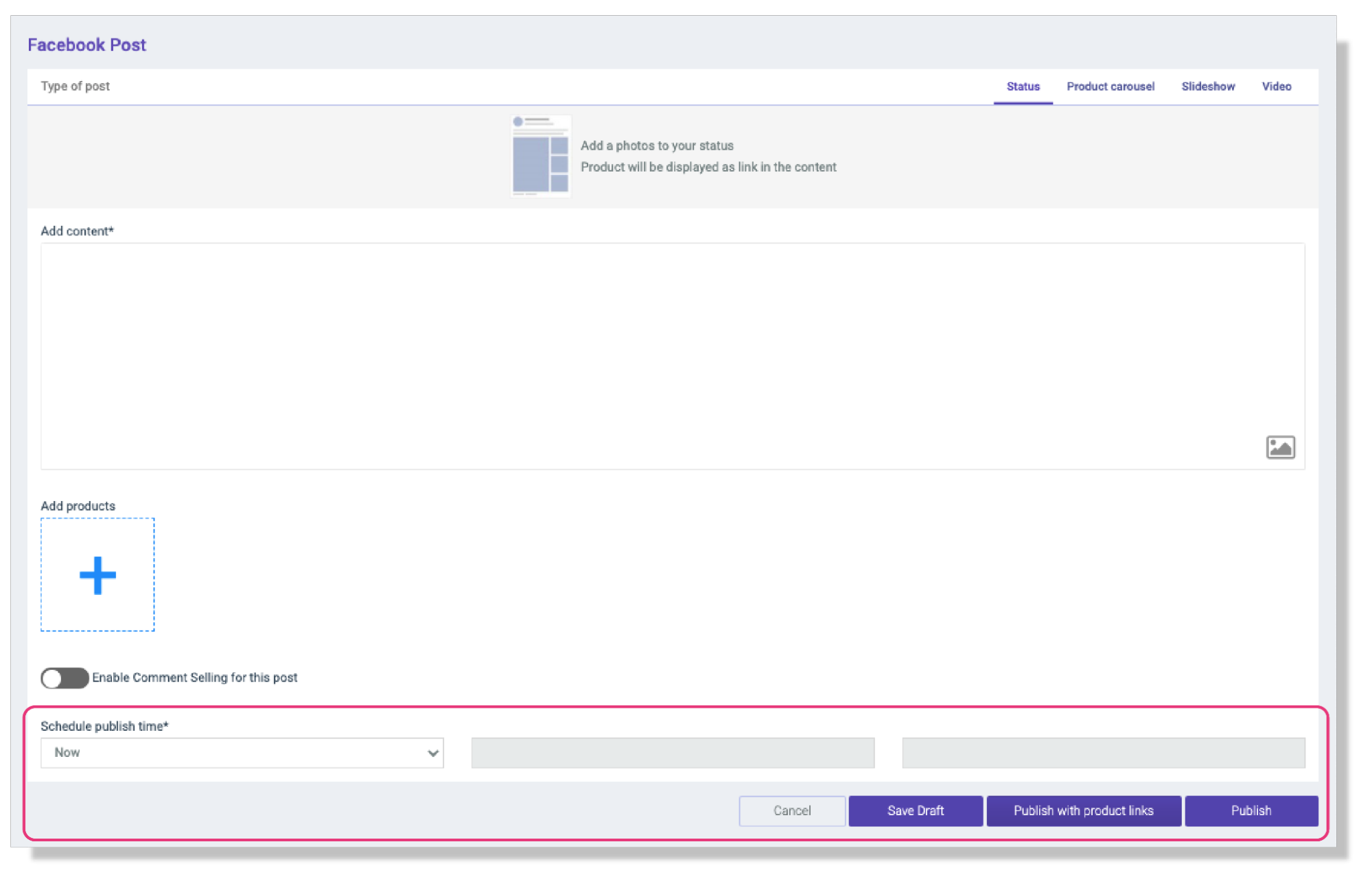
然後輸入貼文內容。商家可從右上方選擇貼文類型,包括:狀態、產品輪播、幻燈片及影片等。
2)到
**STOREBERRY 後台****
****→**** ****「Facebook」**** ****→****
****「Facebook Posts」**
頁面,點擊右上方的
**「將貼文添加到 Facebook」**
然後輸入貼文內容。商家可從右上方選擇貼文類型,包括:狀態、產品輪播、幻燈片及影片等。
 3)最後設置預設發布日期及時間,然後按需要點擊
**「發布」**
或 **「發布並加上產品連結」**
即可完成貼文發布。同時您亦可選擇點擊 **「保存草稿」**
先將草稿保存待下次修改。
3)最後設置預設發布日期及時間,然後按需要點擊
**「發布」**
或 **「發布並加上產品連結」**
即可完成貼文發布。同時您亦可選擇點擊 **「保存草稿」**
先將草稿保存待下次修改。
 ### **(iii) Facebook 貼文留言銷售功能**
除了一般貼文發布外,STOREBERRY 特別為 Facebook 貼文增設了留言銷售功能,為商家提供更彈性的銷售安排:
1)商家可先到 **STOREBERRY 後台**** ****→**** ****「Facebook」**** ****→**** ****「Facebook 貼文」** 頁面,點擊右上方的 **「將貼文添加到 Facebook」** 輸入貼文內容。
### **(iii) Facebook 貼文留言銷售功能**
除了一般貼文發布外,STOREBERRY 特別為 Facebook 貼文增設了留言銷售功能,為商家提供更彈性的銷售安排:
1)商家可先到 **STOREBERRY 後台**** ****→**** ****「Facebook」**** ****→**** ****「Facebook 貼文」** 頁面,點擊右上方的 **「將貼文添加到 Facebook」** 輸入貼文內容。
 2\) 如需啟用貼文的留言銷售(自動下單)功能,您可在頁面下方點擊 **「啟用此帖子的留言銷售」** 輸入銷售活動詳情,如活動期限、活動完結後自動回覆訊息的內容等。
然後點擊 **「+加入現有產品」** 選擇活動商品,系統便會自動顯示商品的下單代碼,如「A」。商家可按需要自行更改商品關鍵字,如將「A」改作「Flower」。再設定貼文留言的置頂訊息內容,提示顧客只需留言「商品關鍵字 +1 」(例: A+1)即可透過 Facebook Messenger 同步下單再付款!同時,留言規格並不受限於英文、大小寫或單一款式下單,無論顧客留言「A+1」、「a+1!」抑或「A+1, B+1」,系統都能清楚識別,再經即時訊息將購物車發送至顧客,讓顧客即時確認付款。
2\) 如需啟用貼文的留言銷售(自動下單)功能,您可在頁面下方點擊 **「啟用此帖子的留言銷售」** 輸入銷售活動詳情,如活動期限、活動完結後自動回覆訊息的內容等。
然後點擊 **「+加入現有產品」** 選擇活動商品,系統便會自動顯示商品的下單代碼,如「A」。商家可按需要自行更改商品關鍵字,如將「A」改作「Flower」。再設定貼文留言的置頂訊息內容,提示顧客只需留言「商品關鍵字 +1 」(例: A+1)即可透過 Facebook Messenger 同步下單再付款!同時,留言規格並不受限於英文、大小寫或單一款式下單,無論顧客留言「A+1」、「a+1!」抑或「A+1, B+1」,系統都能清楚識別,再經即時訊息將購物車發送至顧客,讓顧客即時確認付款。
 3)同時,商家可在頁面下方點擊
**「關鍵詞」****
****→**** ****「新增關鍵詞」**
,透過設置指定關鍵字及預設訊息,讓 Chatbot David 助您一臂之力,跟據指定關鍵字在貼文下留言回覆顧客提問。您亦可在輸入框下方剔選 **「Private reply」**
讓 Chatbot David 直接於 Facebook Messenger 私下回覆顧客。最後點擊
**「保存」**
完成設定。
3)同時,商家可在頁面下方點擊
**「關鍵詞」****
****→**** ****「新增關鍵詞」**
,透過設置指定關鍵字及預設訊息,讓 Chatbot David 助您一臂之力,跟據指定關鍵字在貼文下留言回覆顧客提問。您亦可在輸入框下方剔選 **「Private reply」**
讓 Chatbot David 直接於 Facebook Messenger 私下回覆顧客。最後點擊
**「保存」**
完成設定。
 4)最後設置預設發布日期及時間,然後按需要點擊
**「發布」**
或
**「發布並加上產品連結」**
即可完成貼文發布。同時您亦可選擇點擊 **「保存草稿」**
先將草稿保存待下次修改。
4)最後設置預設發布日期及時間,然後按需要點擊
**「發布」**
或
**「發布並加上產品連結」**
即可完成貼文發布。同時您亦可選擇點擊 **「保存草稿」**
先將草稿保存待下次修改。
 5)在貼文發布後,商家可隨時到
**STOREBERRY 後台****
****→**** ****「Facebook」****
****→**** ****「Facebook 貼文」**
頁面,在貼文右方的動作欄點擊按鈕查看貼文詳情及銷售情況。
5)在貼文發布後,商家可隨時到
**STOREBERRY 後台****
****→**** ****「Facebook」****
****→**** ****「Facebook 貼文」**
頁面,在貼文右方的動作欄點擊按鈕查看貼文詳情及銷售情況。
 ### **(iv) Facebook Messenger 管理**
透過 STOREBERRY,您可在後台直接查看所有與顧客在 Facebook Messenger 的對話記錄、回覆顧客及編輯顧客的購物車並發送給顧客。
透過 Facebook Messenger 回覆顧客
1)商家可先到 **STOREBERRY 後台**** ****→**** ****「設定」**** ****→**** ****「連接 Facebook」** 確認您已成功將您的 Facebook 專頁與 STOREBERRY 串連。
### **(iv) Facebook Messenger 管理**
透過 STOREBERRY,您可在後台直接查看所有與顧客在 Facebook Messenger 的對話記錄、回覆顧客及編輯顧客的購物車並發送給顧客。
透過 Facebook Messenger 回覆顧客
1)商家可先到 **STOREBERRY 後台**** ****→**** ****「設定」**** ****→**** ****「連接 Facebook」** 確認您已成功將您的 Facebook 專頁與 STOREBERRY 串連。
 2)然後到 **STOREBERRY 後台** **→** **「FB Messenger」** 選擇您想回覆的顧客,點擊即可進入對話視窗,再到下方的輸入欄輸入您的訊息並直接發送至顧客。\
如顧客尚未成為網店會員,您亦可到右上方點擊 **「創建會員」** 將顧客新增至會員名單。
2)然後到 **STOREBERRY 後台** **→** **「FB Messenger」** 選擇您想回覆的顧客,點擊即可進入對話視窗,再到下方的輸入欄輸入您的訊息並直接發送至顧客。\
如顧客尚未成為網店會員,您亦可到右上方點擊 **「創建會員」** 將顧客新增至會員名單。
 透過 Facebook Messenger 傳送購物車
1)到 **STOREBERRY 後台**** ****→**** ****「FB Messenger」** 選擇您想回覆的顧客,然後在「購物車」一欄點擊 「編輯」 即可為顧客新增任何商品至購物車,包括非公開的預購商品、特價商品等。透過 Facebook Messenger 傳送購物車
透過 Facebook Messenger 傳送購物車
1)到 **STOREBERRY 後台**** ****→**** ****「FB Messenger」** 選擇您想回覆的顧客,然後在「購物車」一欄點擊 「編輯」 即可為顧客新增任何商品至購物車,包括非公開的預購商品、特價商品等。透過 Facebook Messenger 傳送購物車
 2)選擇好商品後,點擊下方的
**「保存到購物車」**
將商品加入至購物車。
2)選擇好商品後,點擊下方的
**「保存到購物車」**
將商品加入至購物車。
 3. 返回
**「FB Messenger」**
頁面,選擇您想回覆的顧客,然後在 「購物車」 一欄點擊 **「發送」**
,您可在彈出的視窗啟用並輸入給顧客的訊息,然後按 **「OK」**
即可將購物車透過 FB Messenger 發送至顧客手中。
3. 返回
**「FB Messenger」**
頁面,選擇您想回覆的顧客,然後在 「購物車」 一欄點擊 **「發送」**
,您可在彈出的視窗啟用並輸入給顧客的訊息,然後按 **「OK」**
即可將購物車透過 FB Messenger 發送至顧客手中。
 ### (v) 批量發送Messenger訂單通知
商家可先到 **STOREBERRY 後台 → 「設定」 → 「連接 Facebook」** 將您的 Facebook 專頁與網店串連,再透過 STOREBERRY 後台的 **「Facebook」** 及 **「FB Messenger」** 工具直接管理,令您的網店營運更順暢!
\*有關鏈接Facebook的教學,請點擊[**此處**](/user-guide/social-media-management/4.1-facebook.md)。
### (v) 批量發送Messenger訂單通知
商家可先到 **STOREBERRY 後台 → 「設定」 → 「連接 Facebook」** 將您的 Facebook 專頁與網店串連,再透過 STOREBERRY 後台的 **「Facebook」** 及 **「FB Messenger」** 工具直接管理,令您的網店營運更順暢!
\*有關鏈接Facebook的教學,請點擊[**此處**](/user-guide/social-media-management/4.1-facebook.md)。
 依據 Facebook 規範,訊息範本須先經審批通過方可使用。發送時,請至訂單頁面勾選目標訂單,點擊「操作」選單後,再點選**「發送 Messenger 通知」**即可完成發送作業。
 點擊**「建立範本」**
 點擊**「匯入預設範本」**
 點擊**「匯入所選語言範本」**
 成功後會顯示狀態為**"APPROVED“**
 如範本未能通過,可嘗試點擊編輯鍵並重新提交
.jpg?alt=media&token=ba97ce58-af6a-47cc-8341-3dfcd8e4e11a) 再次進入訂單頁,點擊需要批量發送的通知按鍵, 再擊開始發送通知即可
再次進入訂單頁,點擊需要批量發送的通知按鍵, 再擊開始發送通知即可
 ### **(vi) \*擴充功能: Facebook 直播留言銷售模組New**
[5.2 社交媒體直播銷售功能](/user-guide/value-added-services/5.2-social-media-live-selling.md)
### **(vi) \*擴充功能: Facebook 直播留言銷售模組New**
[5.2 社交媒體直播銷售功能](/user-guide/value-added-services/5.2-social-media-live-selling.md)
\
\