# 3.1 Operational Functions

### **(i) Checkout**

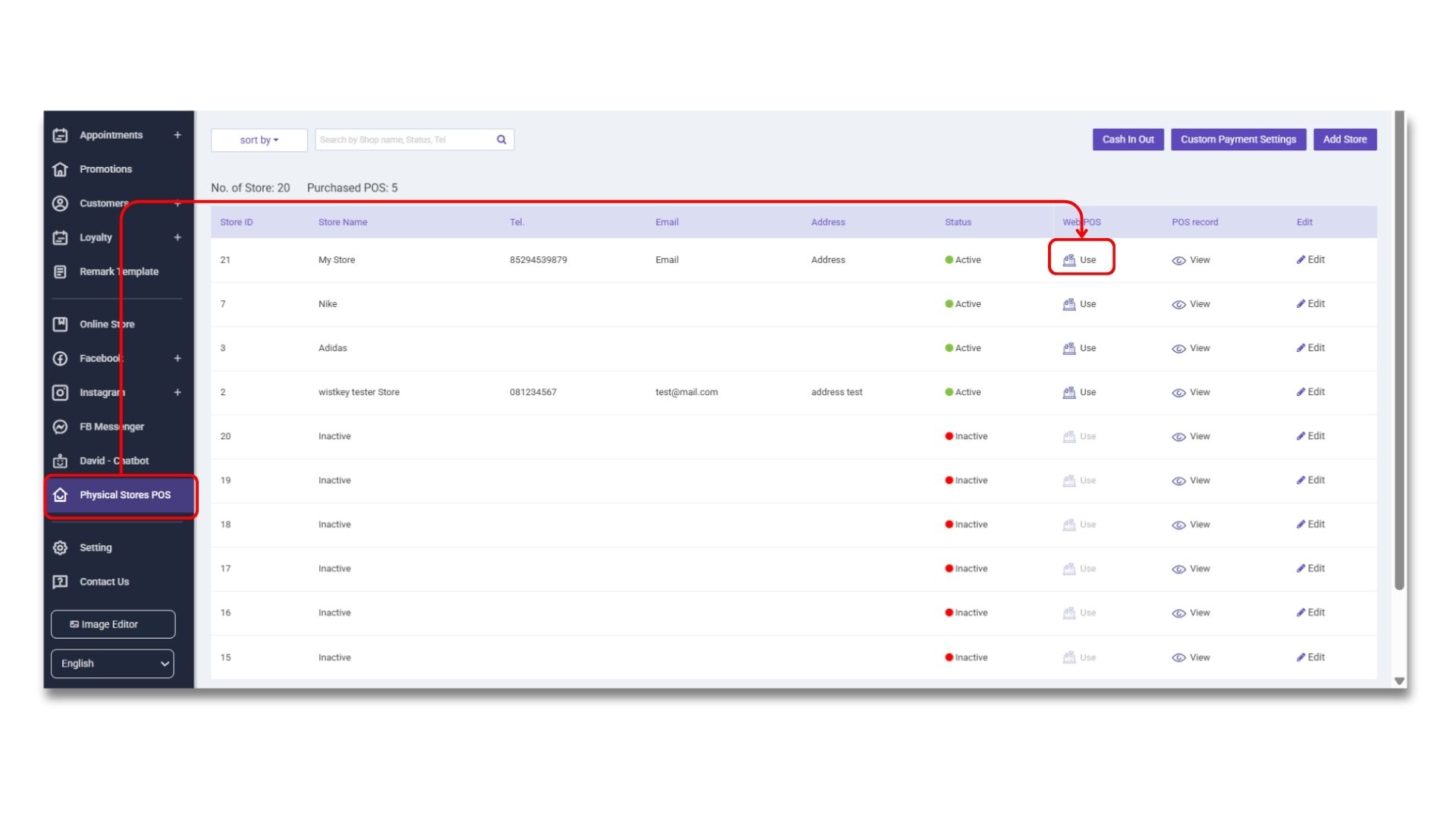
1）Go to the <mark style="color:purple;background-color:purple;">**「STOREBERRY Admin Panel」**</mark> →<mark style="color:purple;background-color:purple;">**「Physical Store POS」**</mark> → <mark style="color:purple;background-color:purple;">**「Use」 .**</mark>

<figure><picture><source srcset="/files/AC9EdIdOOpsLlu6hQCBU" media="(prefers-color-scheme: dark)"><img src="/files/Kjxqz55gh8o7fUkQLNwJ" alt=""></picture><figcaption></figcaption></figure>

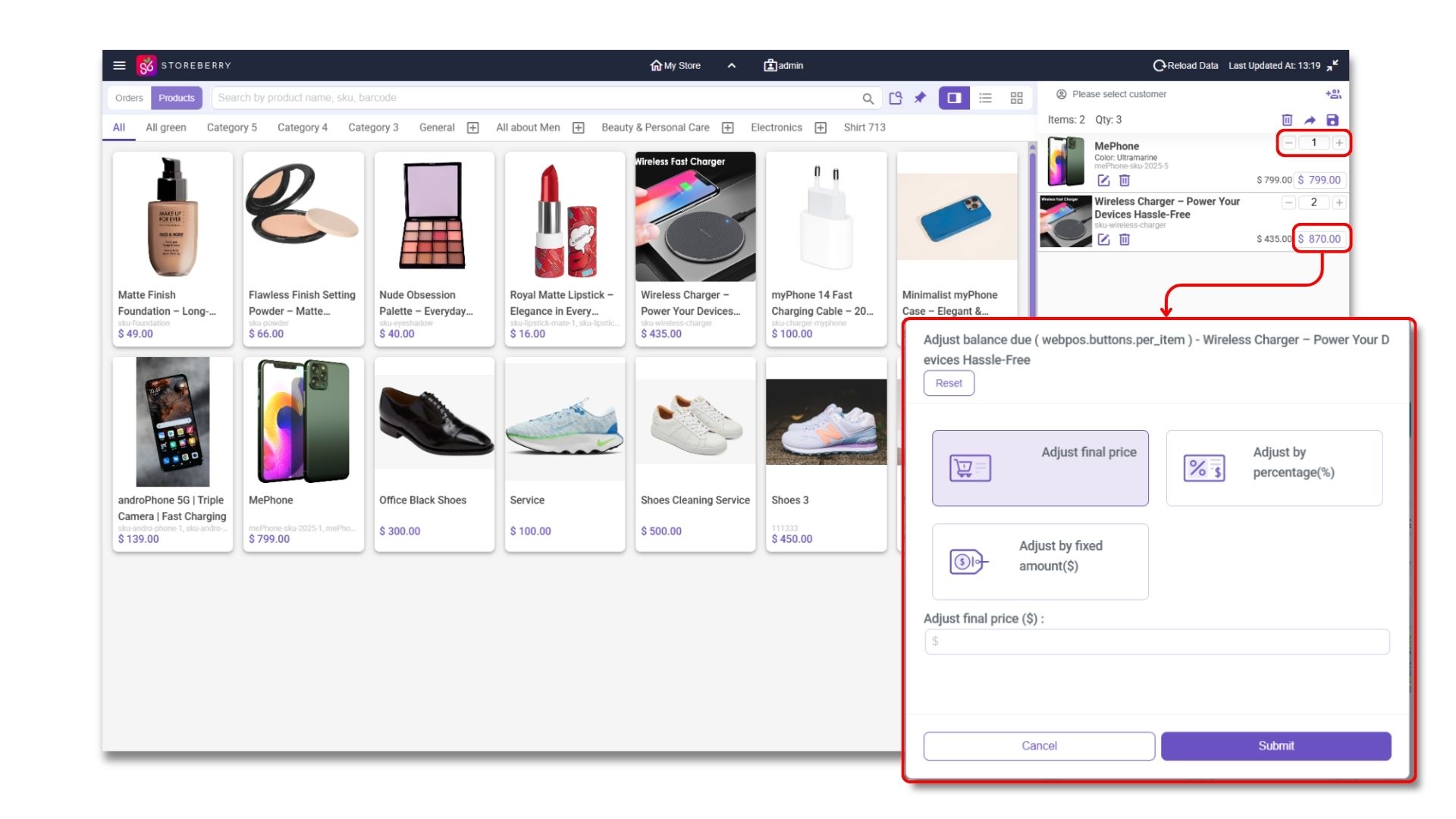
Then, select the items to be checked out. The selected products will then appear in the checkout column on the right-hand side, and you can change the quantity and unit price of the products one by one as needed.

<sub>\*For instructions on using product remarks on POS, please</sub> [<sub>click here</sub>](/user-guide/en/physical-store-pos/3.1-operational-functions.md#add-product-remark)<sub>.</sub>

<figure><picture><source srcset="/files/r7JLE3Iht3Qleu4qqYuX" media="(prefers-color-scheme: dark)"><img src="/files/XDemgCg7dghz892vf3LU" alt=""></picture><figcaption></figcaption></figure>

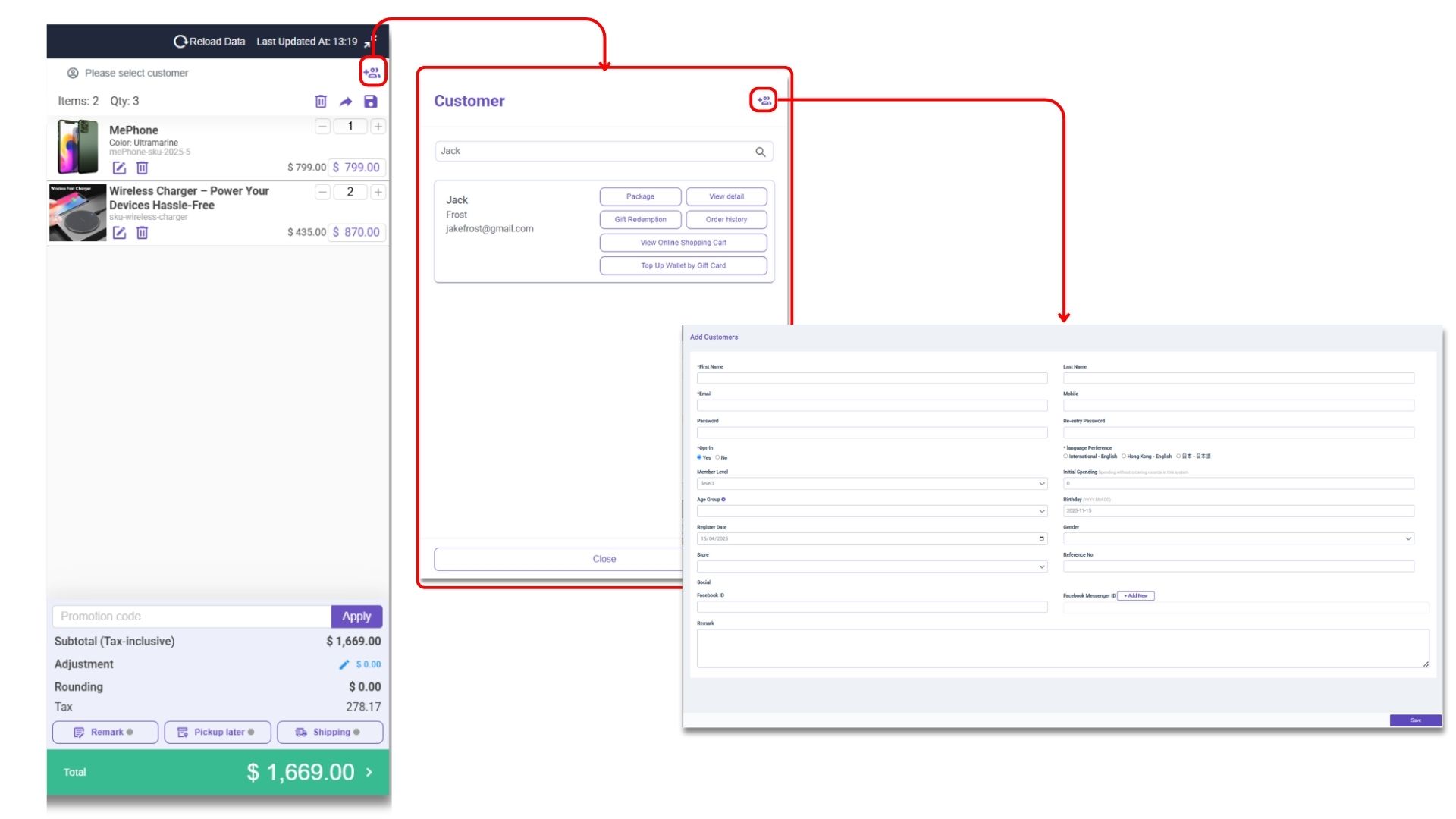
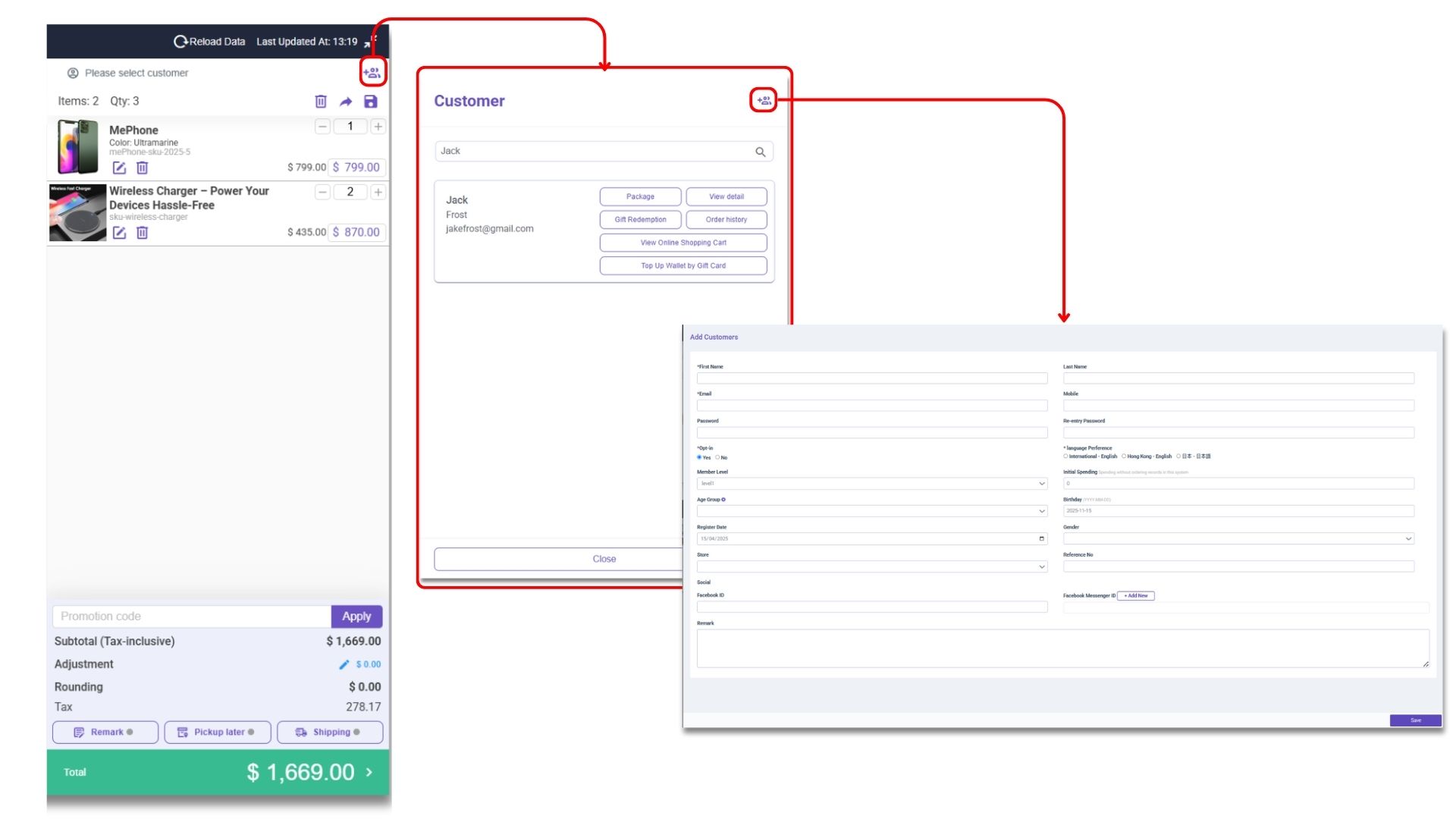
2）Click the small upper right icon to enter customer information. You can search for old members by entering their name/email address/phone number, or click on the small icon on the upper right of the search box to add a new customer.

<figure><picture><source srcset="/files/6hZ6zyhcrlWfQ6d8ZWYp" media="(prefers-color-scheme: dark)"><img src="/files/6q3WxCJ23678gtoo3Ofg" alt=""></picture><figcaption></figcaption></figure>

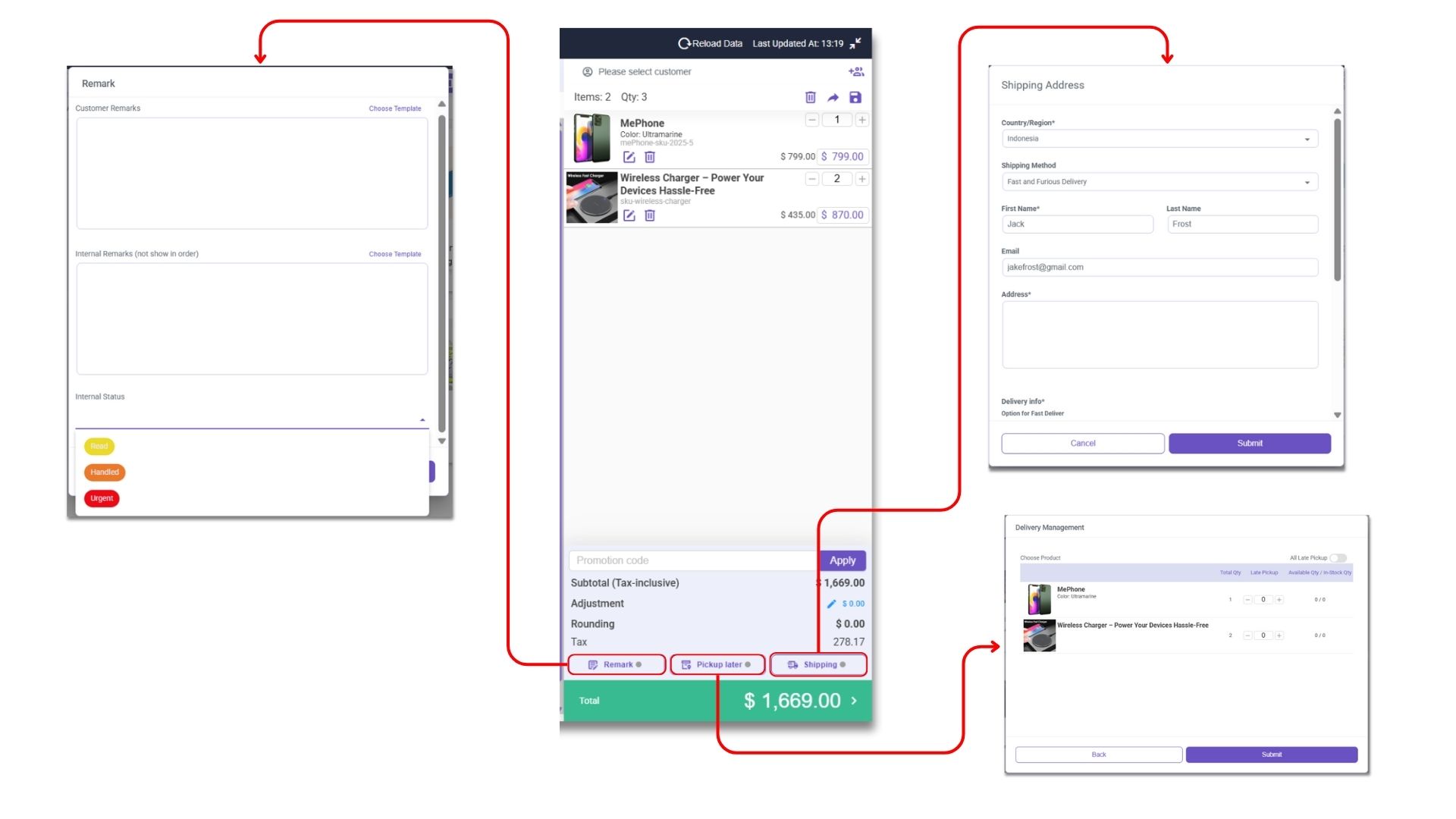
3）You can enter remarks, delivery information, and shipping address here if needed:\
“**Pickup Later**”: Adding the number of “Delivered” means that the product has been delivered to the customer, while “Pending Delivery” means that the customer has not received the product and needs to wait for the delivery arrangement.

\
“**Remark**”: Here, you can only enter the remarks for customers or internal viewing. You can also click <mark style="color:purple;background-color:purple;">**「Select Template」**</mark> on the right to add an order remark from the preset templates.

"**Shipping**": The shipping address is the physical location where a customer wants their purchased items delivered. It includes country/region, shipping method, first and last name, email, address, delivery info, Shipping Fee, and remark.

<figure><picture><source srcset="/files/e3b7x5hfRJwkERUM9Bxa" media="(prefers-color-scheme: dark)"><img src="/files/xgTy45clNfkaGo3bMBMU" alt=""></picture><figcaption></figcaption></figure>

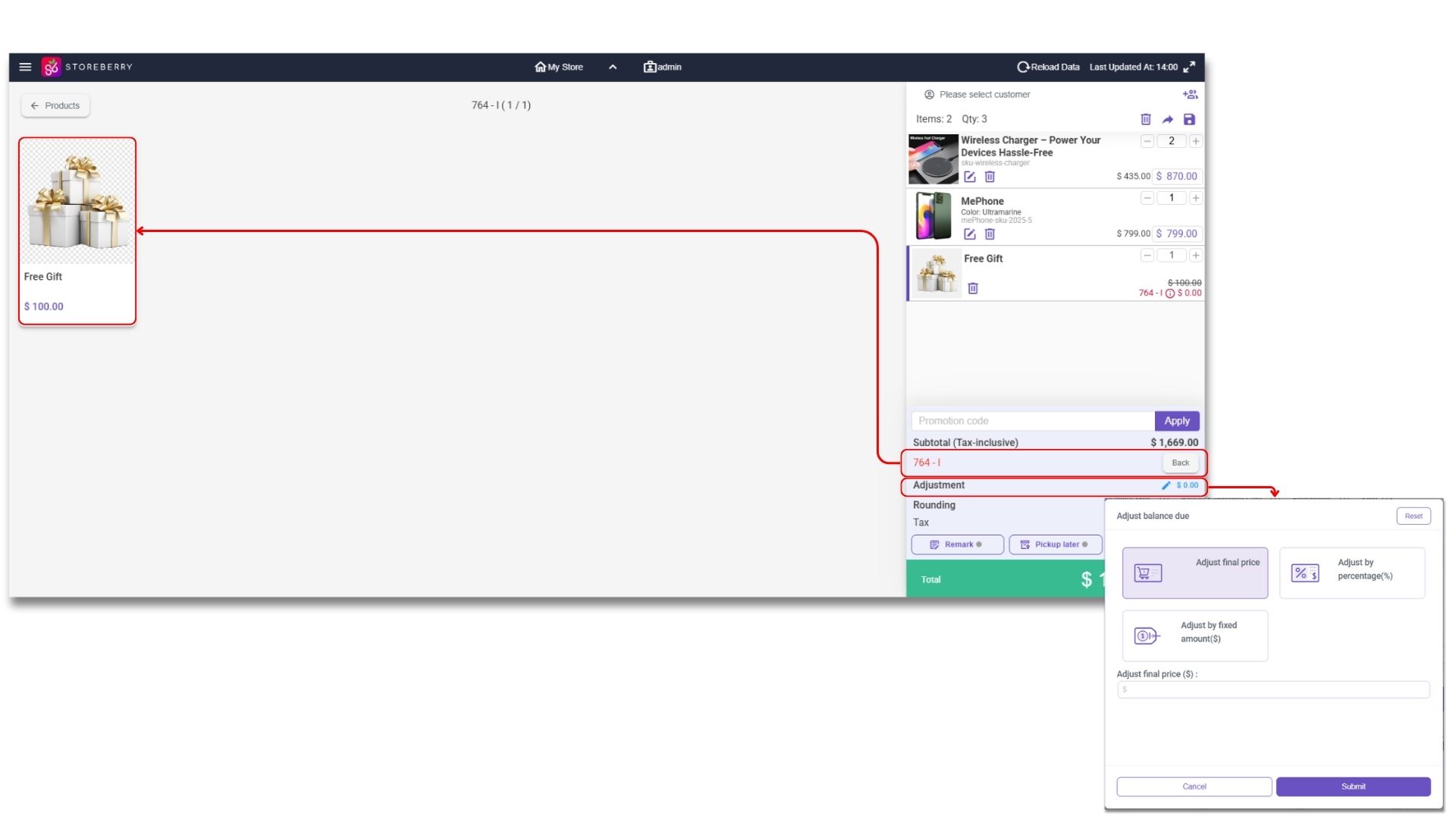
4）If there is an ongoing promotion, the system automatically adds the discount according to the conditions. You can also manually enter the discount code to provide discounts or click <mark style="color:purple;background-color:purple;">**「Adjustment」**</mark> to directly enter the full discount and change the total amount.

<figure><picture><source srcset="/files/Yc6Ua7DQ0ko83xs8dIvx" media="(prefers-color-scheme: dark)"><img src="/files/js8gTxZQ3gcvR9cUiAsQ" alt=""></picture><figcaption></figcaption></figure>

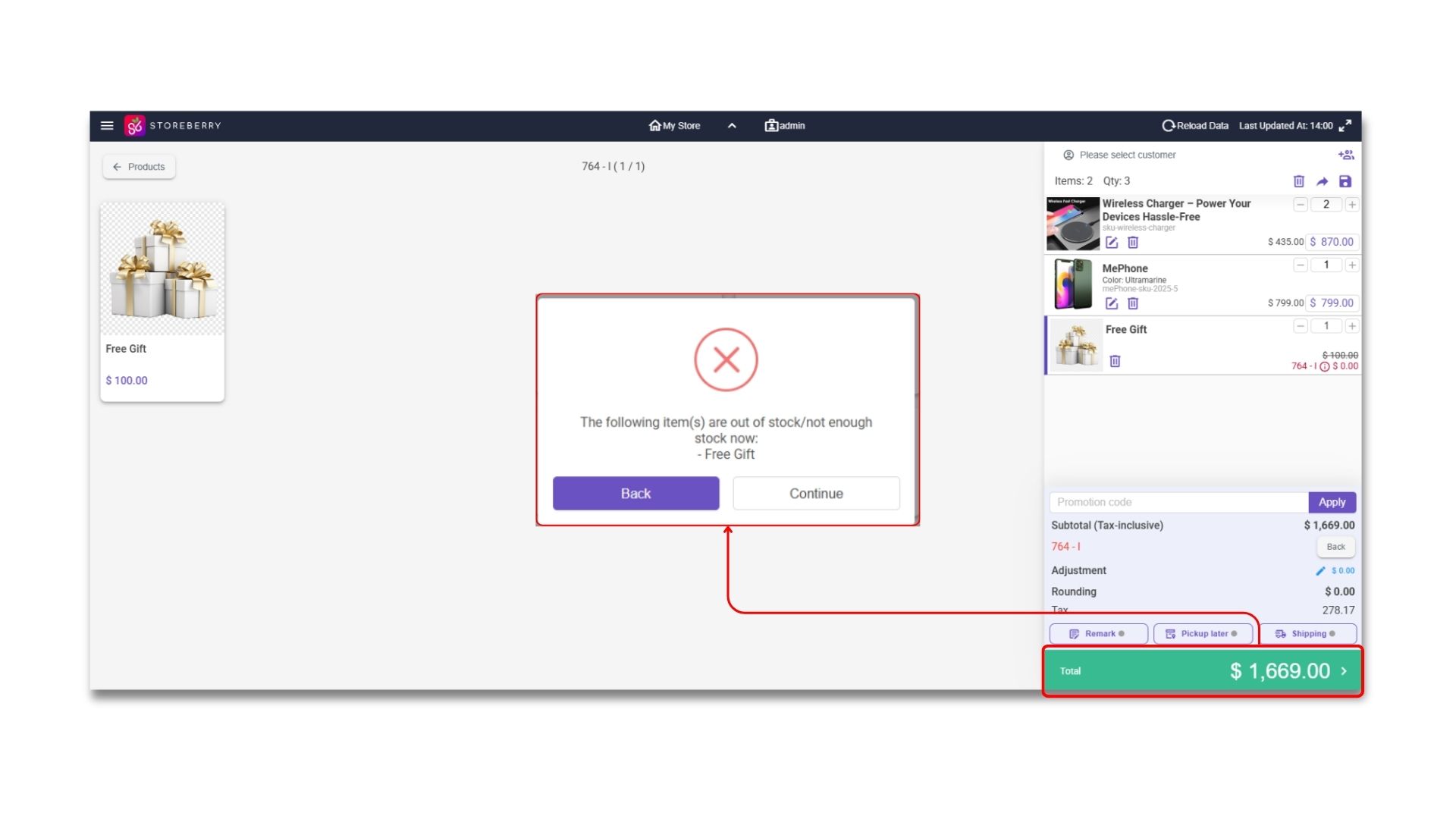
5）Click <mark style="color:purple;background-color:purple;">**「Total」**</mark> at the bottom right to go to the checkout page. Customers can choose a single payment method or pay a specified amount through multiple payment methods to settle the payment.&#x20;

If the product is out of stock, the system will also pop up a notice immediately.

<figure><picture><source srcset="/files/riKtmwRIlAx63Bclzh1V" media="(prefers-color-scheme: dark)"><img src="/files/YG9MgJoXyBdEyZ2XQ6A7" alt=""></picture><figcaption></figcaption></figure>

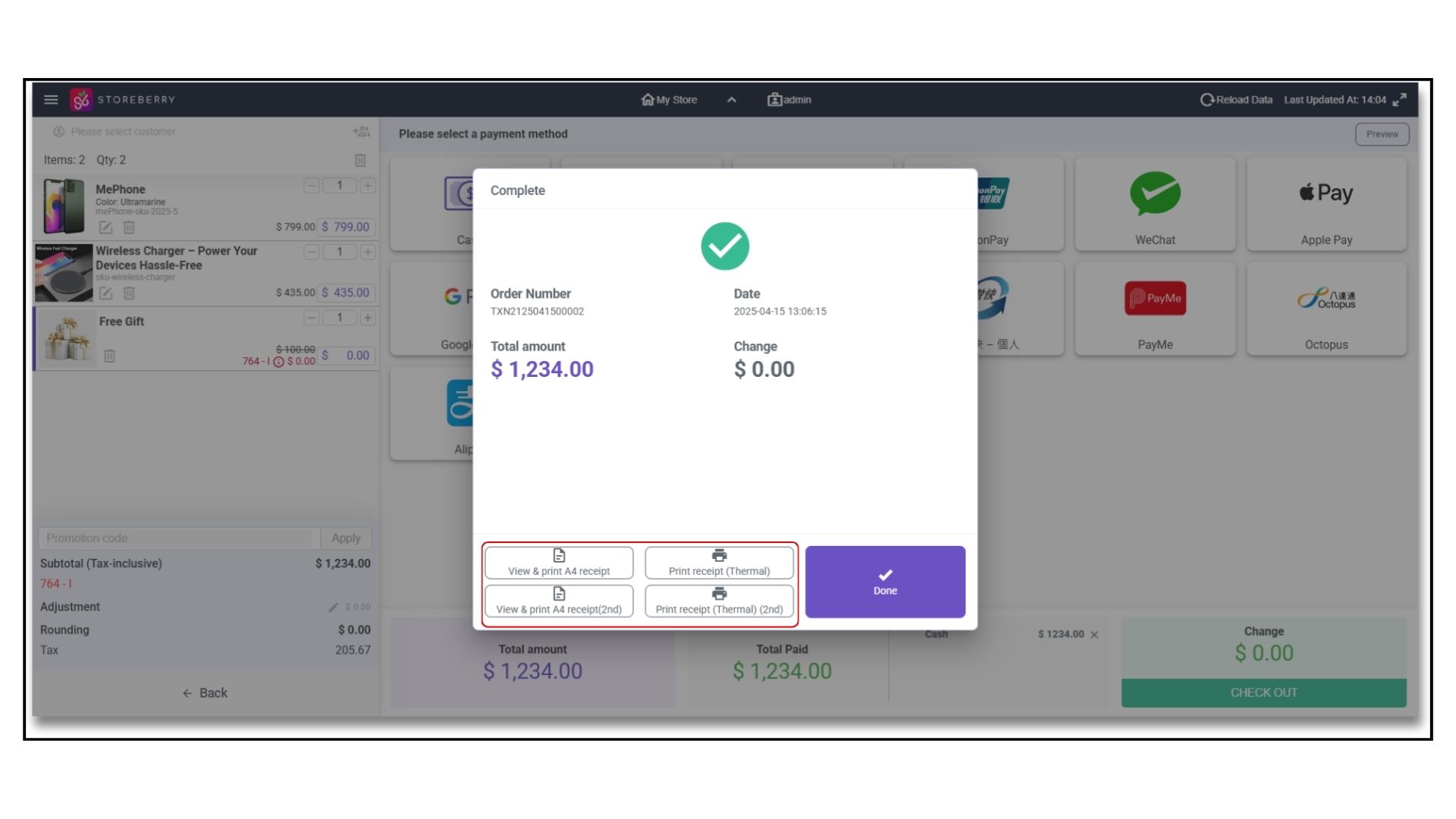
6）You can click <mark style="color:purple;background-color:purple;">**「Preview」**</mark> at the top right to double-check the order before checkout, and then click\ <mark style="color:purple;background-color:purple;">**「Check Out」**</mark> to complete the payment. After the checkout is completed, the system will automatically display the key information like reward point balance and redemption amount.&#x20;

\
You can also click&#x20;<mark style="color:purple;background-color:purple;">**「View and Print A4 Receipt」**</mark> / <mark style="color:purple;background-color:purple;">**「View and Print A4 Receipt(2nd)」**</mark>  or <mark style="color:purple;background-color:purple;">**「Print Receipt (Thermal)」**</mark> / <mark style="color:purple;background-color:purple;">**「Print Receipt (Thermal)」**</mark> to print the receipt according to the type of receipt.

<figure><img src="/files/qTfkbwsvNi9ip246428w" alt=""><figcaption></figcaption></figure>

#### **Add Product Remark**

1）Add customer information:\
Enter the POS page, click the <mark style="color:purple;background-color:purple;">**「Select Customer」**</mark> icon on the upper right to enter the customer page, then enter the customer's name or information in the search box, and click <mark style="color:purple;background-color:purple;">**「View Details」**</mark> to enter the customer information page.

<sub>\*If you need to create a new member, please refer to</sub> [<sub>3.1 (iv) Add Member</sub>](#iv-add-members)<sub>.</sub>

<figure><picture><source srcset="/files/IeLJRYBK1WEcIxvwtJKC" media="(prefers-color-scheme: dark)"><img src="/files/f0fm8zuCMF9Mk9XMHW81" alt=""></picture><figcaption></figcaption></figure>

2）Enter the required information for the custom field:\
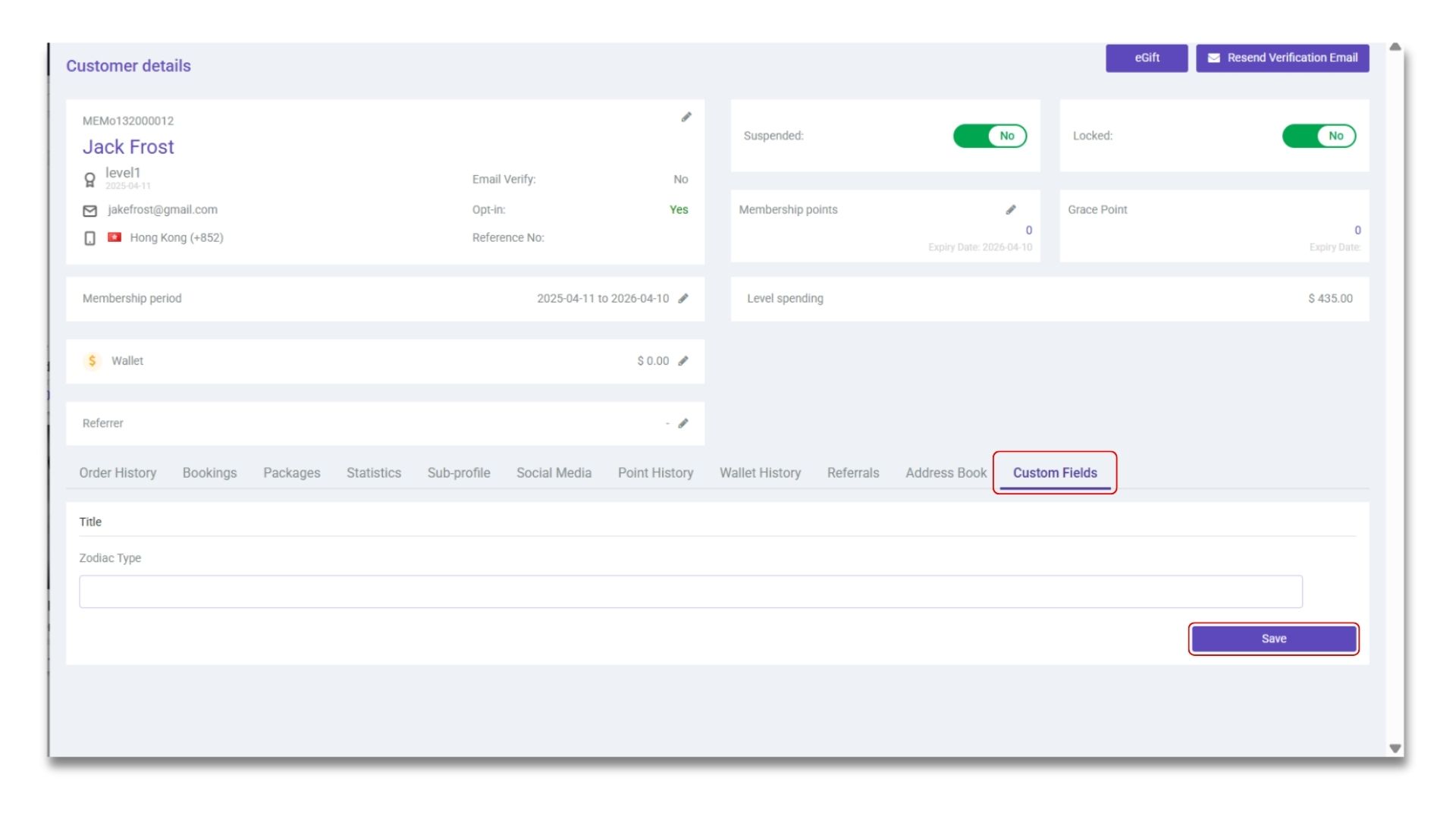
Click <mark style="color:purple;background-color:purple;">**「Custom Fields」**</mark>, and enter the customer's information one by one on the custom fields you have set in advance, then click <mark style="color:purple;background-color:purple;">**「Save」**</mark>.

<figure><picture><source srcset="/files/wZACWWK0NWfoqyQ7UUpt" media="(prefers-color-scheme: dark)"><img src="/files/hy9NuclFI1kAUcIpGDoJ" alt=""></picture><figcaption></figcaption></figure>

3）Choose a customer:\
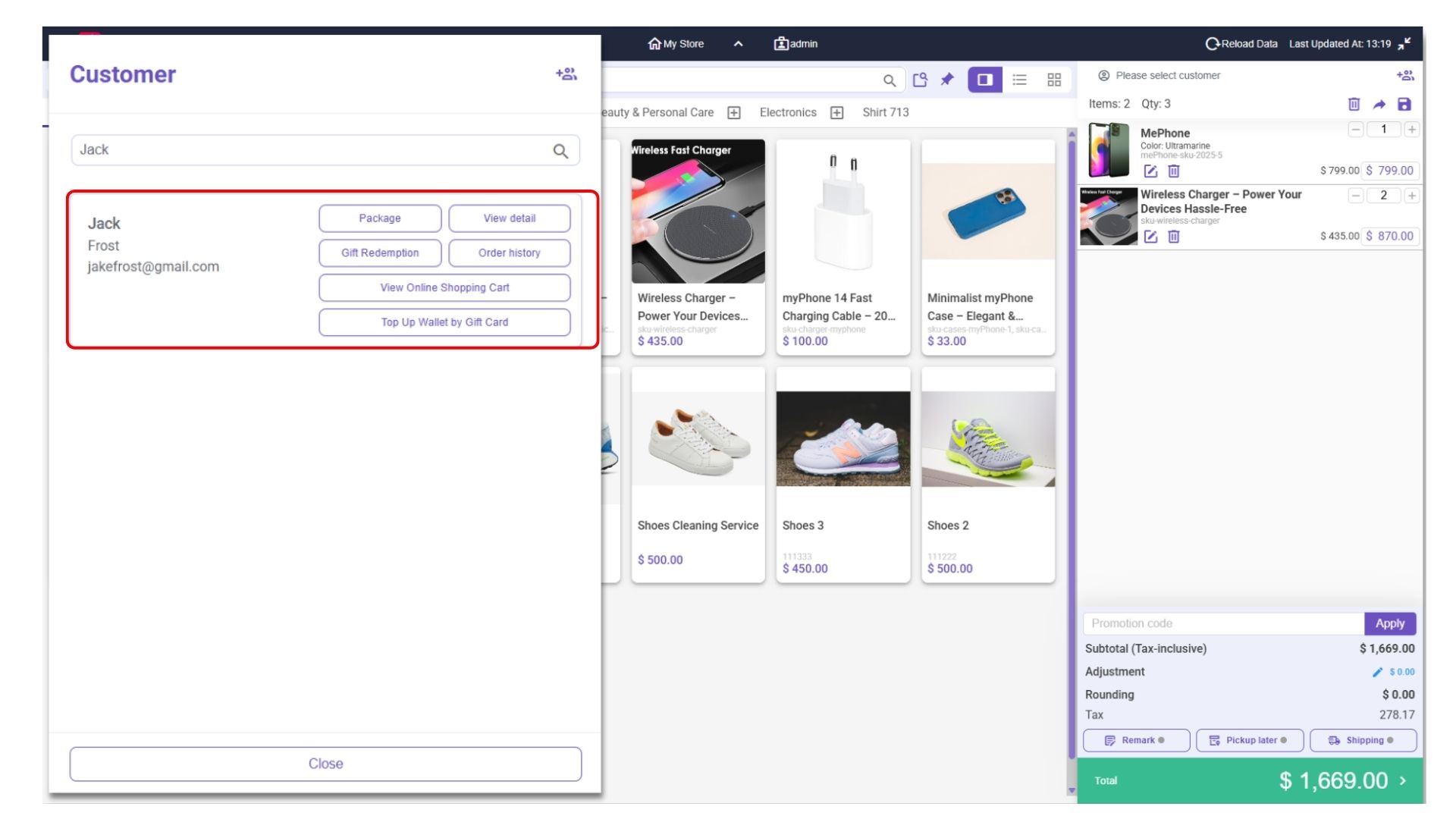
Return to the POS page, click the <mark style="color:purple;background-color:purple;">**「Select Customer」**</mark> icon on the upper right again to enter the customer page, and then click to add the customer to the order.

<figure><picture><source srcset="/files/FvlHkQtRE9RQtLxwvWZR" media="(prefers-color-scheme: dark)"><img src="/files/SwNU1ou7cd7ziHaYLDs9" alt=""></picture><figcaption></figcaption></figure>

4）Add product remark:\
If the product remark template has been added to the product: you only need to go to the POS page and click to select the product, then you will see the remark column of the product in the pop-up window, and the system will automatically fill in the customer's corresponding information according to the preset remark template settings. Then click <mark style="color:purple;background-color:purple;">**「Add」**</mark> to add the product to the checkout.

<figure><picture><source srcset="/files/lxwwz6IdUzUjXXXnyu30" media="(prefers-color-scheme: dark)"><img src="/files/PLPlmPYitRA4TdYRrJYB" alt=""></picture><figcaption></figcaption></figure>

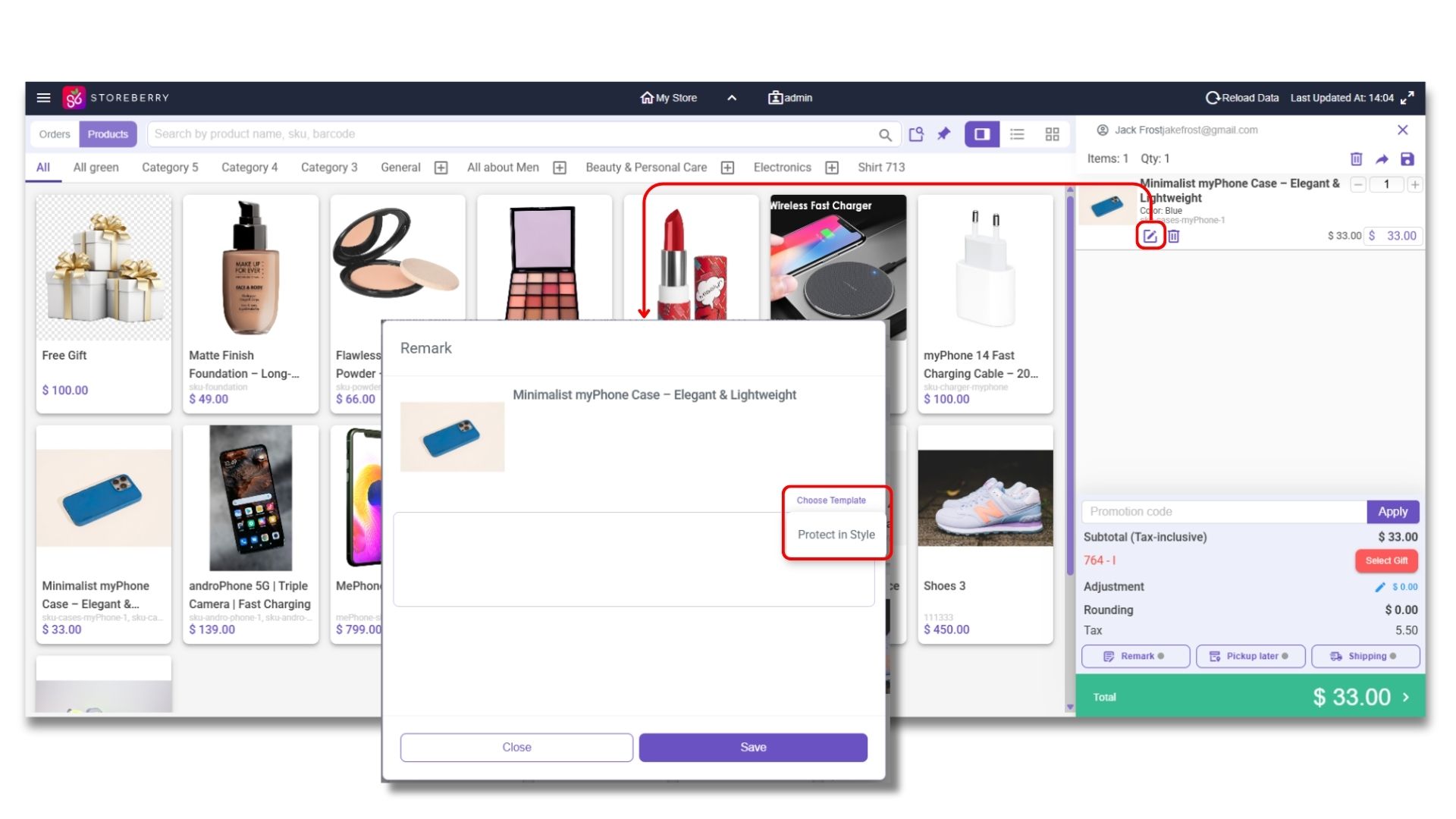
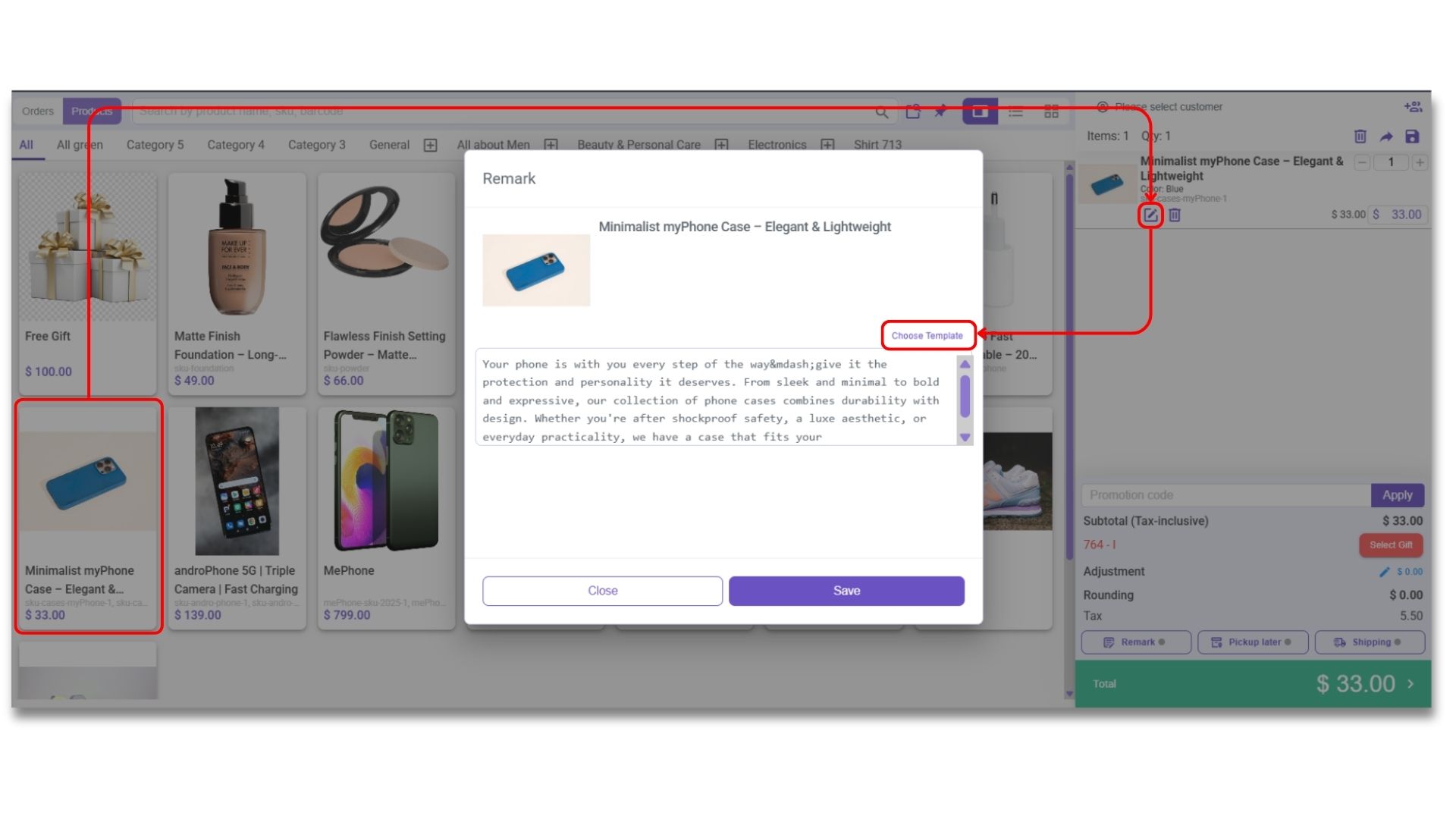
If the product remark template has not been added to the product, you can first click to select the product on the POS page and click the <mark style="color:purple;background-color:purple;">**「pencil image button」**</mark> to the right of the product in the checkout column. Then directly enter the remarks on the product remark column, or click <mark style="color:purple;background-color:purple;">**「Choose Template」**</mark> on the right to add the product remark from the preset templates. Finally, click <mark style="color:purple;background-color:purple;">**「Save」**</mark> to complete the setting.

<figure><picture><source srcset="/files/cp3XXPXhcVdiFDeCQx2y" media="(prefers-color-scheme: dark)"><img src="/files/BuKQnoOvwXiq62cpZRJY" alt=""></picture><figcaption></figcaption></figure>

5）To print a receipt:\
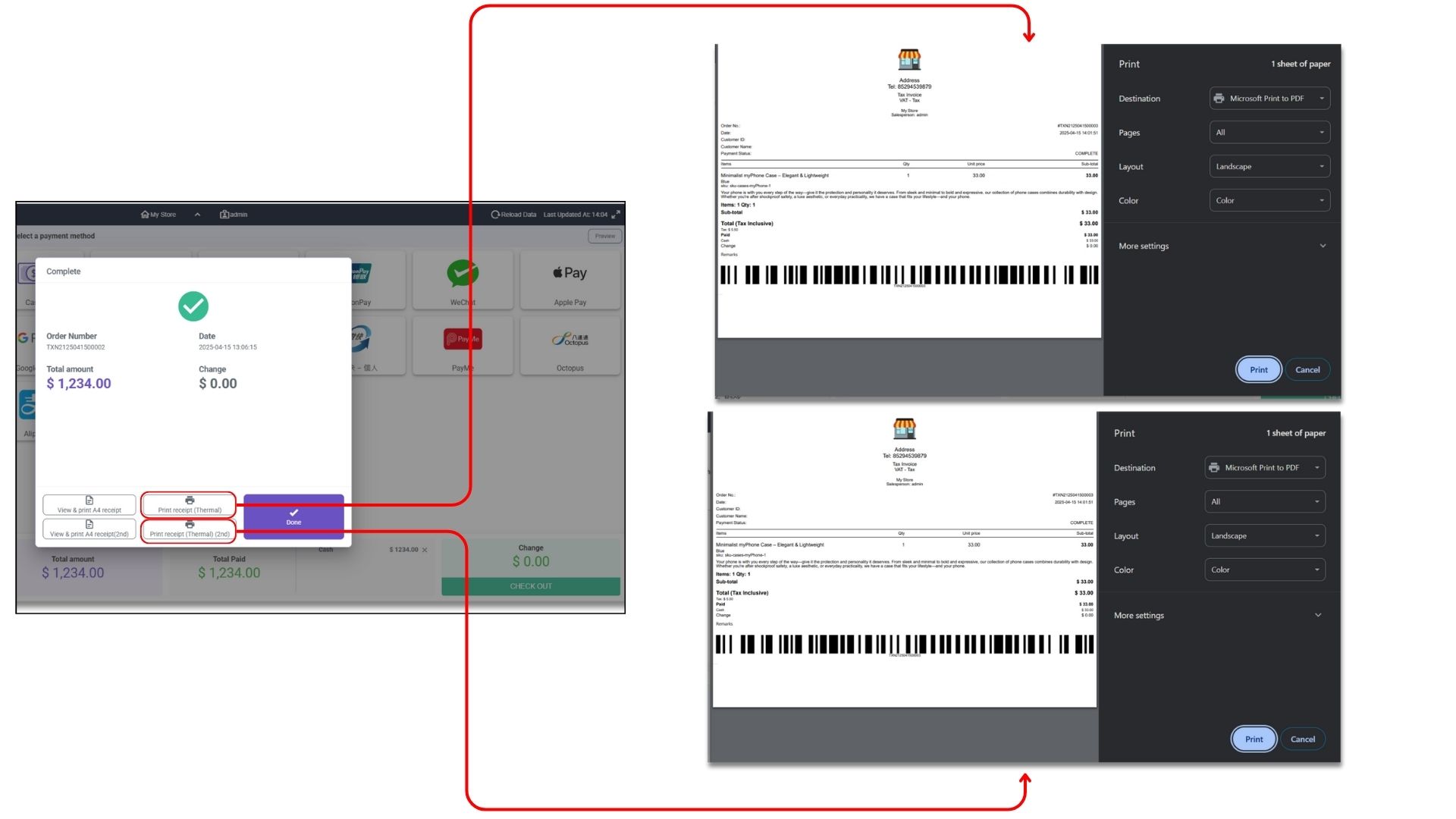
After completing the product remarks template setup and checkout, you can click <mark style="color:purple;background-color:purple;">**「Print Receipt (Thermal)」**</mark> to print the receipt. The relevant customer information in the product remarks will also be displayed on the receipt\*.

<sub>\*The product remark template function currently only supports thermal paper receipt printing.</sub>

<figure><picture><source srcset="/files/JUOOvYrYyFRJRoHEMUAO" media="(prefers-color-scheme: dark)"><img src="/files/mg1Wd0vBoZo6OdQ9mDn2" alt=""></picture><figcaption></figcaption></figure>

### **(ii) Order Overview**

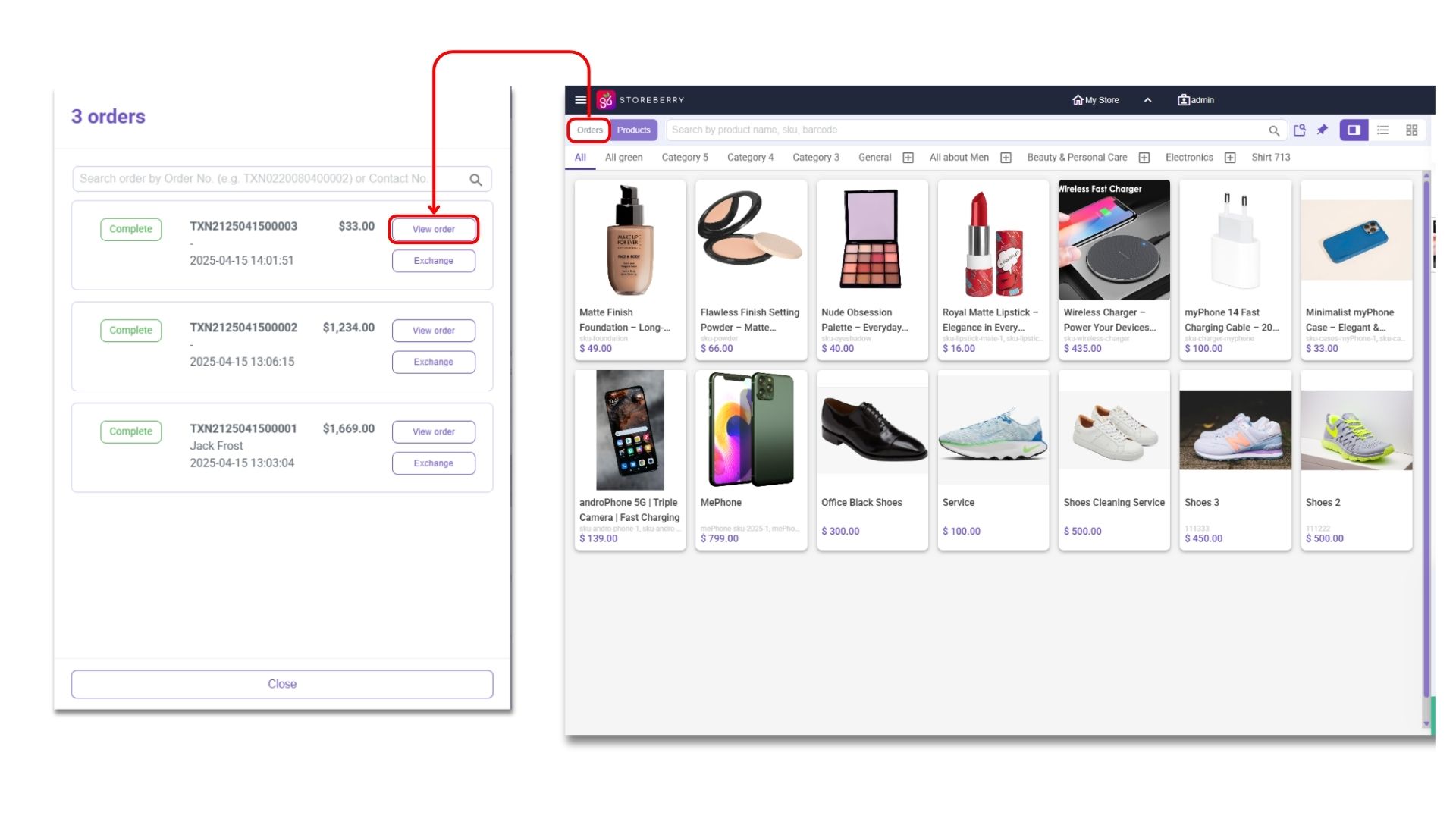
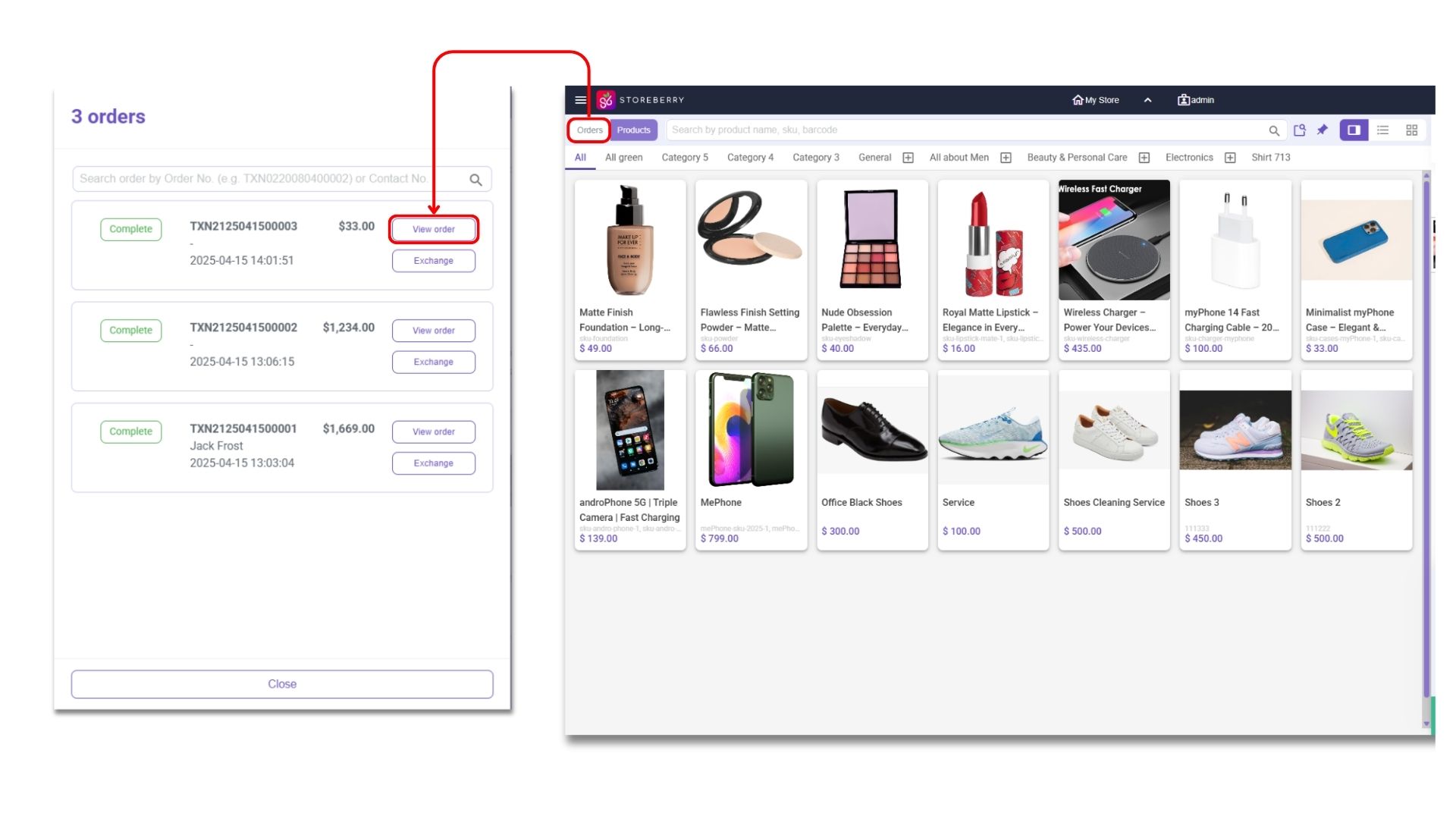
You can click <mark style="color:purple;background-color:purple;">**「Orders」**</mark> at the top left of the POS page and then click <mark style="color:purple;background-color:purple;">**「View Order」**</mark> to review the order details.

<figure><picture><source srcset="/files/lrwEvujH1U5LaqThhFgM" media="(prefers-color-scheme: dark)"><img src="/files/WlszaKttTqFlwTYVH5bh" alt=""></picture><figcaption></figcaption></figure>

### **(iii) Product Return/ Refund**

Product Return

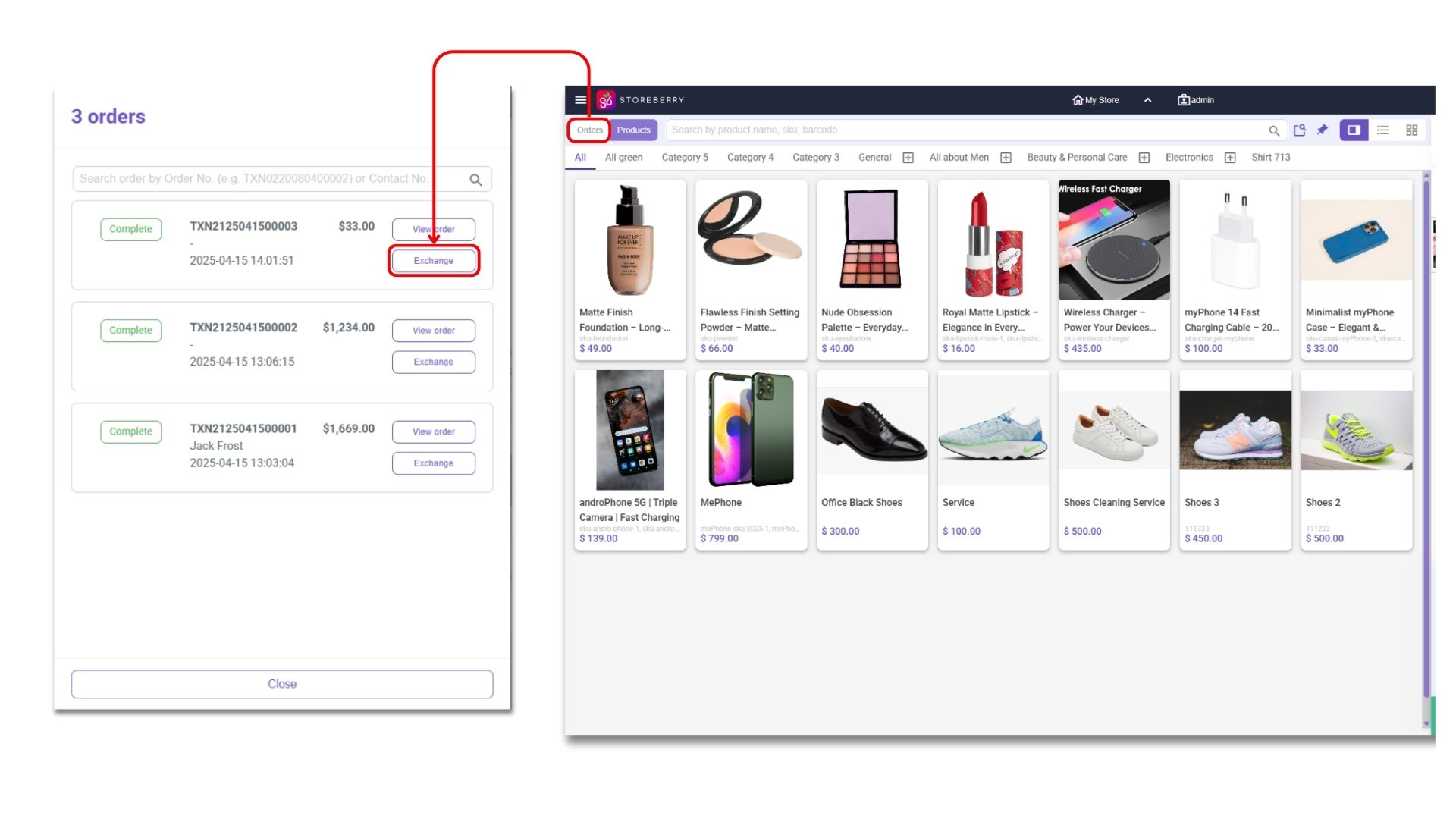
1）You can click <mark style="color:purple;background-color:purple;">**「Orders」**</mark> at the top left of the POS page and then click the <mark style="color:purple;background-color:purple;">**「Exchange」**</mark> button next to the order.

<figure><picture><source srcset="/files/KP6CJB76kd8S0QUgRpG7" media="(prefers-color-scheme: dark)"><img src="/files/6zEQFvUEsNrYiAcK7MLL" alt=""></picture><figcaption></figcaption></figure>

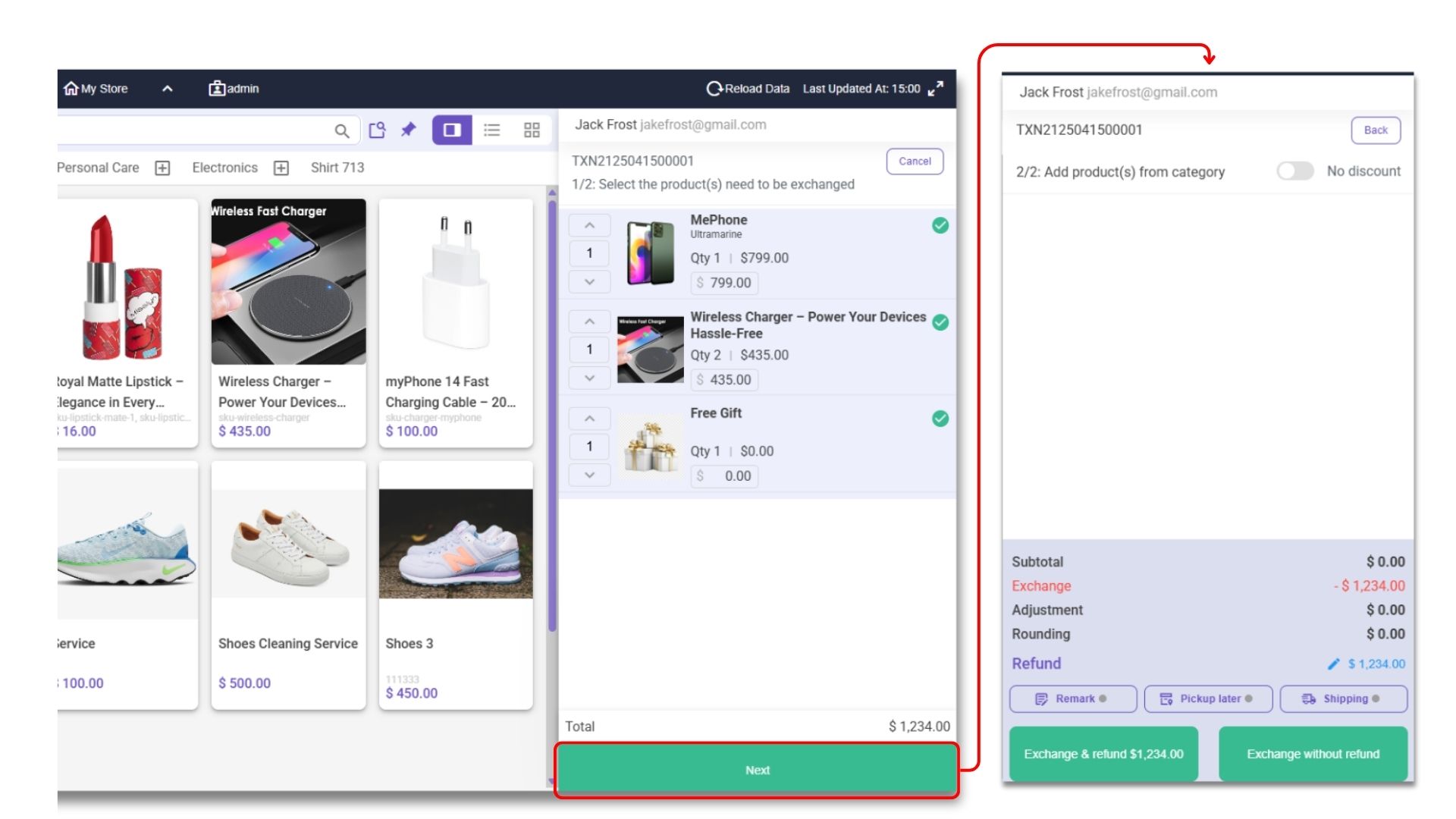
2）Choose the products and quantities to be exchanged from the left, and then click <mark style="color:purple;background-color:purple;">**「Next」**</mark> to select new products for exchange. If the value of the exchanged product is lower than the original product, you can choose <mark style="color:purple;background-color:purple;">**「Exchange and refund $XXX」**</mark> or 「<mark style="color:purple;background-color:purple;">**Exchange without refund」**</mark>, and then click <mark style="color:purple;background-color:purple;">**「Checkout」**</mark> to complete the exchange process.

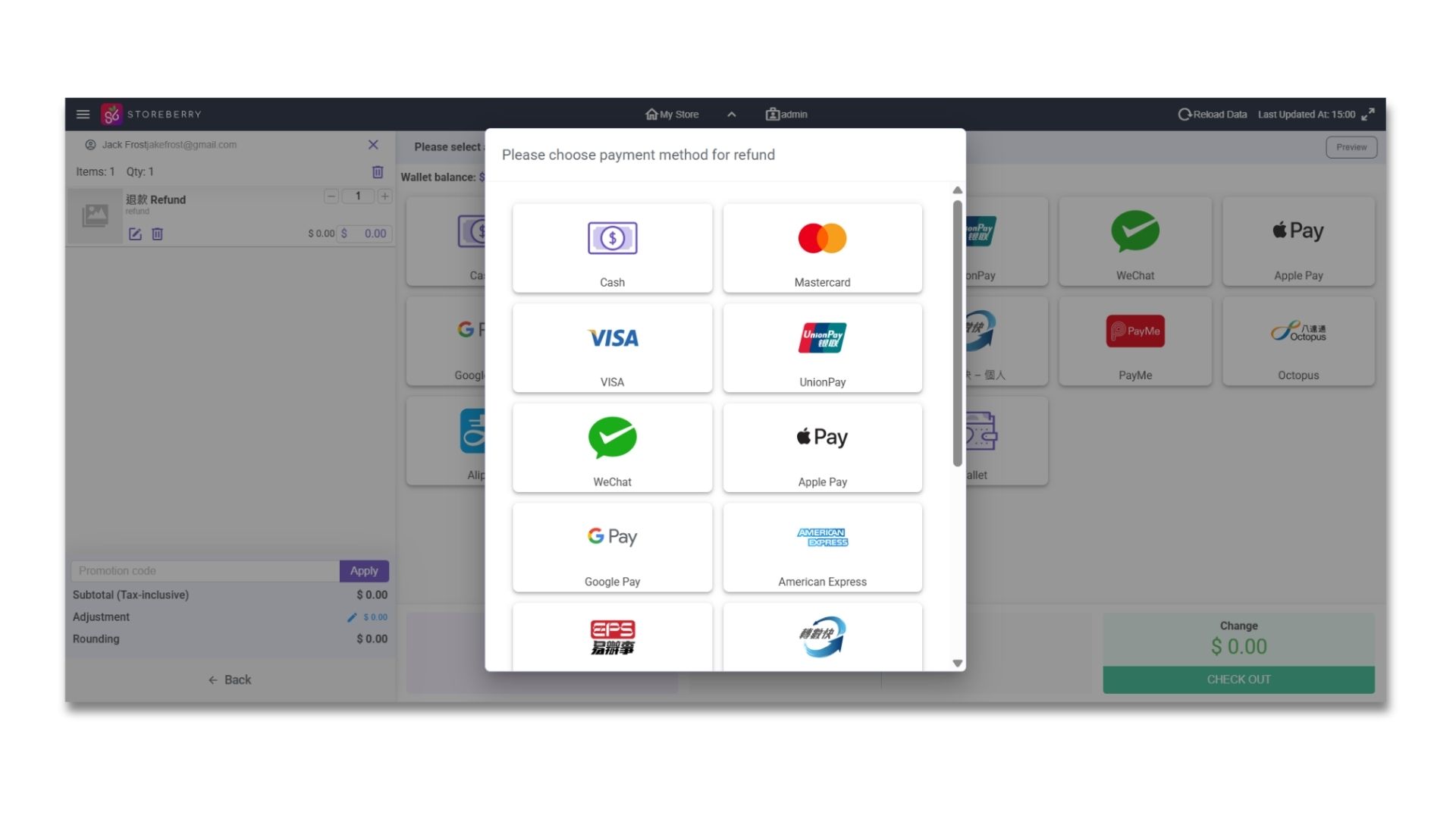
If you don’t need to exchange for other items, you can directly click <mark style="color:purple;background-color:purple;">**「Exchange and refund $XXX」**</mark>→<mark style="color:purple;background-color:purple;">**「Checkout」**</mark> to complete the return procedure.

<figure><picture><source srcset="/files/71LqBaDr5xBebtV2sd7T" media="(prefers-color-scheme: dark)"><img src="/files/SkwJRsMCcAh5nBO3McEY" alt=""></picture><figcaption></figcaption></figure>

<figure><picture><source srcset="/files/JYmnnngBD88nHDMOEgFT" media="(prefers-color-scheme: dark)"><img src="/files/0NTLUq5iEsAd0rW96Ehn" alt=""></picture><figcaption></figcaption></figure>

**Order Refund**

1. You can click <mark style="color:purple;background-color:purple;">**「Orders」**</mark> at the top left of the POS page and then click <mark style="color:purple;background-color:purple;">**「View Order」**</mark> next to the order.

<figure><img src="/files/GBjOFxMaE0xDfCHlVd3Y" alt=""><figcaption></figcaption></figure>

2. Click <mark style="color:purple;background-color:purple;">**「Refund this order」**</mark> 「Confirm」 at the top right of the order details, and the order status will be updated to “Refund” immediately.

<figure><img src="/files/yuepAAR3oKQJDhKbHdrw" alt=""><figcaption></figcaption></figure>

### **(iv) Add members**

You can click the small icon at the top right corner to enter the customer page, and then click the small icon on the top right of the search box to add customer information and register as a member.

<figure><picture><source srcset="/files/g4oK3TyZ0uhYjWBxmRaM" media="(prefers-color-scheme: dark)"><img src="/files/CG7st6dh2fPNYLAPoMzL" alt=""></picture><figcaption></figcaption></figure>

### **(v) Review Sales Summary**

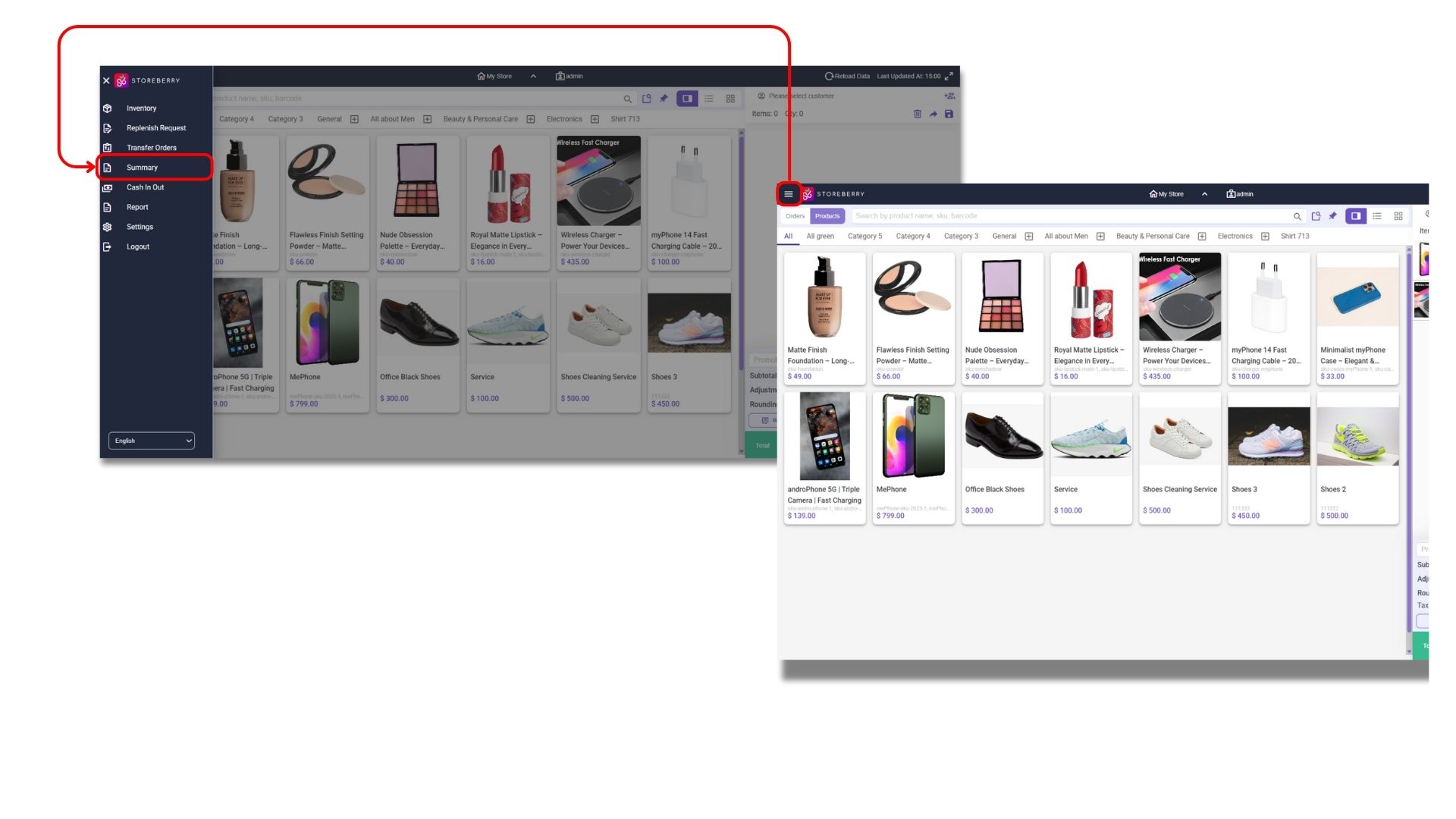
Click the "☰" icon at the top left corner, and then select <mark style="color:purple;background-color:purple;">**「Summary」**</mark> in the toolbar.

<figure><picture><source srcset="/files/fzQQ1x96O3IbMfxcA60k" media="(prefers-color-scheme: dark)"><img src="/files/Z6Kzky7affaLRcrv5JDf" alt=""></picture><figcaption></figcaption></figure>

### **(vi) Price Adjustment Limit Settings**

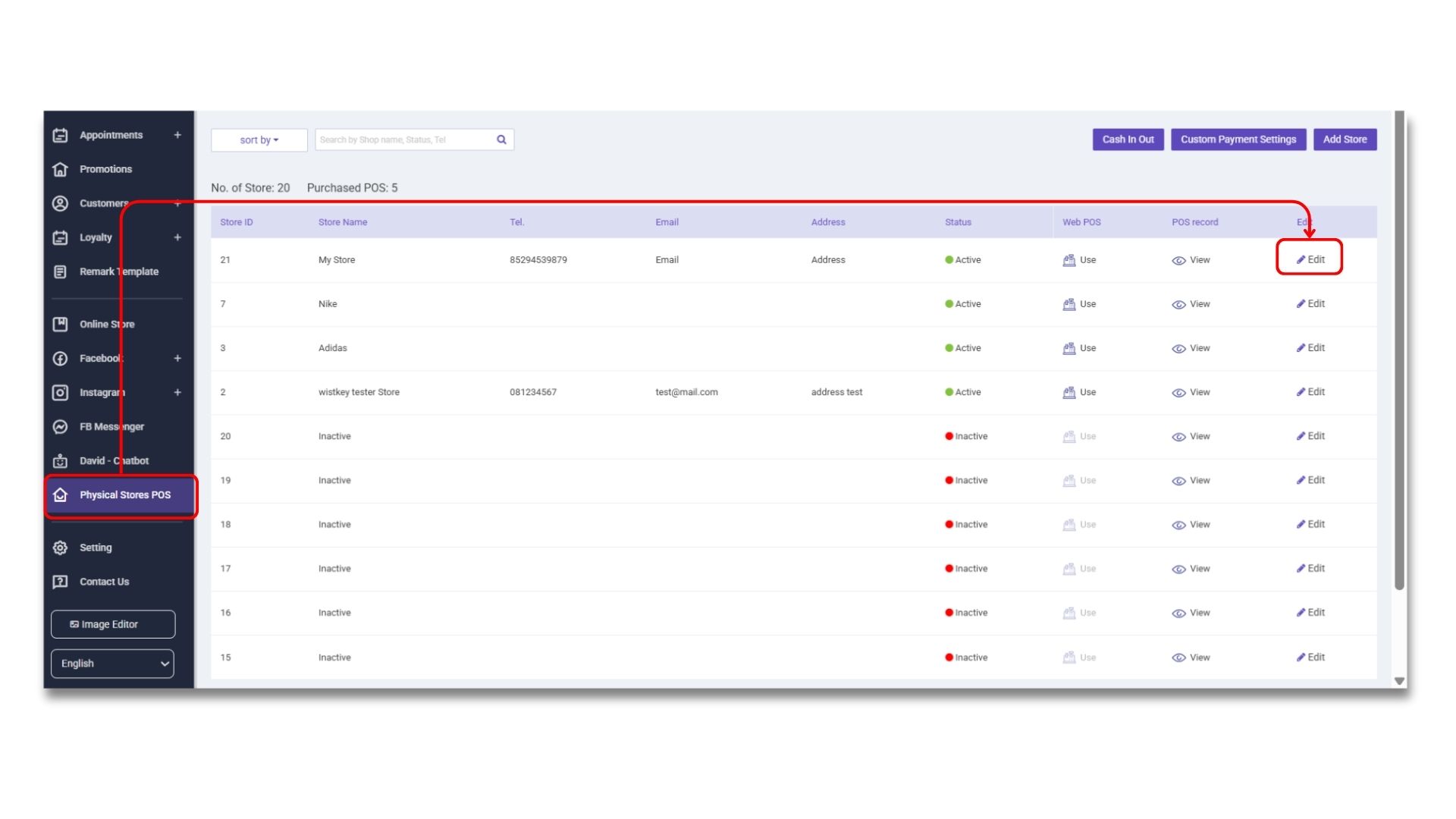
1）You can select the POS that you need to set permissions in the <mark style="color:purple;background-color:purple;">**「STOREBERRY Admin Panel」**</mark> →<mark style="color:purple;background-color:purple;">**「Physical Stores POS」**</mark>and then click the <mark style="color:purple;background-color:purple;">**「Edit」**</mark> button on the right.

<figure><picture><source srcset="/files/ZrIBXBAWSHZjv6ZPPBOH" media="(prefers-color-scheme: dark)"><img src="/files/Ve32PNbdPNHA0M0BtIqF" alt=""></picture><figcaption></figcaption></figure>

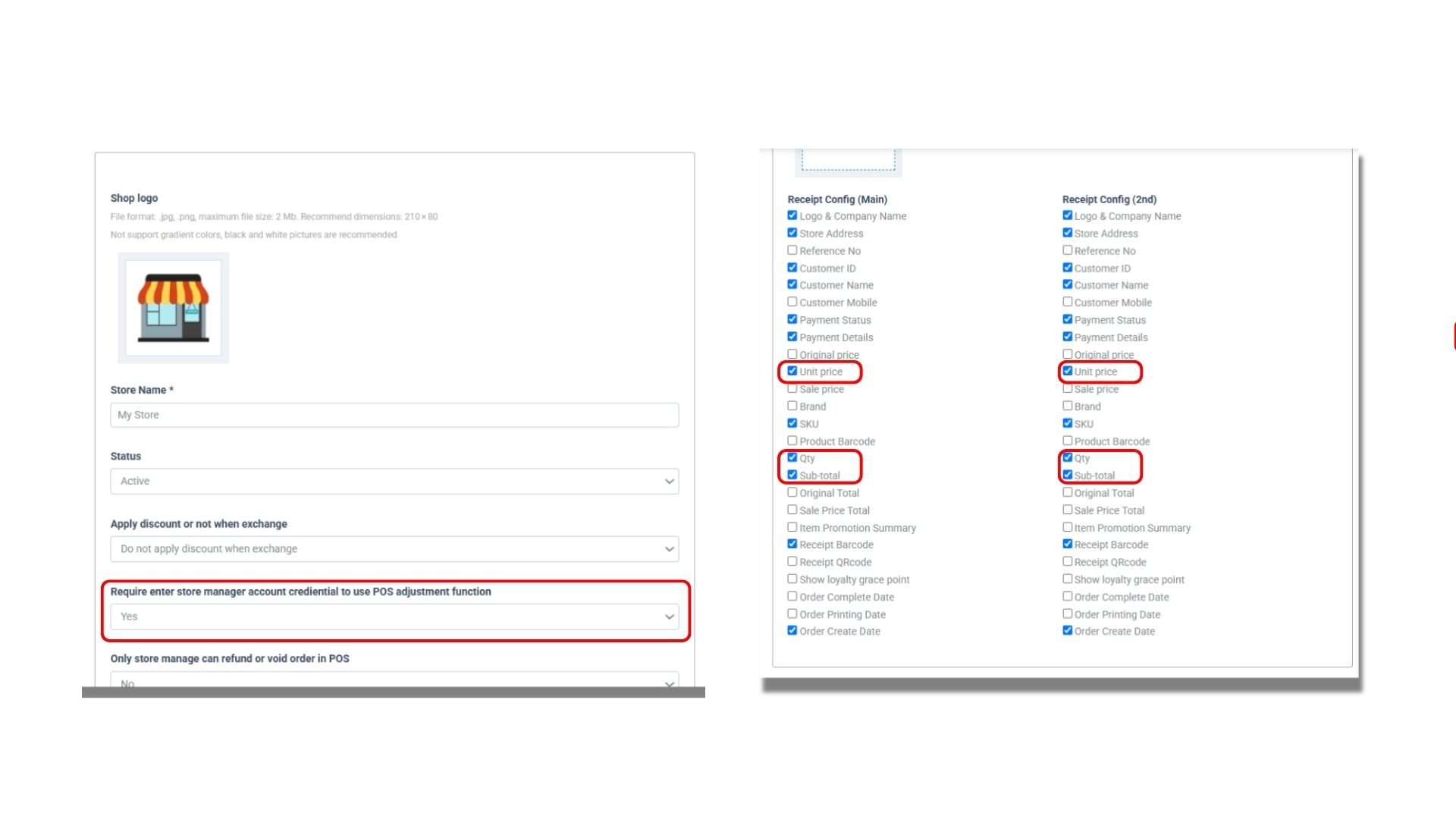
2）Choose <mark style="color:purple;background-color:purple;">**「Yes」**</mark> in the “Require enter store manager account credential to use POS adjustment function” box. You can also choose whether to display the original price on the receipt in the “Receipt Configuration” column. Then click <mark style="color:purple;background-color:purple;">**「Save」**</mark> to save the settings.

<figure><img src="/files/JGPpQEQQeitIAm0Bd9oD" alt=""><figcaption></figcaption></figure>

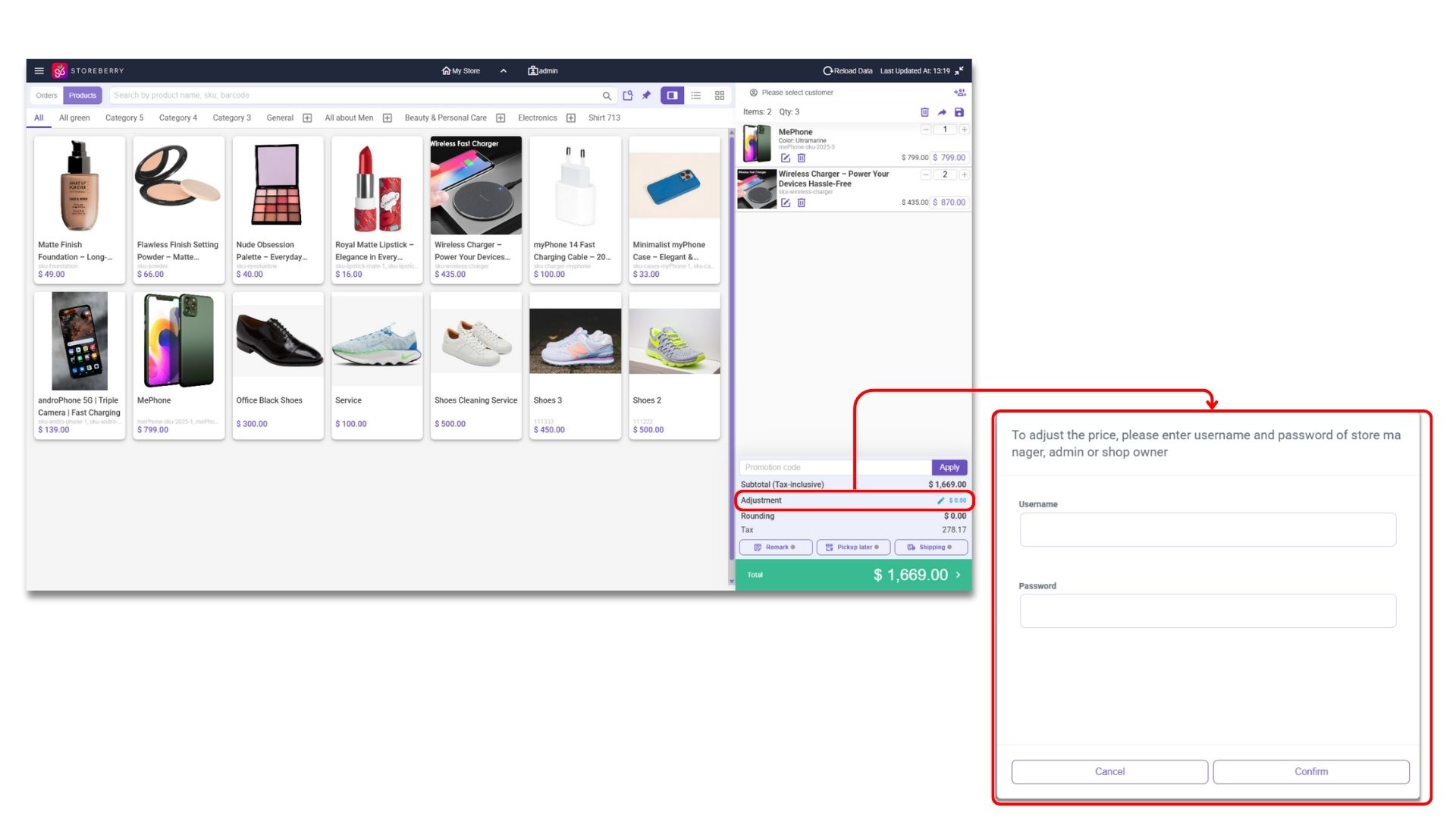
3）After updating the setting, you must first enter the store manager’s account and password before you adjust the price of the total order amount or enter a discount during checkout.
<figure><picture><source srcset="/files/8Q1S5SPAoBNsJkOya8Ok" media="(prefers-color-scheme: dark)"><img src="/files/QJyAujfjYDTGlpO9UsEJ" alt=""></picture><figcaption></figcaption></figure>


---

# Agent Instructions: Querying This Documentation

If you need additional information that is not directly available in this page, you can query the documentation dynamically by asking a question.

Perform an HTTP GET request on the current page URL with the `ask` query parameter:

```
GET https://storeberry-docs.gitbook.io/user-guide/en/physical-store-pos/3.1-operational-functions.md?ask=<question>
```

The question should be specific, self-contained, and written in natural language.
The response will contain a direct answer to the question and relevant excerpts and sources from the documentation.

Use this mechanism when the answer is not explicitly present in the current page, you need clarification or additional context, or you want to retrieve related documentation sections.