> For the complete documentation index, see [llms.txt](https://storeberry-docs.gitbook.io/user-guide/llms.txt). Markdown versions of documentation pages are available by appending `.md` to page URLs; this page is available as [Markdown](https://storeberry-docs.gitbook.io/user-guide/en/online-store/2.3-shipping-settings.md).
# 2.3 Shipping Settings
A smooth and efficient delivery process can bring customers an enjoyable shopping experience and greatly enhance customer satisfaction! STOREBERRY is well aware of the needs of merchants and customers for logistics services. In order to provide you with more diversified logistics service options, STOREBERRY has not only pre-built a list of SF Express outlets for you to choose from, but also cooperates with ShipAny Smart Logistics Gateway to provide more convenient channels for you to directly connect multiple local logistics service providers.
In STOREBERRY, you can set flexible local and international shipping methods according to different delivery countries, such as fixed delivery fee calculated by order or incremented by the number of items, charging delivery fee based on the total weight of the order, and setting free shipping conditions (E.g. spending a certain amount, purchasing a specified product, etc.) to attract customers to purchase additional products!
### **(i) Add Delivery Method**
Local Shipping Settings
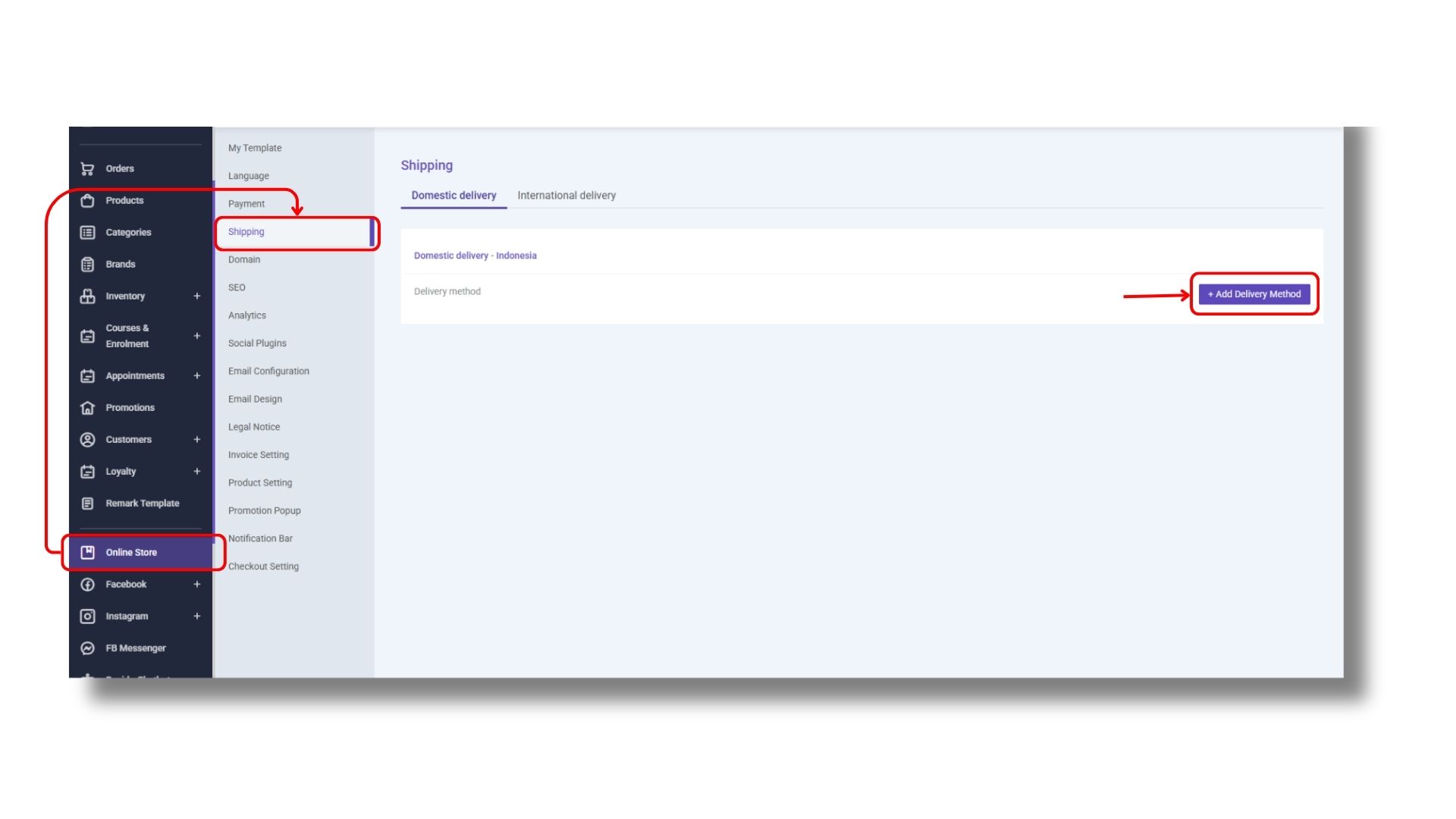
1)You can click +Add Delivery Method in STOREBERRY Admin Panel → \[Online Store] → \[Shipping] to add more shipping methods for customers to choose.
2) Click 「Delivery Method」
to expand the options for shipping methods. STOREBERRY has a pre-built SF outlet address list for you to choose from. Here you can choose various SF Network, such as SF Business Station Locations, SF Store Locations, SF Service Partner Location (Convenience stores and Shell Stations) and SF Locker Locations, etc.
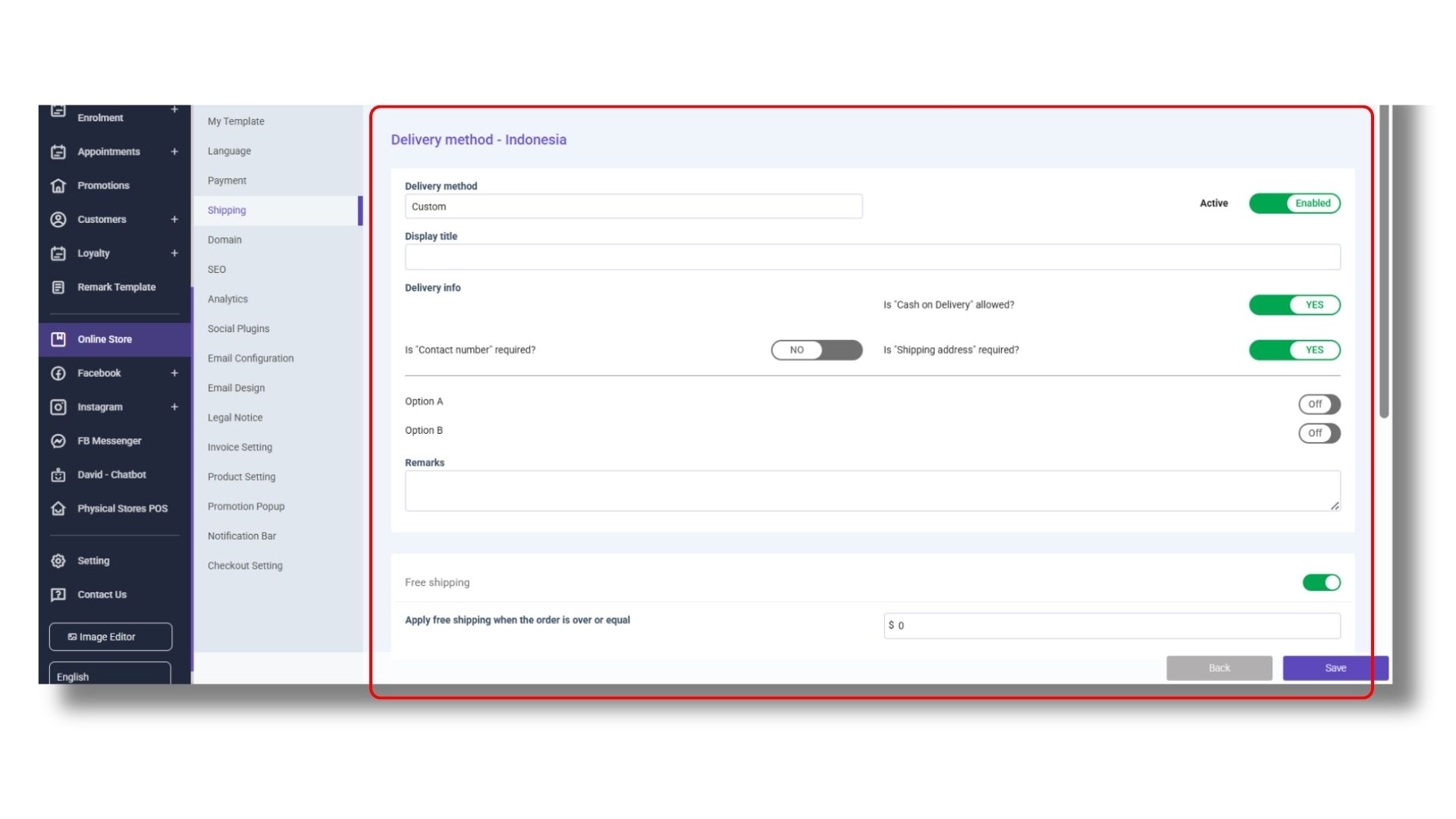
You can also choose 「Custom」 to set up other logistics service providers by yourself, and then set the content of the delivery information that customers need to fill in.
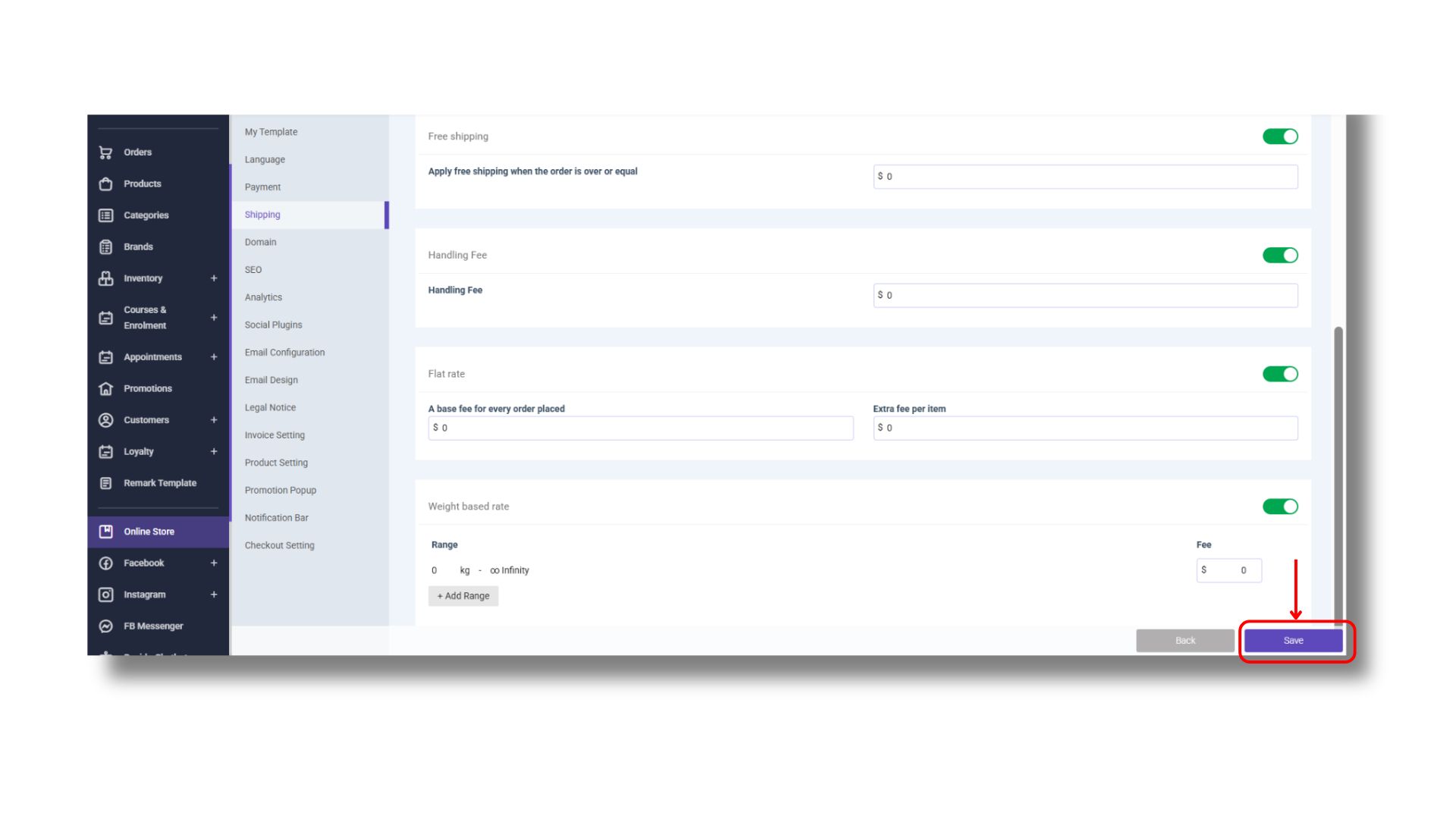
3)Then set the personalized logistics service settings one by one as needed, such as free shipping amount requirements, fixed delivery fee per orders or items, or billing by weight. Finally, click
\ 「Save」 to complete the setting.
International Shipping Settings
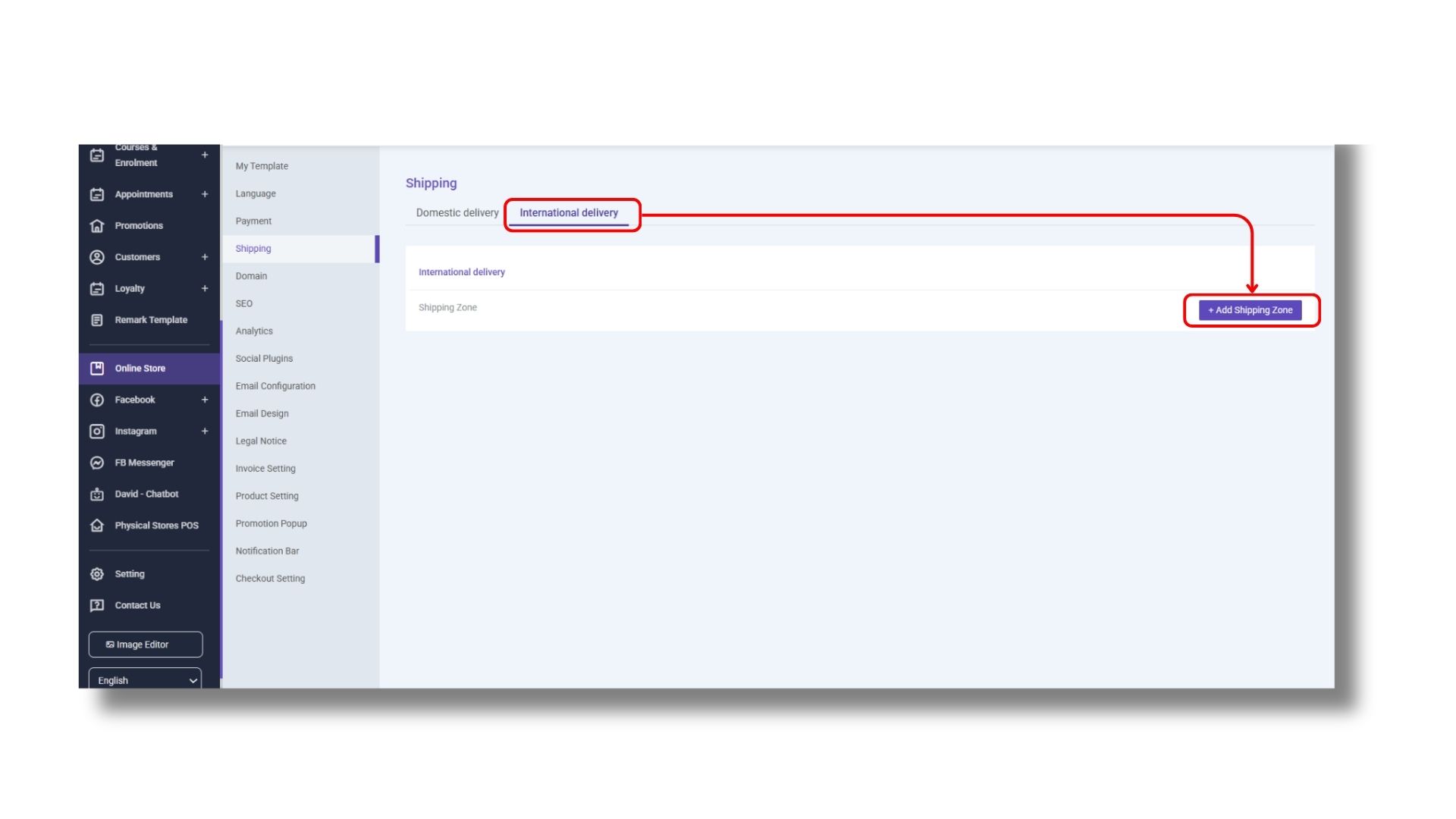
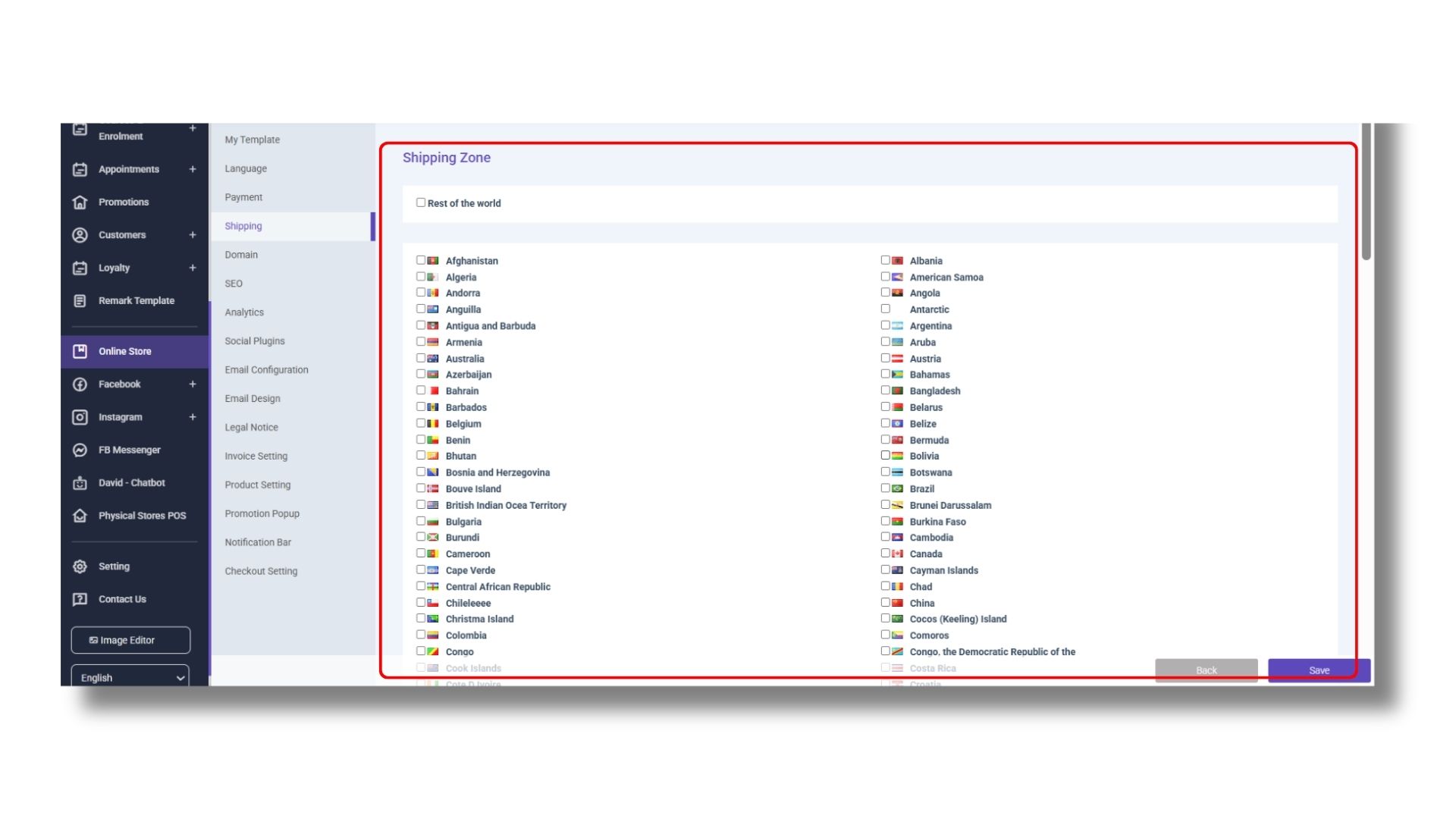
1)You can select 「International Delivery」 at the top of the STOREBERRY Admin Panel → 「Online Store」 → 「Shipping」 page, and then click 「+Add Shipping Zone」 .
2)Select the applicable shipping country here and click
「Save」
.
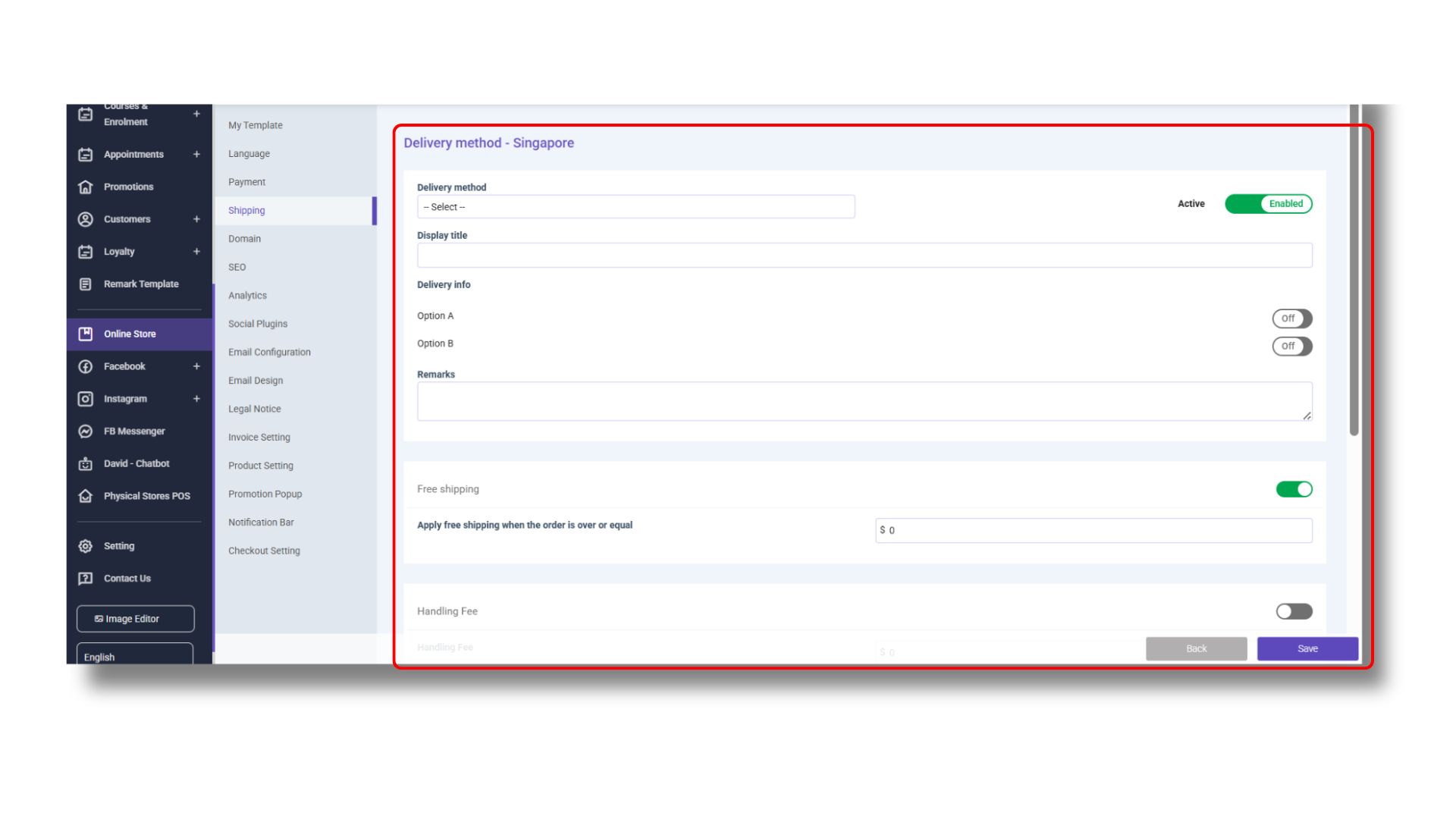
3)Then customize the personalized logistics service settings according to the needs, such as the name of the logistics service provider, the content of the delivery information that the customer needs to fill in, the free shipping condition, the fixed delivery fee per order or item or billing by weight, etc. Finally, click
\ 「Save」
to complete the setting.
### **(ii)** ShipAny Smart Logistics Gateway
If you are using ShipAny for the first time, please register a ShipAny Account in [ShipAny](https://portal.shipany.io/user/register?referrer=storeberry) and follow the steps below to get your API Key:
\*For instructions on using ShipAny Smart Logistics Gateway to dispatch orders, please [click here](/user-guide/en/common-settings/1.2-order-management.md).
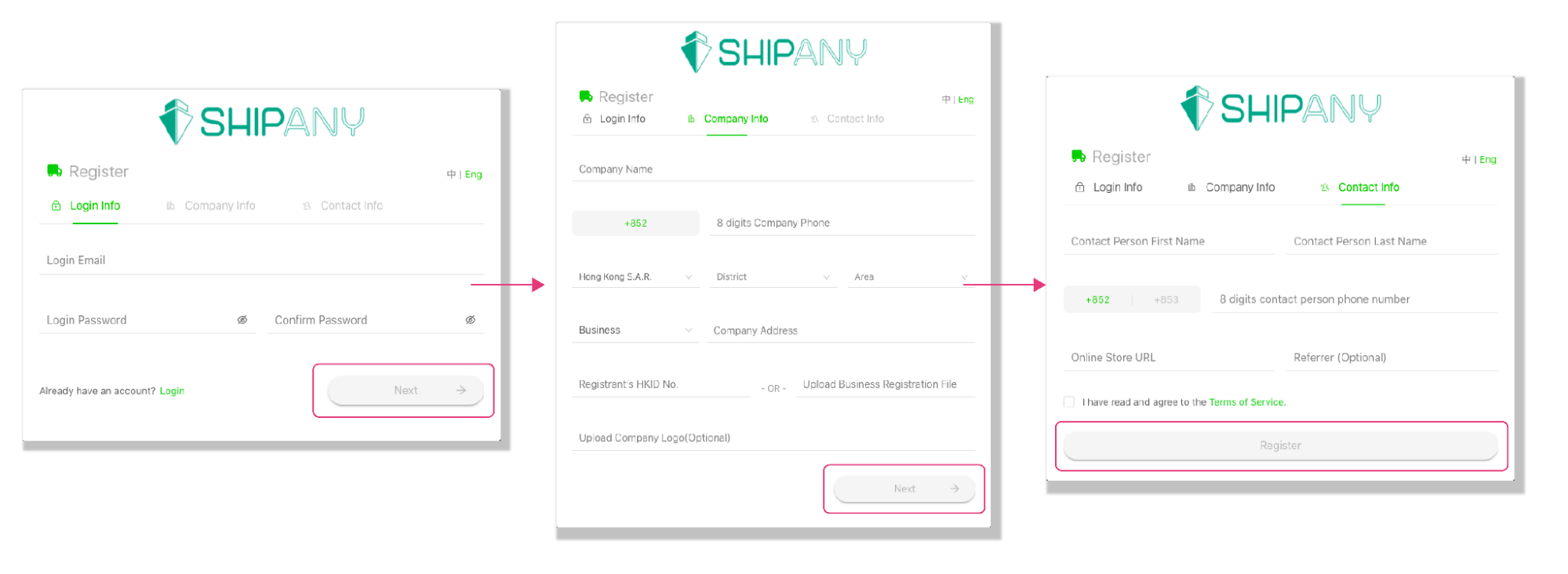
Register A ShipAny Account:
1)First enter your email address and password, click "Next" to continue the registration process.
2)Enter your company name, phone number and address one by one, and upload your business registration certificate and company logo, then click "Next" to continue. If you do not have a business registration certificate, you can choose to use your personal ID number instead.
3)Enter the contact information including name and phone number, and tick to agree after reading the terms and conditions, then click "Register".
4)Finally, please go to your email inbox to check and copy the registration verification code sent to you by ShipAny, and then return to the website to enter the verification code to register successfully.
Activate Your Desired Logistics Service Provider:
1)Log in to your ShipAny account, click your company name at the top right of the page, then click "Settings" in the options.
2)Go to "Courier Settings" to activate and enable your desired logistics service provider.
Get Your API Key:
1)Log in to your ShipAny account, click your company name at the top right of the page, then click "Settings" in the options.
2)Go to "Account Settings" and copy your API key.
Connect Your ShipAny Account To The STOREBERRY Platform:
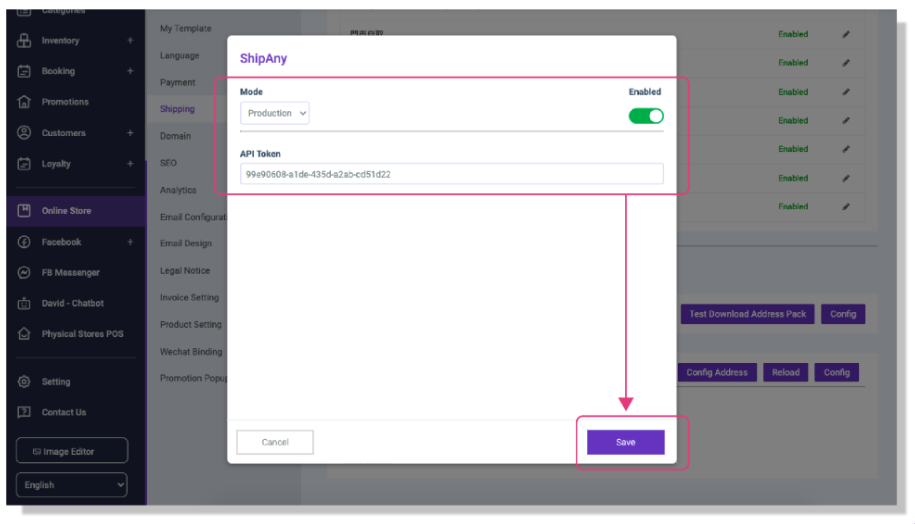
1)You can go to the STOREBERRY Admin Panel → 「Online Store」 → 「Shipping」 in the delivery plugin area at the bottom of the page, and click 「Config」 in the "ShipAny" column.
2)Select
「Production」
mode and paste your API key, then click 「Enable」 and 「Save」
.
3)Finally, click
「Config Address」
to enter your pickup address and information, and then click 「Save」 to complete the setting. After completing the settings, you can add shipping methods attached to ShipAny here according to the steps of “Local Shipping Settings” for customers to choose from.
4)If you want to activate more logistics service providers after connecting the API key, you can go to ShipAny to activate and enable the logistics service providers you need. Then go back to the
\ STOREBERRY Admin Panel
→ 「Online Store」
→ 「Shipping」 at the bottom of the page and Click 「Reload」
in the "ShipAny" column.
Setting for Shipping Methods (ShipAny)
1\)Go to the admin panel: **\[Online Store] → \[Shipping] → \[+ Add Delivery Method]**
2\)Choose the Delivery method: **\[ShipAny]**
3\)Enter the title to be displayed on the online store, and select the logistics service providers you need.
4\)Choose the address type. Customers will see the corresponding selection menu or input fields when placing an order.
5\) Enter the specific shipping information.\
*(Shipping fee payment method and delivery method can be modified again before creating the shipment order.)*
6\)Set the shipping fee calculation method. If you offer **free shipping above a certain amount**, you must also define the charging method for orders below that amount.

.png)
.png)
.png)
.png)

.jpg?alt=media&token=eaf6689f-ecde-4b91-ba1d-39757a9fb2dc)


