# 2.1 Store Design & Settings

### (i) Web Storefront Design

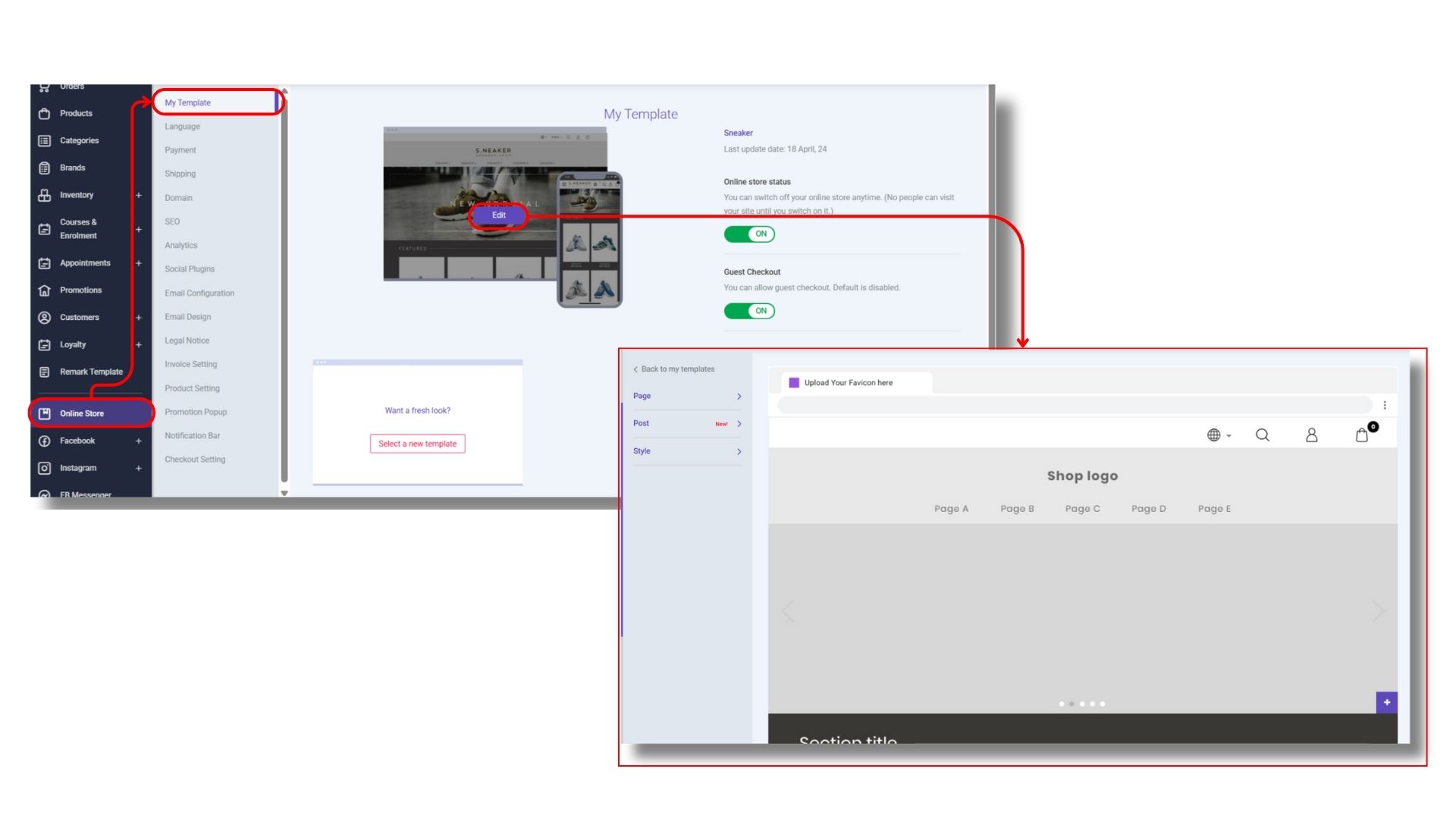
STOREBERRY has prepared a variety of simple yet stylish UI templates for you. With absolutely no coding skills required, you can go to 「<mark style="color:purple;background-color:purple;">**STOREBERRY Admin Panel**</mark>」 → <mark style="color:purple;background-color:purple;">**「Online Store」**</mark> → <mark style="color:purple;background-color:purple;">**「My Template」**</mark> and pick the desired style and theme for your website, then upload your brand logo and related information to complete the interface design of your online store!

Want to make further modifications? You can simply tap <mark style="color:purple;background-color:purple;">**「Edit」**</mark> on the selected UI template to edit the layout, color and others to create a unique and outstanding online store.

<sub>\*All STOREBERRY designs adopt responsive web design (RWD) which can automatically optimize the website layout, regardless of whether you are using mobile phone, tablet, or desktop computer to browse our website.</sub>

<div align="center" data-full-width="false"><figure><picture><source srcset="/files/v3VphQydeWK7VfRIDS0f" media="(prefers-color-scheme: dark)"><img src="/files/7BbnJBmBBz636IIA8PAF" alt=""></picture><figcaption></figcaption></figure></div>

STOREBERRY Storefront Design Tips：

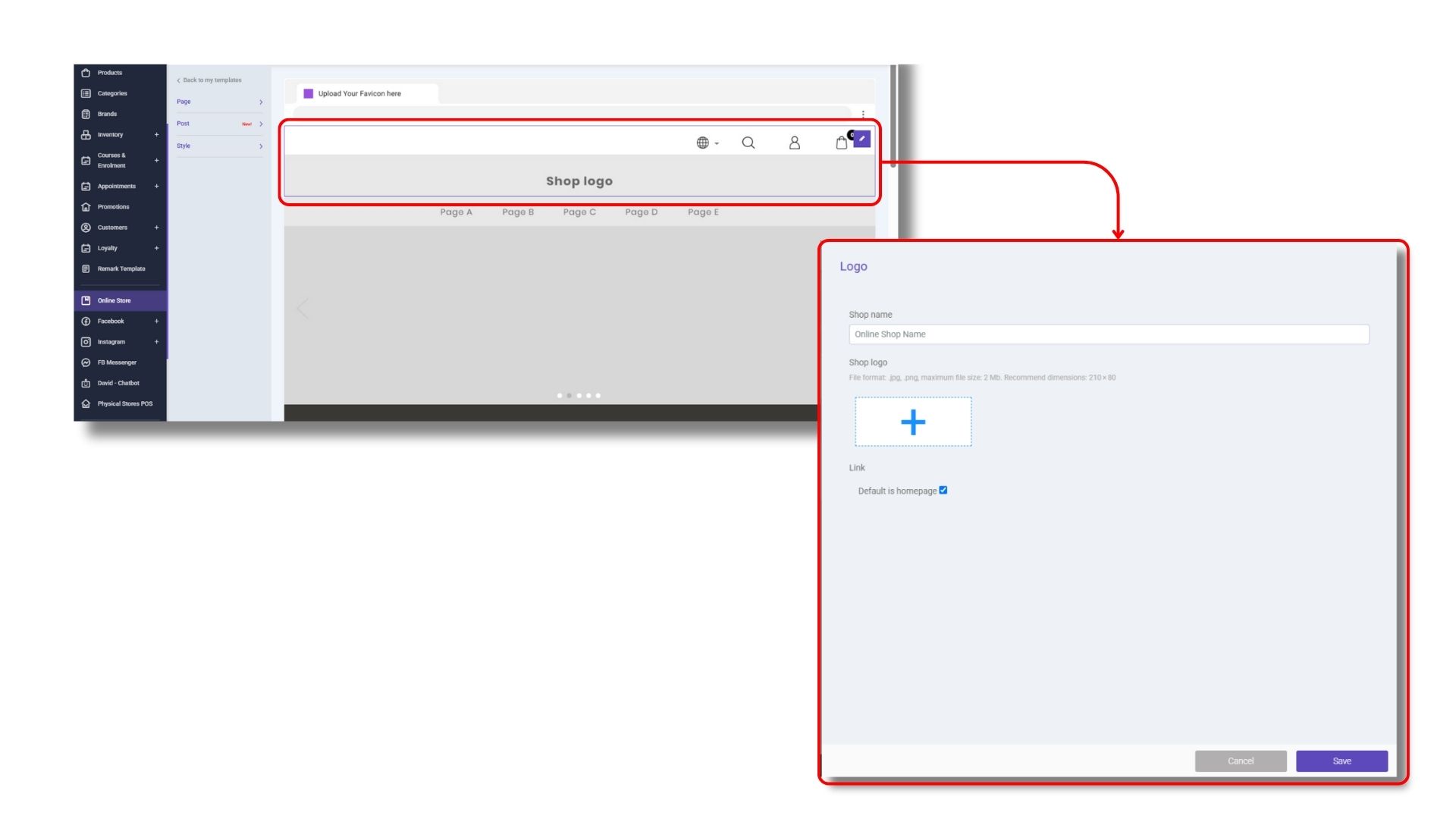
1）How do I update the store name and logo?

1\. Go to   <mark style="color:purple;background-color:purple;">「</mark><mark style="color:purple;background-color:purple;">**STOREBERRY Admin Panel**</mark><mark style="color:purple;background-color:purple;">」</mark> → <mark style="color:purple;background-color:purple;">**「Online Store」**</mark> → <mark style="color:purple;background-color:purple;">**「My Template」**</mark> → <mark style="color:purple;background-color:purple;">**「Edit (Template)」**</mark>

2\. Go to “Shop logo” and tap the small <mark style="color:purple;background-color:purple;">**「Edit」**</mark> icon on the right hand side and update the store name and logo.

3\. Click <mark style="color:purple;background-color:purple;">**「Save」**</mark> to confirm the updates.

<div data-full-width="false"><figure><picture><source srcset="/files/qUrXcNcI4OBIyf4nF1QN" media="(prefers-color-scheme: dark)"><img src="/files/oDmNR8eQubGuueplDHVm" alt=""></picture><figcaption></figcaption></figure></div>

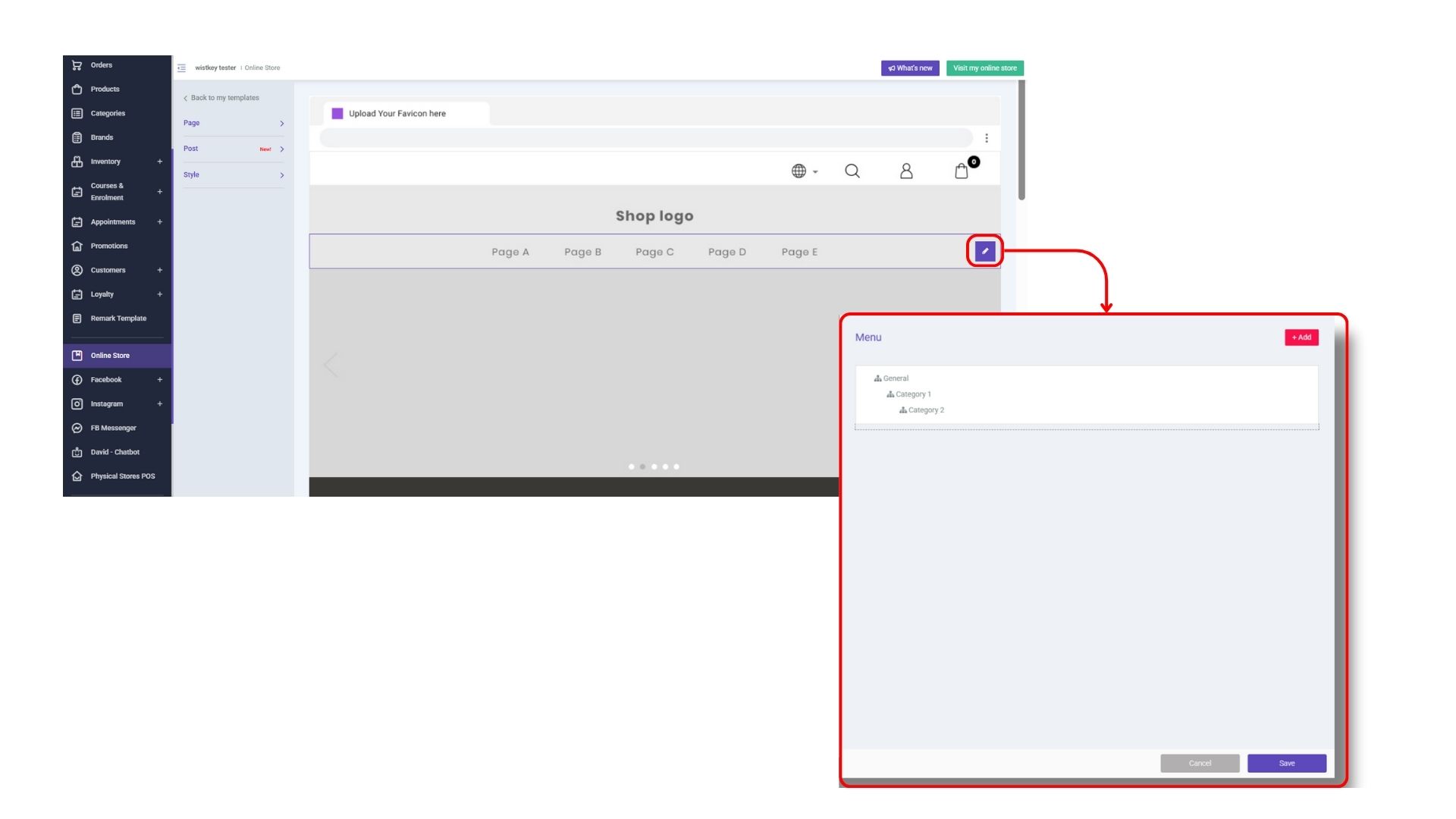
2）How do I edit the top menu bar?

After establishing your product categories, you can feel free to edit the top menu bar of your website.

1\. Enter the interface setting at <mark style="color:purple;background-color:purple;">「</mark><mark style="color:purple;background-color:purple;">**STOREBERRY Admin Panel**</mark><mark style="color:purple;background-color:purple;">」</mark> →<mark style="color:purple;background-color:purple;">**「Online Store」**</mark> →「My Template」→ 「Edit (Template)」

2\. Tap the small <mark style="color:purple;background-color:purple;">**「Edit」**</mark> icon next to the top menu bar.

3\. Click <mark style="color:purple;background-color:purple;">**「+Add」**</mark> to add new product categories, pages and links and adjust the order of items by drag and drop.

Tap <mark style="color:purple;background-color:purple;">**「Save」**</mark> to confirm the updates.

<figure><picture><source srcset="/files/700l8CIAM48q3cpzaa8g" media="(prefers-color-scheme: dark)"><img src="/files/Qffci9HGOr1U5ILEDFDe" alt=""></picture><figcaption></figcaption></figure>

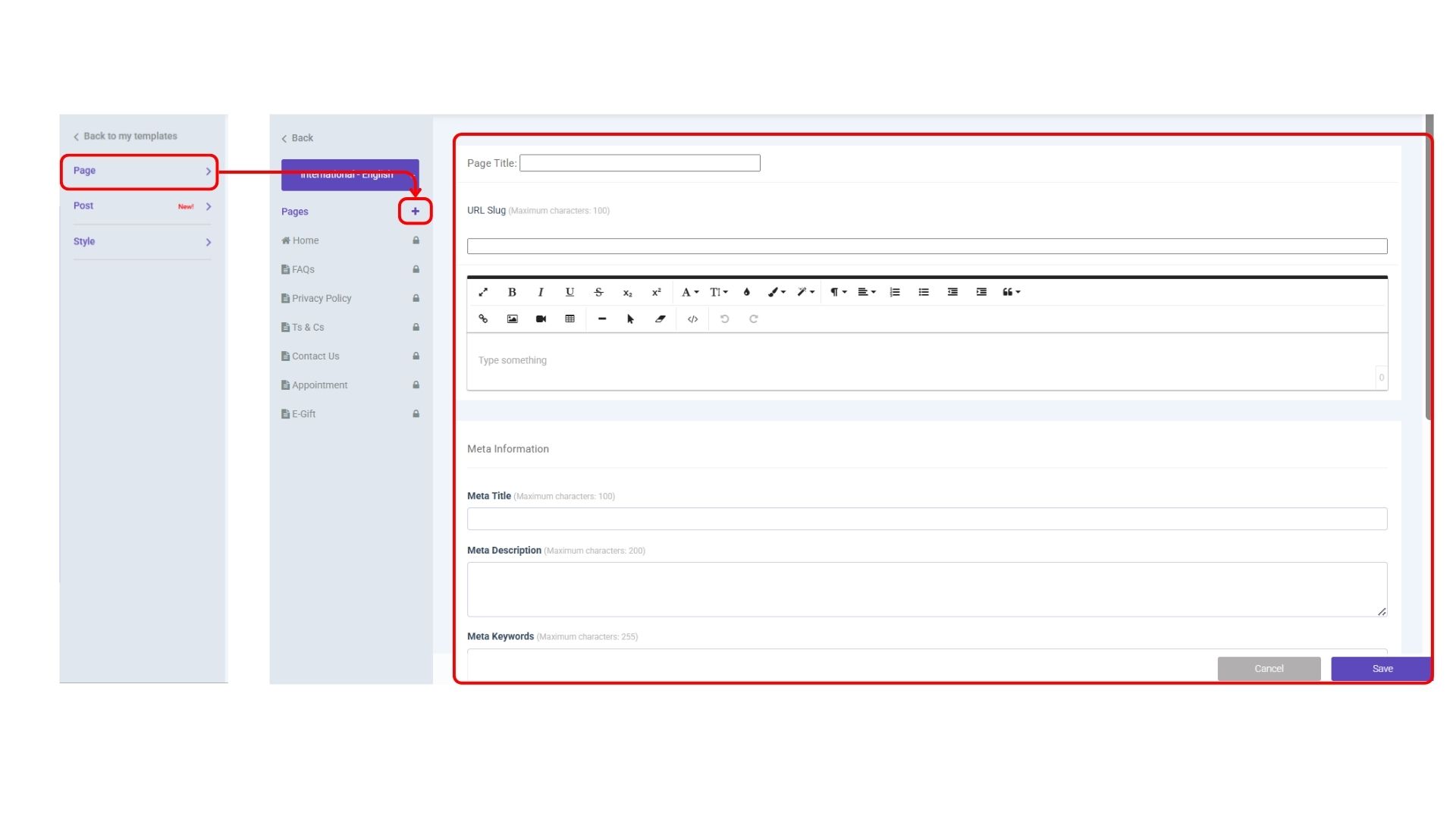
3）How do I create new website pages?

1\. Go to <mark style="color:purple;background-color:purple;">「</mark><mark style="color:purple;background-color:purple;">**STOREBERRY Admin Panel**</mark><mark style="color:purple;background-color:purple;">」</mark> → <mark style="color:purple;background-color:purple;">**「Online Store」**</mark> → <mark style="color:purple;background-color:purple;">**「My Template」**</mark> → <mark style="color:purple;background-color:purple;">**「Edit (Template)」**</mark> to get into the interface setting.

2\. Choose <mark style="color:purple;background-color:purple;">**「Page」**</mark> on the left hand side and you will see the list of default website pages, including FAQ, Privacy Policy, Contact Us, etc.

3\. To create a new page, you can click the “+” icon next to “Pages” to add a page and get the URL under the Page Title. Enter the following details and tap <mark style="color:purple;background-color:purple;">**「Save」**</mark> .

<figure><picture><source srcset="/files/lQvBuFynAwyystronTqs" media="(prefers-color-scheme: dark)"><img src="/files/PenpofRKTFMgrvENWyji" alt=""></picture><figcaption></figcaption></figure>

### **(ii) Blog Management**

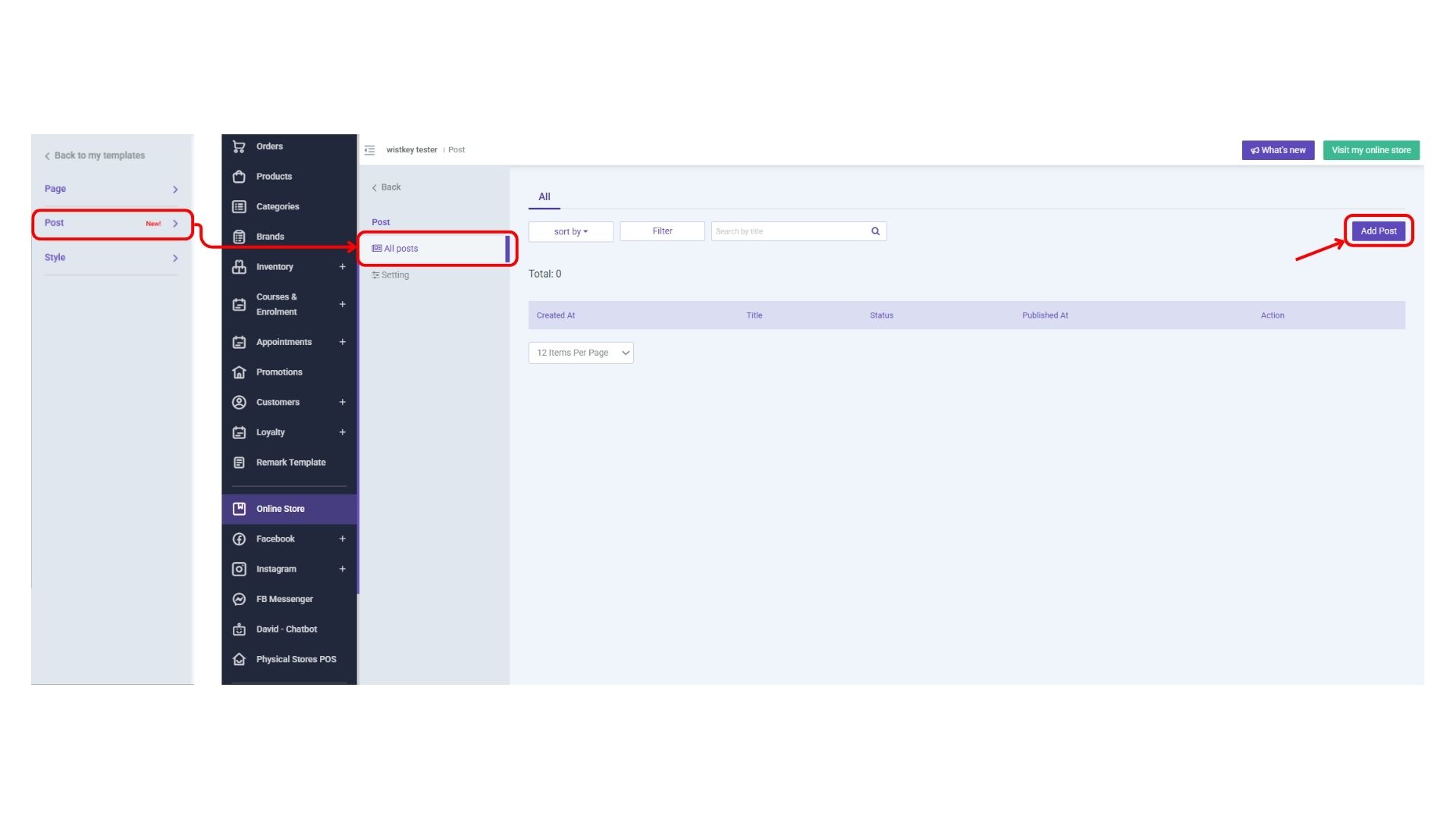
STOREBERRY provides blog function for all users. You can enter the web interface setting at <mark style="color:purple;background-color:purple;">「</mark><mark style="color:purple;background-color:purple;">**STOREBERRY Admin Panel**</mark><mark style="color:purple;background-color:purple;">」</mark> → <mark style="color:purple;background-color:purple;">**「Online Store」**</mark> → <mark style="color:purple;background-color:purple;">**「My Template」**</mark>**,** click <mark style="color:purple;background-color:purple;">**「Edit」**</mark> and select <mark style="color:purple;background-color:purple;">**「Post」**</mark> → <mark style="color:purple;background-color:purple;">**「All Posts」**</mark> at the side toolbar to view all the published blog posts here. You can also click <mark style="color:purple;background-color:purple;">**「Add Post」**</mark> in the top right corner to start writing a blog post.

You can publish the updated information of your online store, such as the latest products, brand story, product usage methods, etc. through blogs, and regularly share brand news with customers.

Want to improve the search engine ranking of the online store? STOREBERRY's blog function supports both SEO settings and CSS code editing. Publishing the latest and highly relevant blog posts from time to time will definitely help raise your website's SEO score!

<figure><picture><source srcset="/files/78PIpCpVO0C1UHWRJtMh" media="(prefers-color-scheme: dark)"><img src="/files/cwglVnZzBLuGP1RXPOxV" alt=""></picture><figcaption></figcaption></figure>

### **(iii) Product Settings**

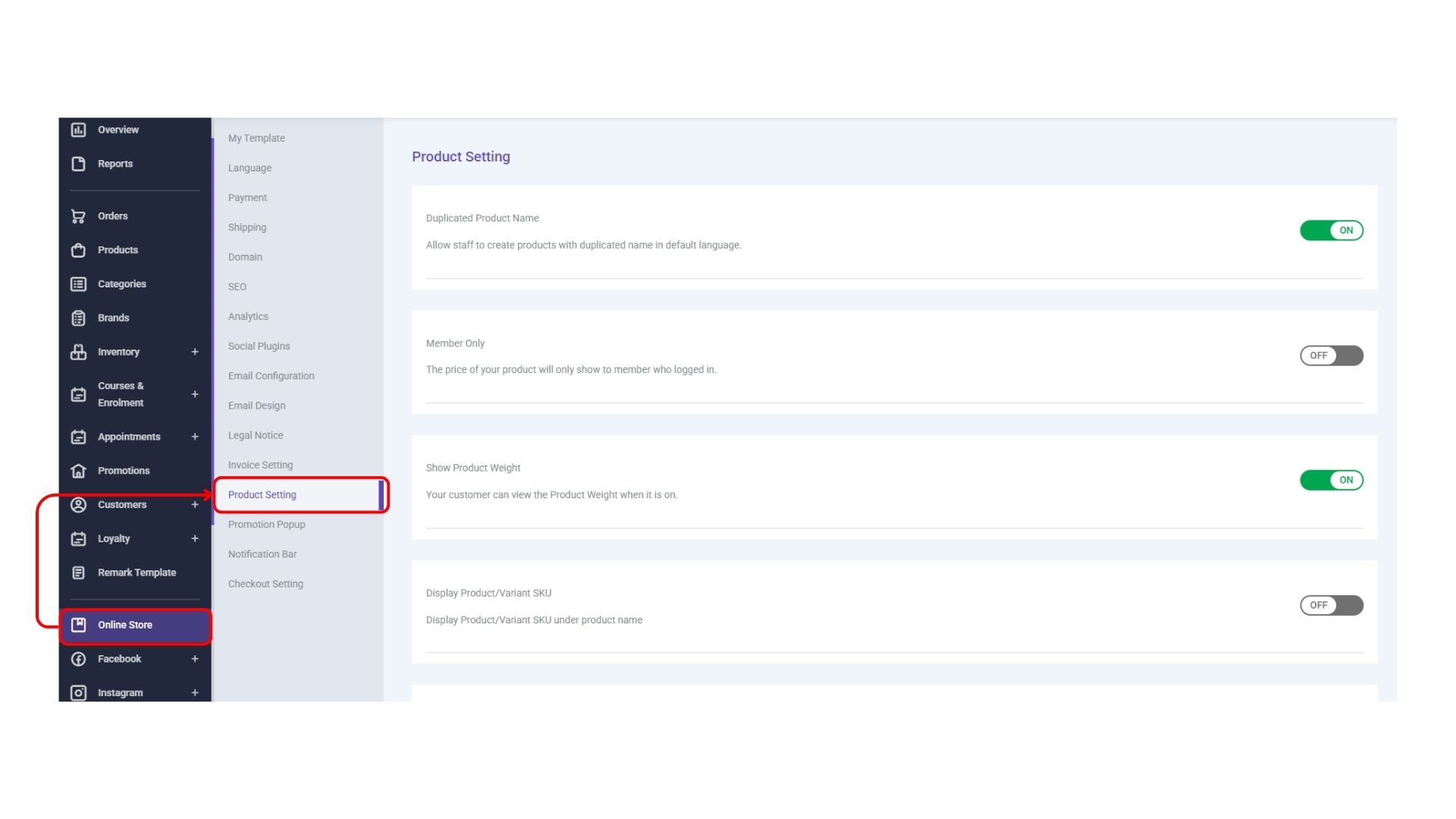
You can modify the basic settings of products and shopping carts in the <mark style="color:purple;background-color:purple;">「</mark><mark style="color:purple;background-color:purple;">**STOREBERRY Admin Panel**</mark><mark style="color:purple;background-color:purple;">」</mark> → <mark style="color:purple;background-color:purple;">**「Online Store」**</mark> → <mark style="color:purple;background-color:purple;">**「Product Setting」**</mark>：

1\) Member Only: Your product prices will only be displayed to the logged-in members after turning it on.

2\) Show Product Weight: Your customers can check the weight of the product after turning it on.

3\) Cart Item Expire Time (hours): Here you can set the time limit that the product stays in the customer's shopping cart. If you enter “10” hours, the products stored in the shopping cart by the customer will be removed 10 hours after being added to the shopping cart.

<figure><picture><source srcset="/files/Fe95FUmHuFh2S0UwMm37" media="(prefers-color-scheme: dark)"><img src="/files/gYJ4PmIeqTDUO4zkRpOF" alt=""></picture><figcaption></figcaption></figure>

### **(iv) Invoice Settings**

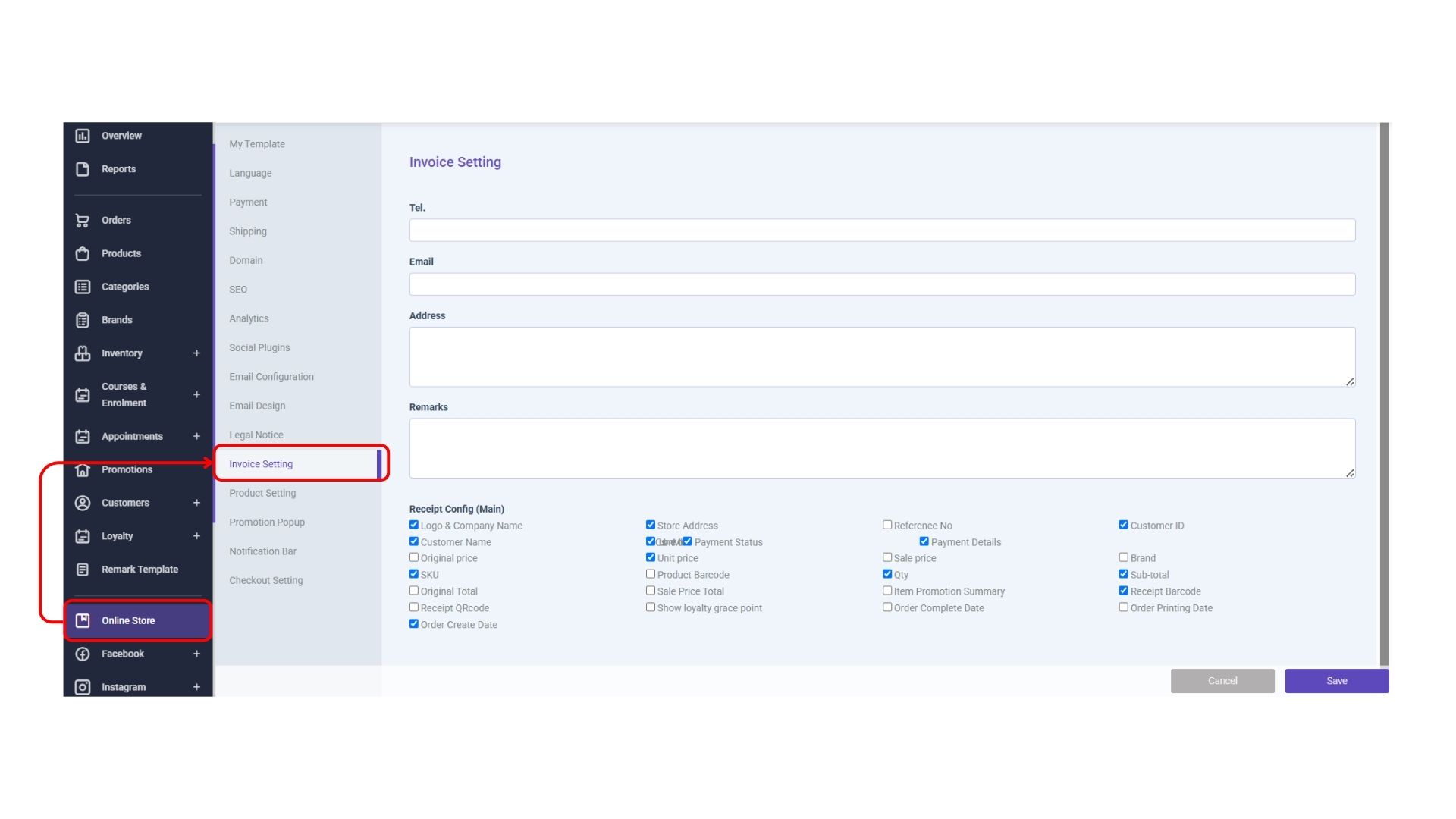
You can fill in the information of your online store in the <mark style="color:purple;background-color:purple;">「</mark><mark style="color:purple;background-color:purple;">**STOREBERRY Admin Panel**</mark><mark style="color:purple;background-color:purple;">」</mark> → <mark style="color:purple;background-color:purple;">**「Online Store」**</mark> →<mark style="color:purple;background-color:purple;">**「Product Setting」**</mark> → <mark style="color:purple;background-color:purple;">**「Invoice Setting」**</mark> to set the invoice content.

<figure><picture><source srcset="/files/9TvYNCDv7tl7hIBLiqJf" media="(prefers-color-scheme: dark)"><img src="/files/mrOGm1u995tUL55Xuyda" alt=""></picture><figcaption></figcaption></figure>


---

# Agent Instructions: Querying This Documentation

If you need additional information that is not directly available in this page, you can query the documentation dynamically by asking a question.

Perform an HTTP GET request on the current page URL with the `ask` query parameter:

```
GET https://storeberry-docs.gitbook.io/user-guide/en/online-store/2.1-store-design-and-settings.md?ask=<question>
```

The question should be specific, self-contained, and written in natural language.
The response will contain a direct answer to the question and relevant excerpts and sources from the documentation.

Use this mechanism when the answer is not explicitly present in the current page, you need clarification or additional context, or you want to retrieve related documentation sections.