> For the complete documentation index, see [llms.txt](https://storeberry-docs.gitbook.io/user-guide/llms.txt). Markdown versions of documentation pages are available by appending `.md` to page URLs; this page is available as [Markdown](https://storeberry-docs.gitbook.io/user-guide/en/common-settings/1.5-customer-management.md).
# 1.5 Customer Management
Want to integrate all online and offline member information at once? STOREBERRY helps you integrate the customer management system, regardless of members from online or offline, you can easily manage on a single platform.
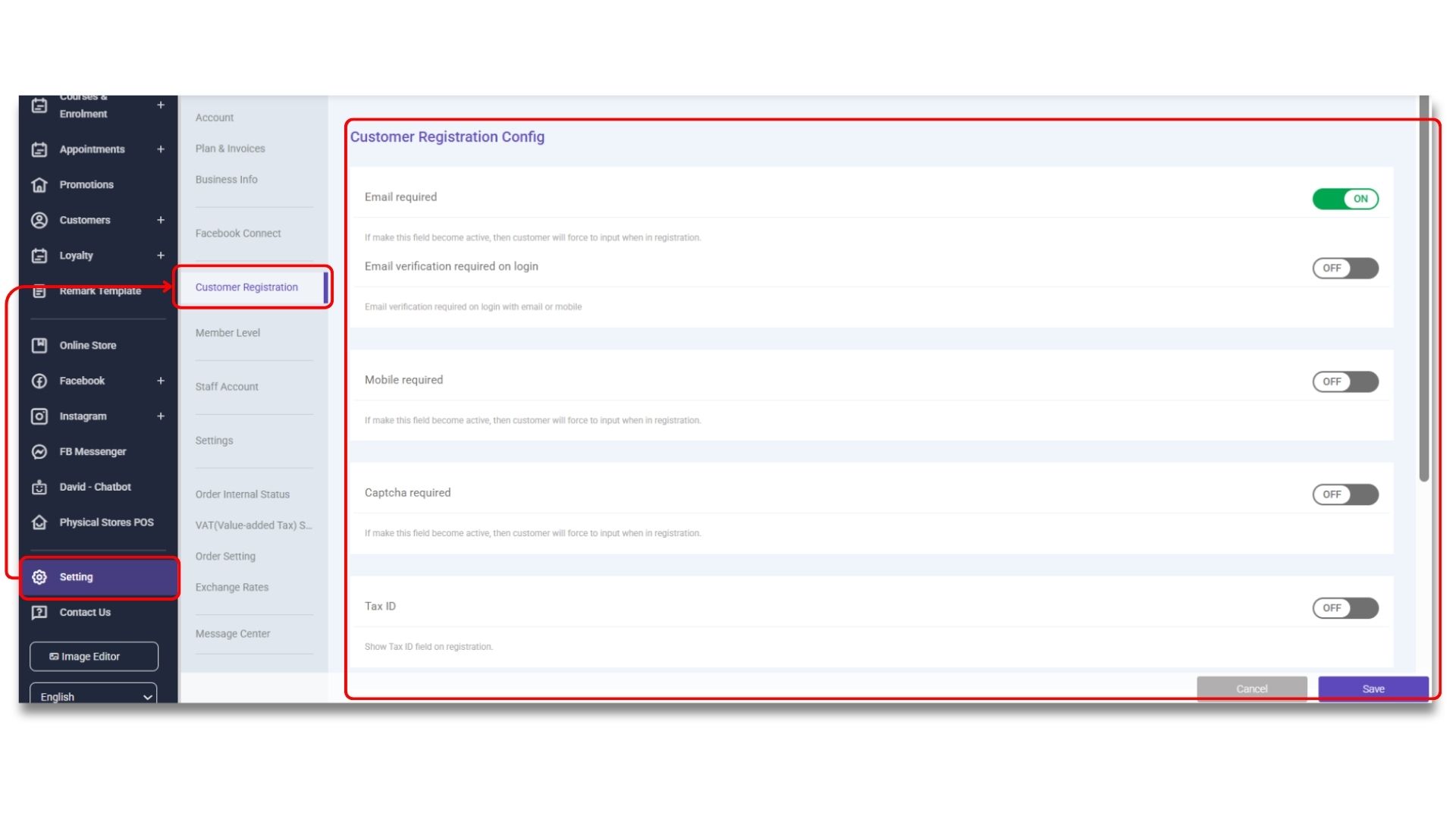
### **(i) Customer Registration Settings**
You can go to the **「STOREBERRY Admin Panel」** → **「Setting」** → **「Customer Registration」** to select the required information that customers need to fill in when registering, including email address, mobile phone number, birthday, and age group, etc.
### **(ii) Add / Edit Customer Details**
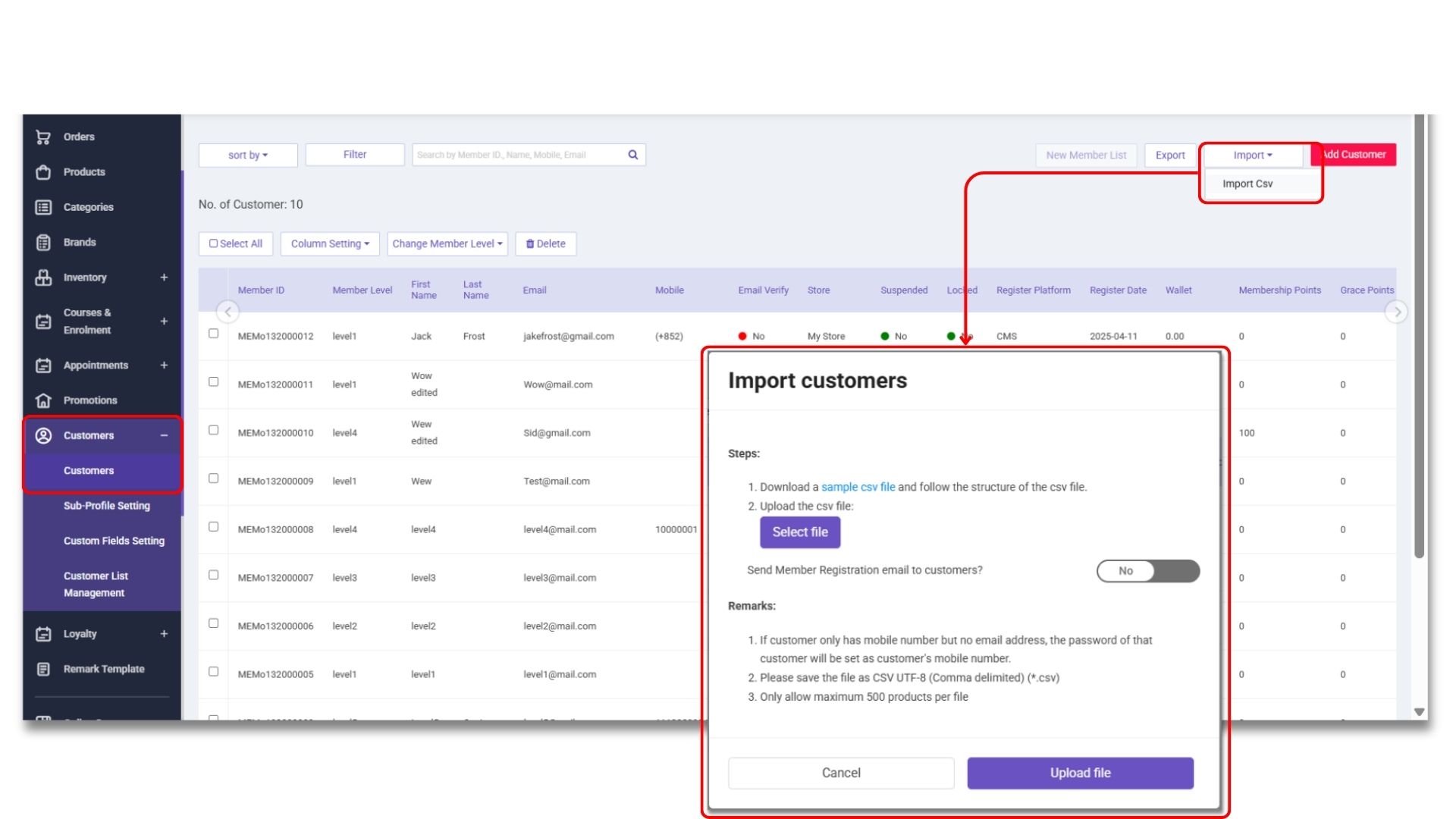
In STOREBERRY, you can view all customer activities in different channels at one single platform. Whether customers shop online or offline, all transaction records can be updated in real time, so that you can keep abreast of the latest updates anytime, anywhere. You can go to **「STOREBERRY Admin Panel」** → **「Customers」** → **「Customers」** to add, review and export all customer details and transaction records.
Need to transfer customer data one by one from the old platform? STOREBERRY supports CSV import function, which allows users to import up to 500 items from a spreadsheet at a time, to help you upload third-party customer data to STOREBERRY platform at once.
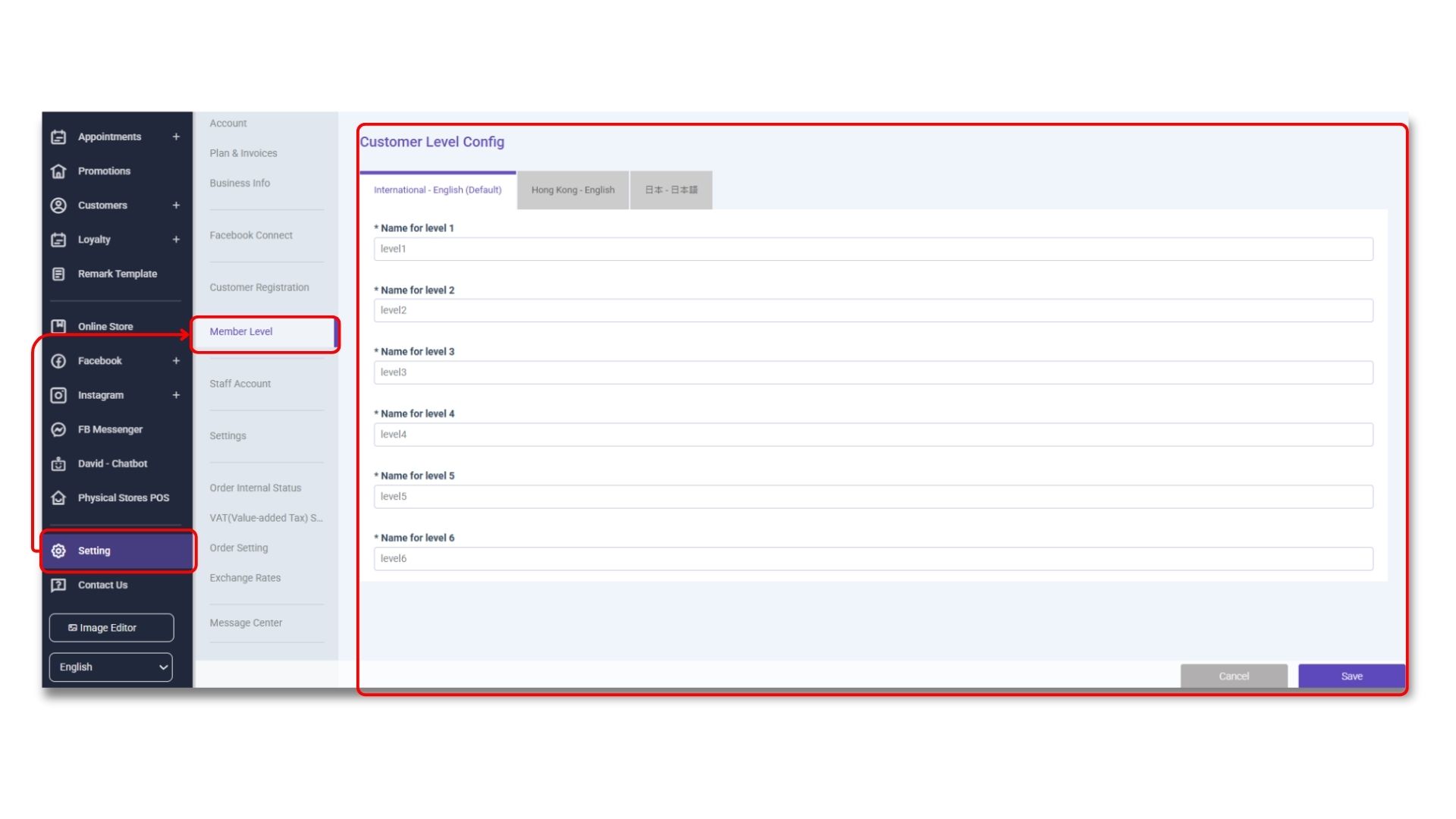
### **(iii) Membership Tier Settings**
Through the STOREBERRY member management system, you can create up to 6 levels of membership levels, and the advanced member management module even supports up to 10 levels of membership levels! You can go to **「STOREBERRY Admin Panel」** → **「Setting」** → **「Member Level」** to set the membership level, and can also modify or update the membership system content at any time as needed.
### **(iv) \*Value-added Service: Advanced Membership & Loyalty Program**
[5.1 Advanced Membership & Loyalty Program](/user-guide/en/value-added-services/5.1-advanced-membership-and-loyalty-program.md)
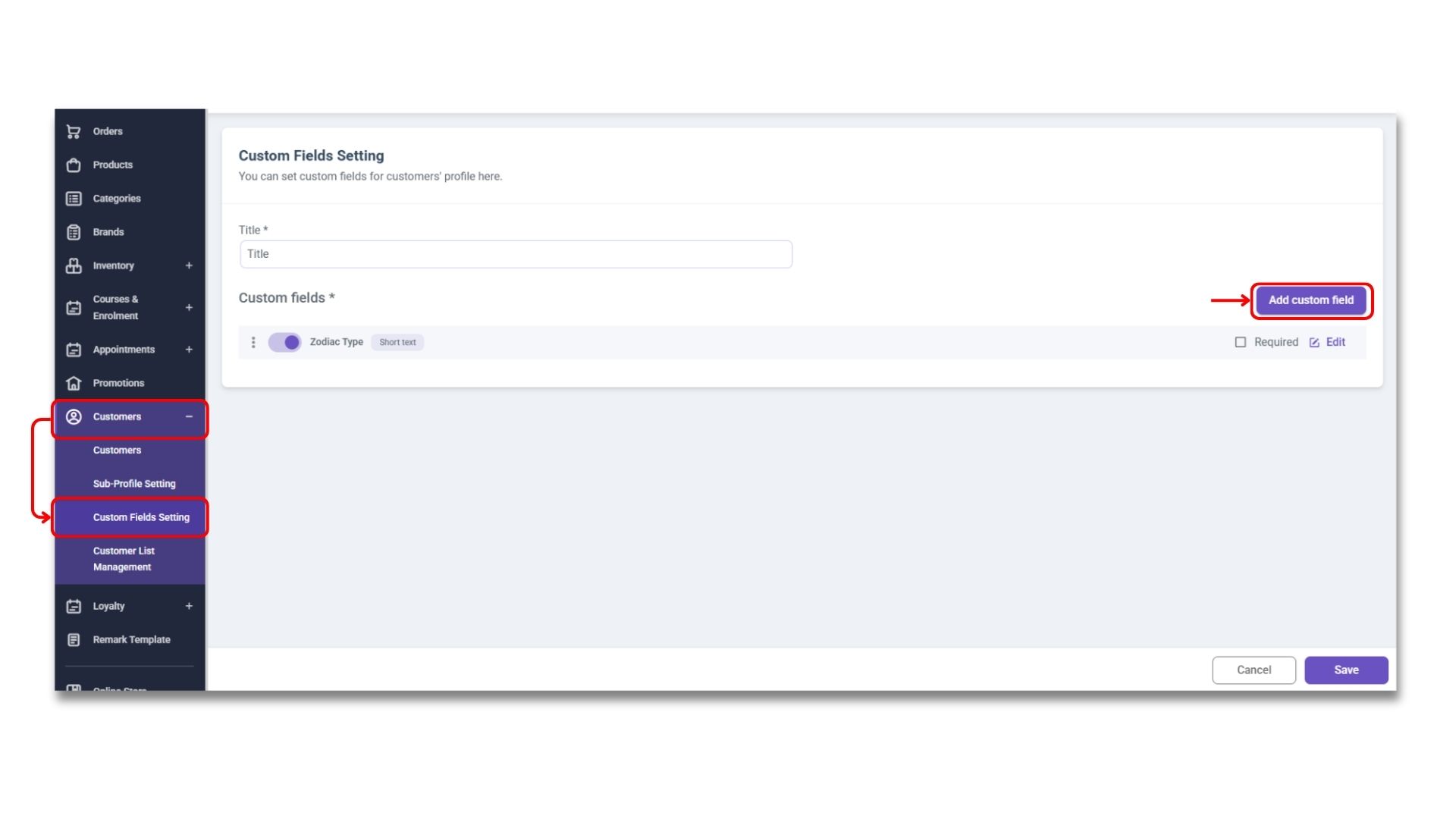
### **(v) Custom Field Settings**
When you need to record extra data of the product (E.g. Eye prescriptions, S/N, customized order data, etc. ), you can set the custom information fields required by the product here and add the information to the product remarks template. Then you will be able to apply the remark template when adding products.
1)You can go to **「STOREBERRY Admin Panel」** → **「Customers」** → **「Custom Field Settings」** to enter the title of the custom field (E.g. Eye prescriptions).
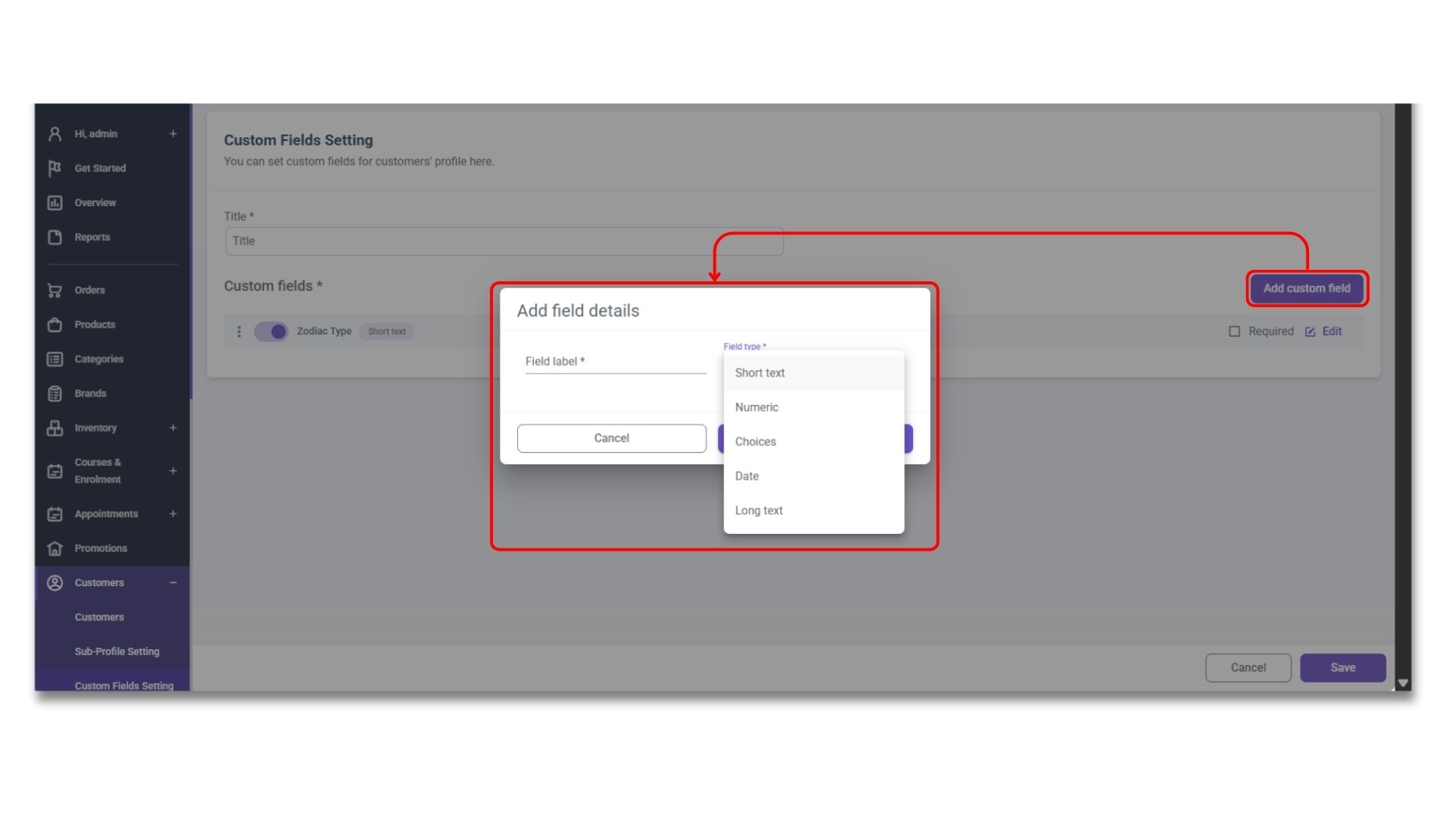
2)Then click **「Add Custom Field」** , enter the title of the data to be filled in the **「Field Label」**
\
(for example: Eye prescriptions), and choose the answer format filled in by the customer in the
\ **「Field Type」** , and then click **「Confirm」** .
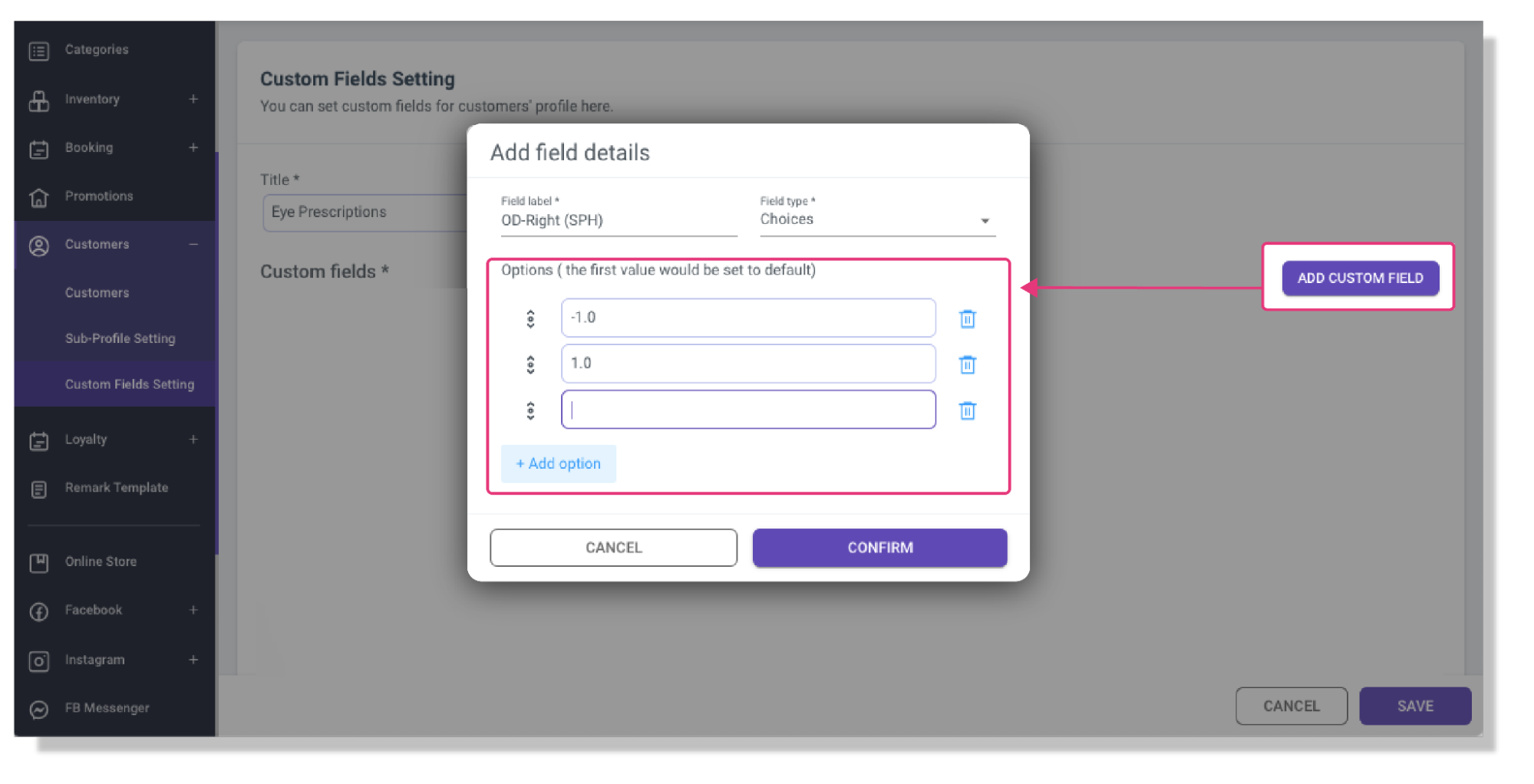
If you choose
**「Choices」**
as the answer format, please go to the **「Options」**
field to continue to enter the answers for choice.
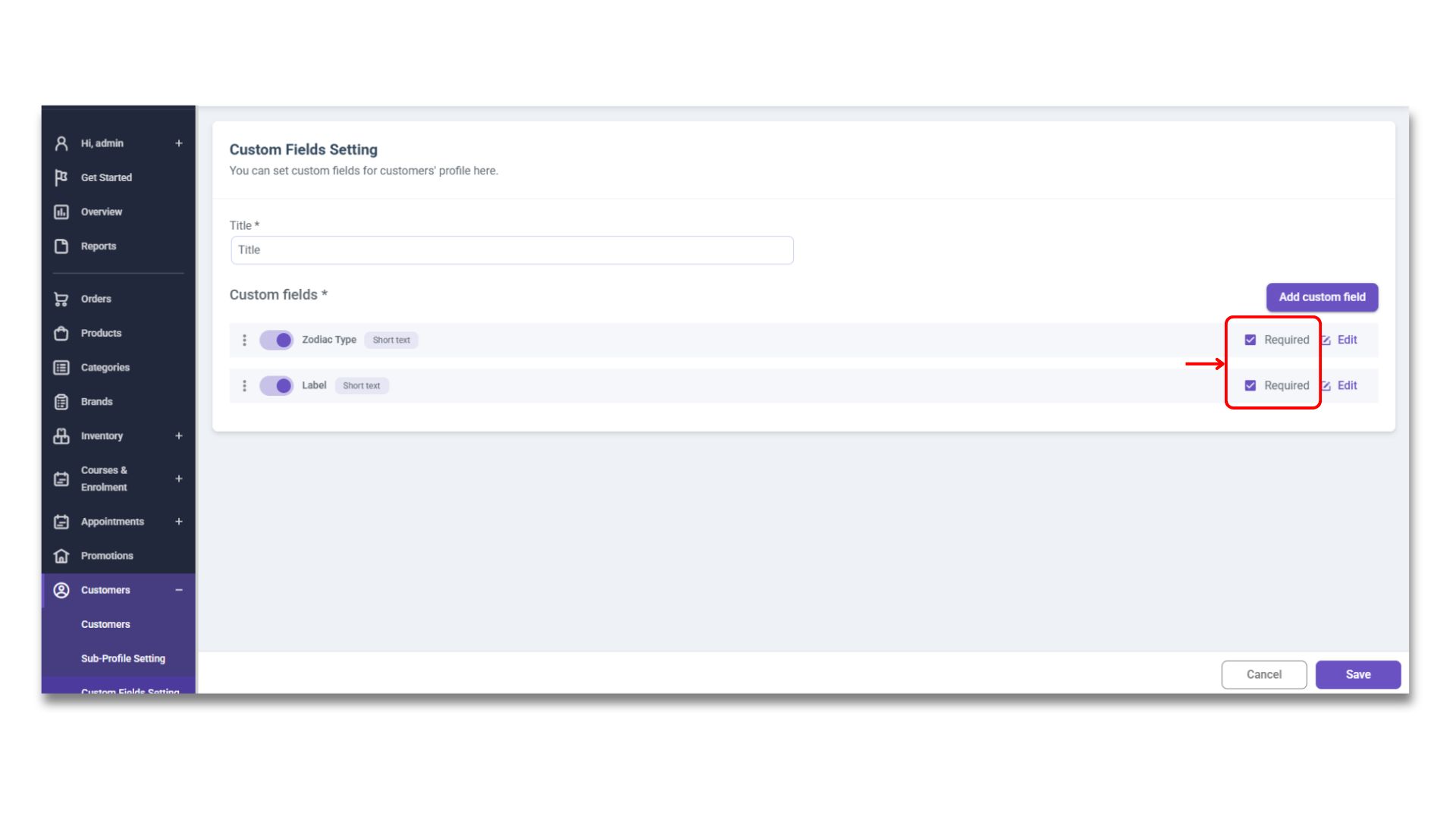
3)All custom fields are required to be filled by default. You can remove the tick in the
**「Required」**
\
box to the right of the field to cancel the mandatory setting. Finally, click
**「Save」**
to complete the setting.
After completing the settings, you can then go to **「STOREBERRY Admin Panel」** → **「Remark Template」** to add the newly added custom field to the relevant note template.
\*For instructions on adding a product remark template, please [click here](/user-guide/en/common-settings/1.6-remark-template-settings.md).\
\*For instructions on using product remark on POS, please [click here](/user-guide/en/physical-store-pos/3.1-operational-functions.md#i-checkout).