> For the complete documentation index, see [llms.txt](https://storeberry-docs.gitbook.io/user-guide/llms.txt). Markdown versions of documentation pages are available by appending `.md` to page URLs; this page is available as [Markdown](https://storeberry-docs.gitbook.io/user-guide/en/common-settings/1.2-order-management.md).
# 1.2 Order Management
STOREBERRY provides a complete real-time order management system. Regardless of whether it is a physical store or an online store, the order records can be updated synchronously and uploaded to the cloud, making operations more efficient.
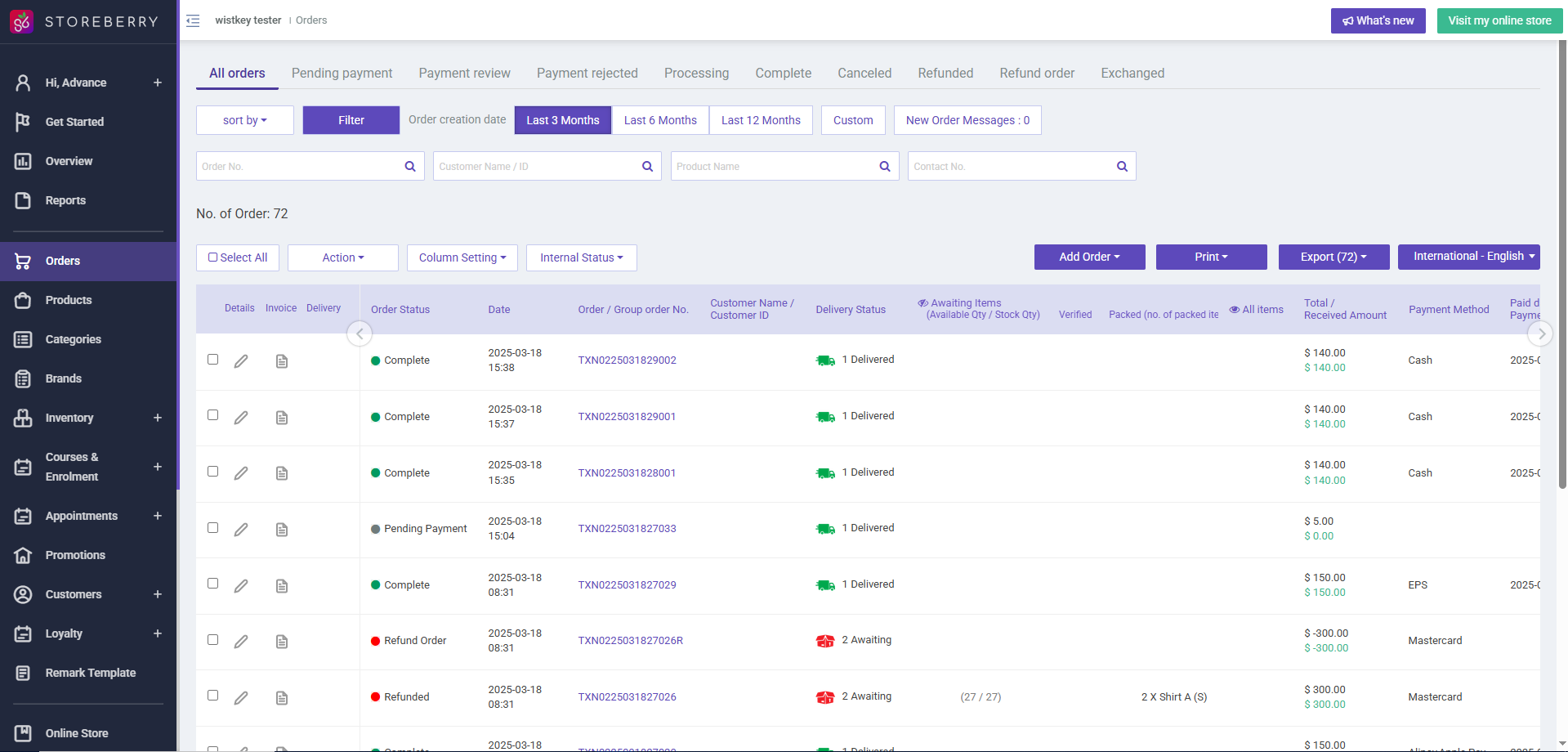
You can view all order information, including order status, order total, delivery status, etc. at STOREBERRY Admin Panel → 「Orders」 , so that you can quickly browse and change order information in batches. Meanwhile, you can also manually add orders for customers who place orders on other platforms (such as Whatsapp, social media, etc.).
### **(i) Confirm Order**
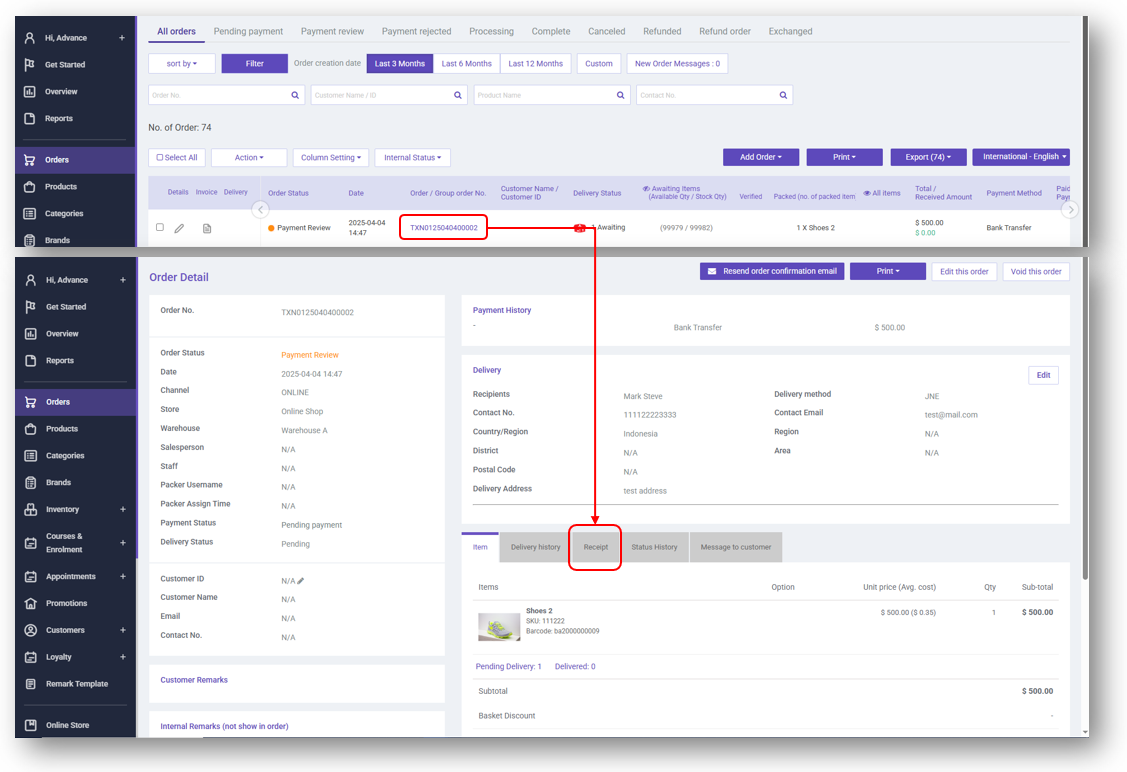
After a customer makes a purchase in your online store, if he / she chooses the payment method that needs to upload a payment receipt, the order status will be displayed as **「Payment Review」** . And the order status will be updated only after the merchant verifies the payment receipt.
You can view and confirm the receipt as follows:
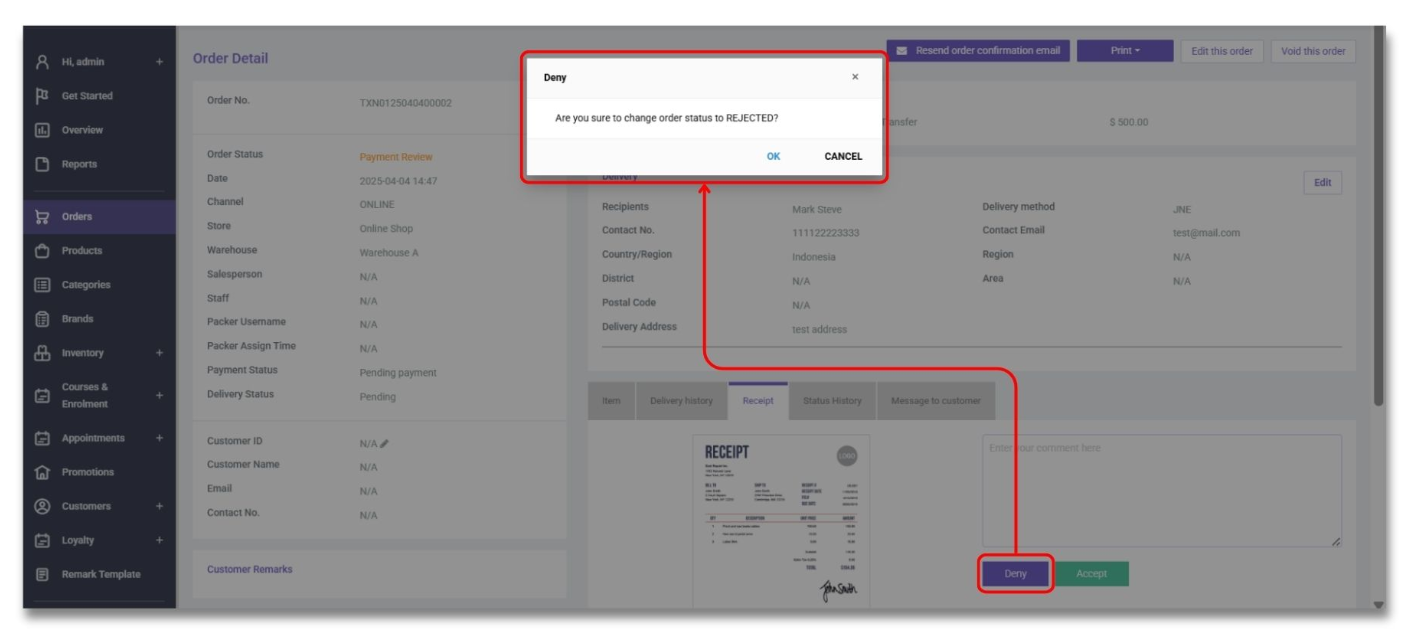
1)Click on the pending order number, and then tap **「Receipt」** at the bottom right to view the payment receipt uploaded by the customer.
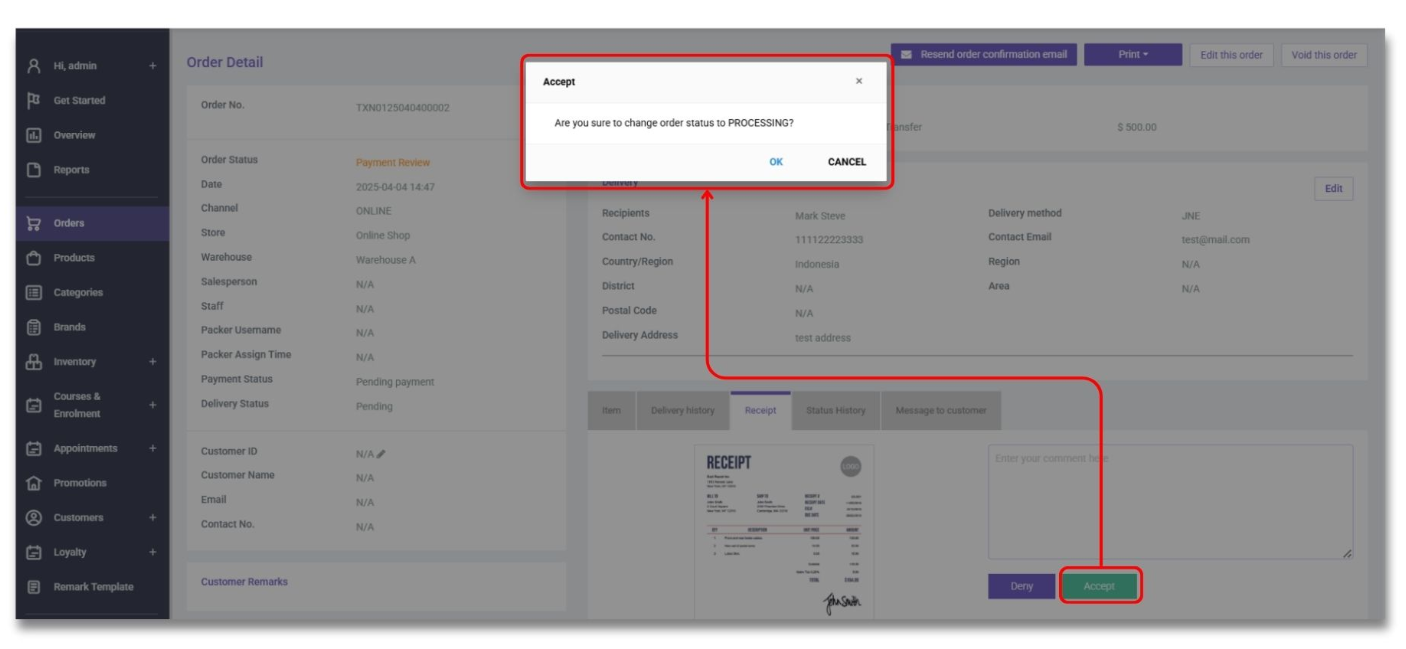
2)Click **「Accept」** if you confirm the payment, then the system will pop up a confirmation message. Please click **「OK」** again to update the order status to **「Processing」** . Your customer will receive the confirmation email instantly.
If there is any problem with the receipt, you can also leave a message to the customer through the input box and click **「Deny」** to indicate that the receipt is not accepted.
### **(ii) Dispatch Order**
Dispatch an Order
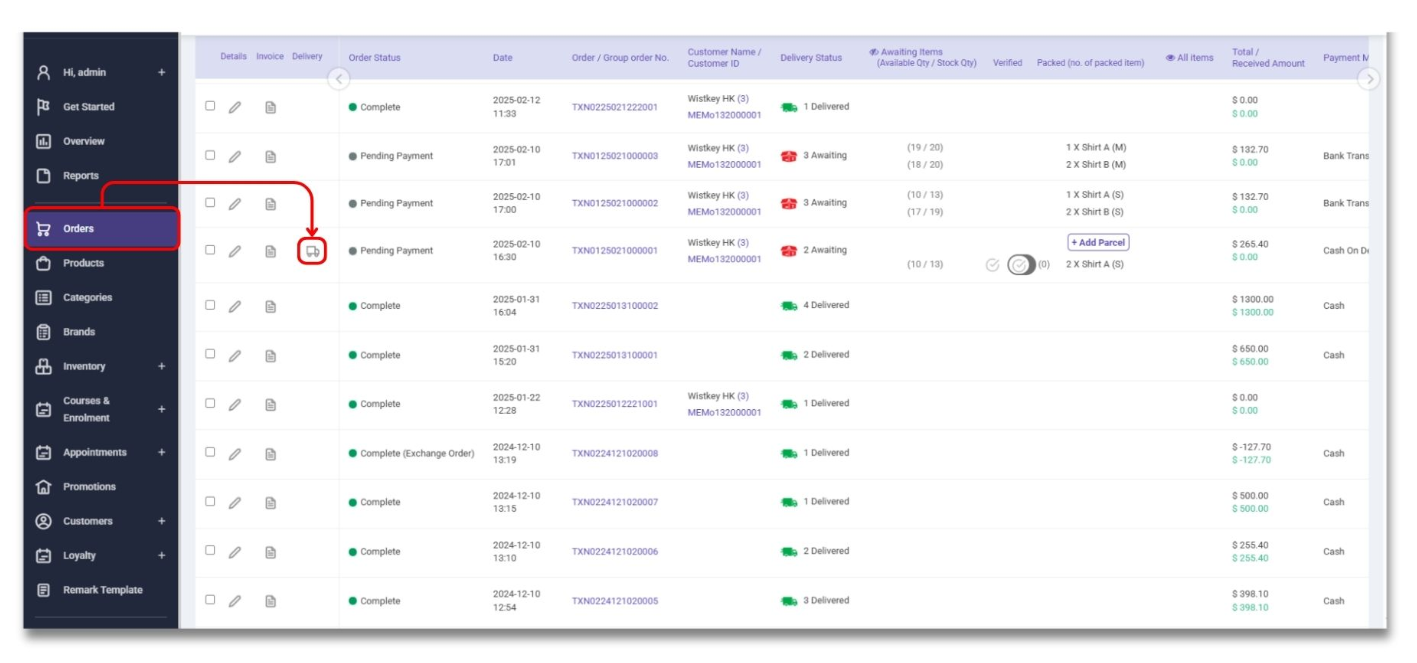
1)Update shipping details for an order:\
When the order is ready to be shipped, you can first find out the order in the **「STOREBERRY Admin」** →**「Orders」** , and then click the image button in the “Delivery” column on the left side of the order to enter the delivery information page to check and update the shipping details of the order.
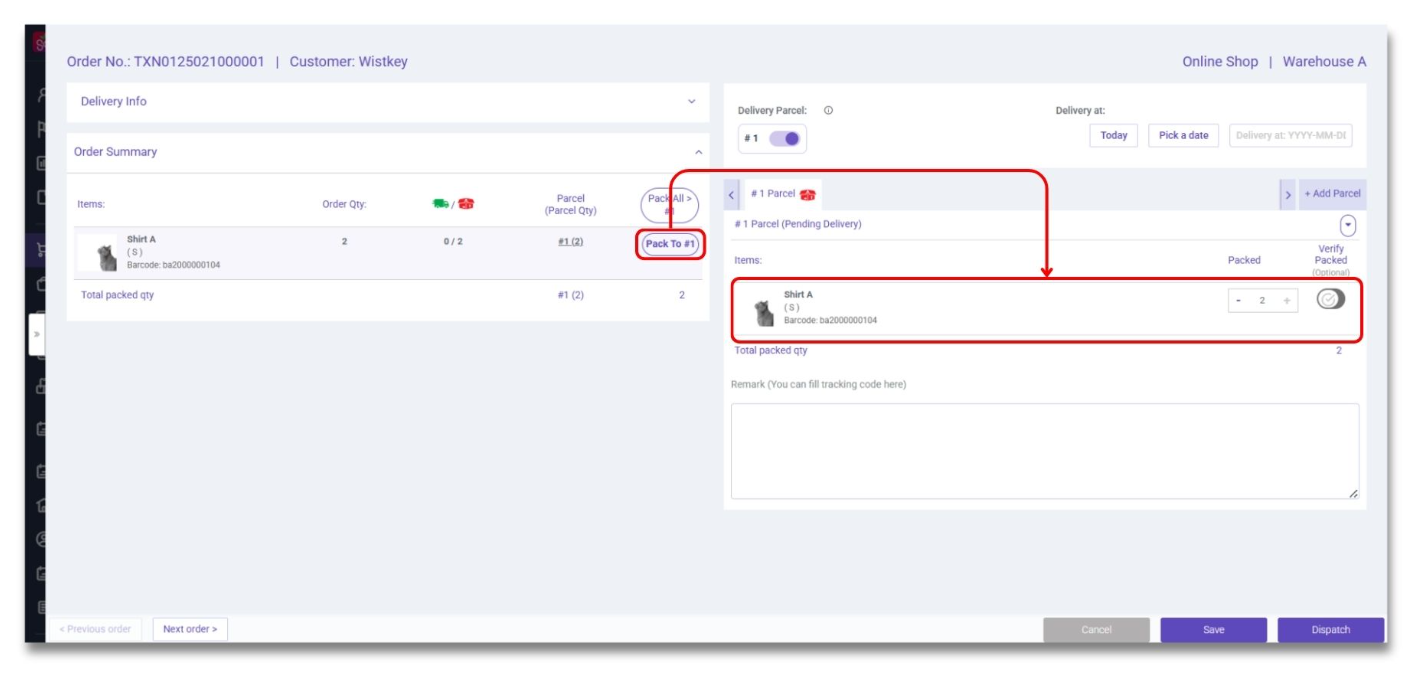
2a)Order will be shipped in one package:
\
Each order is preset to be shipped in one package. Here you can click the **「Pack to #1」**
button on the right side of the item to pack the item into the package.
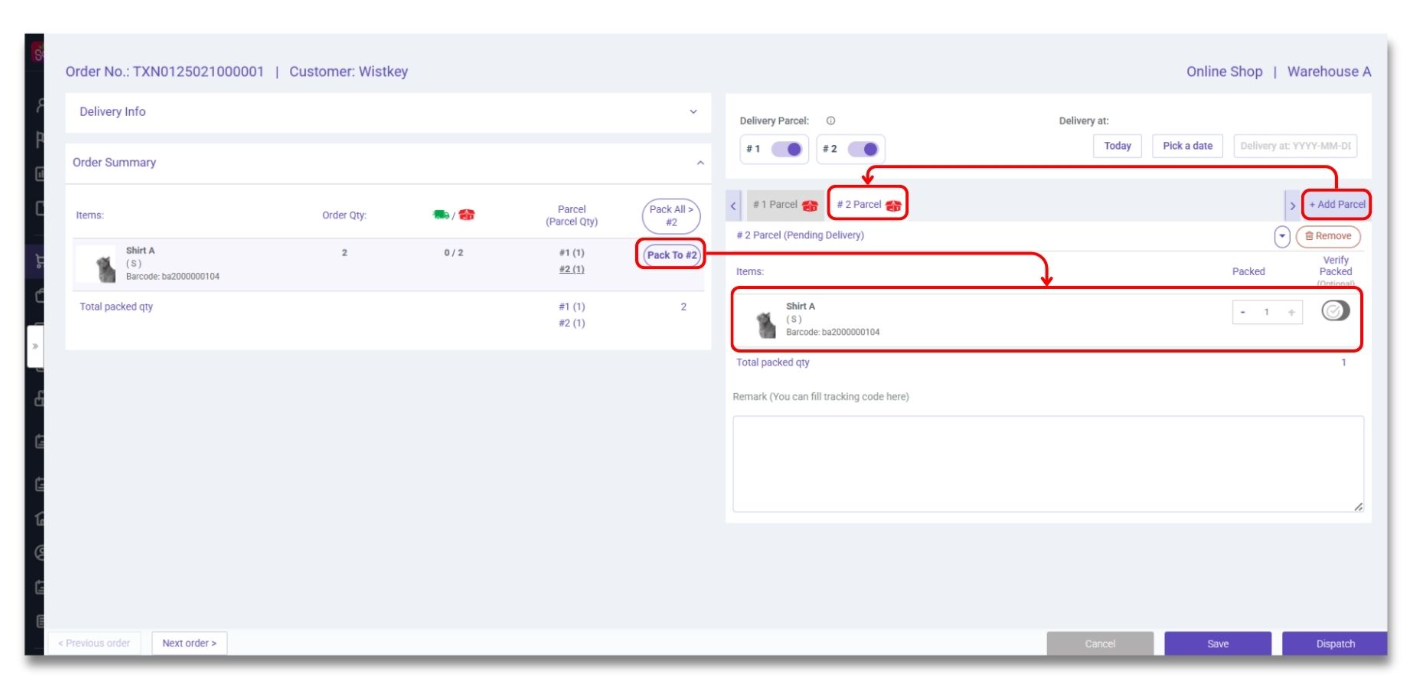
2b)Order will be shipped in more than one package:\
If the order needs to be separated into more than one package, you can click **「+Add Parcel」** to the number of packages you need, and then add the items to the package one by one, such as:
Add products to Package #1: First click the **「#1 Parcel」** tab, and then click the **「Pack to #1」**
button on the right side of the item in the product list to pack the item into the package #1.
Add products to Package #2: First click the **「#2 Parcel」** tab, and then click the **「Pack to #2」**
button on the right side of the item in the product list to pack the item into the package #2, and so on.
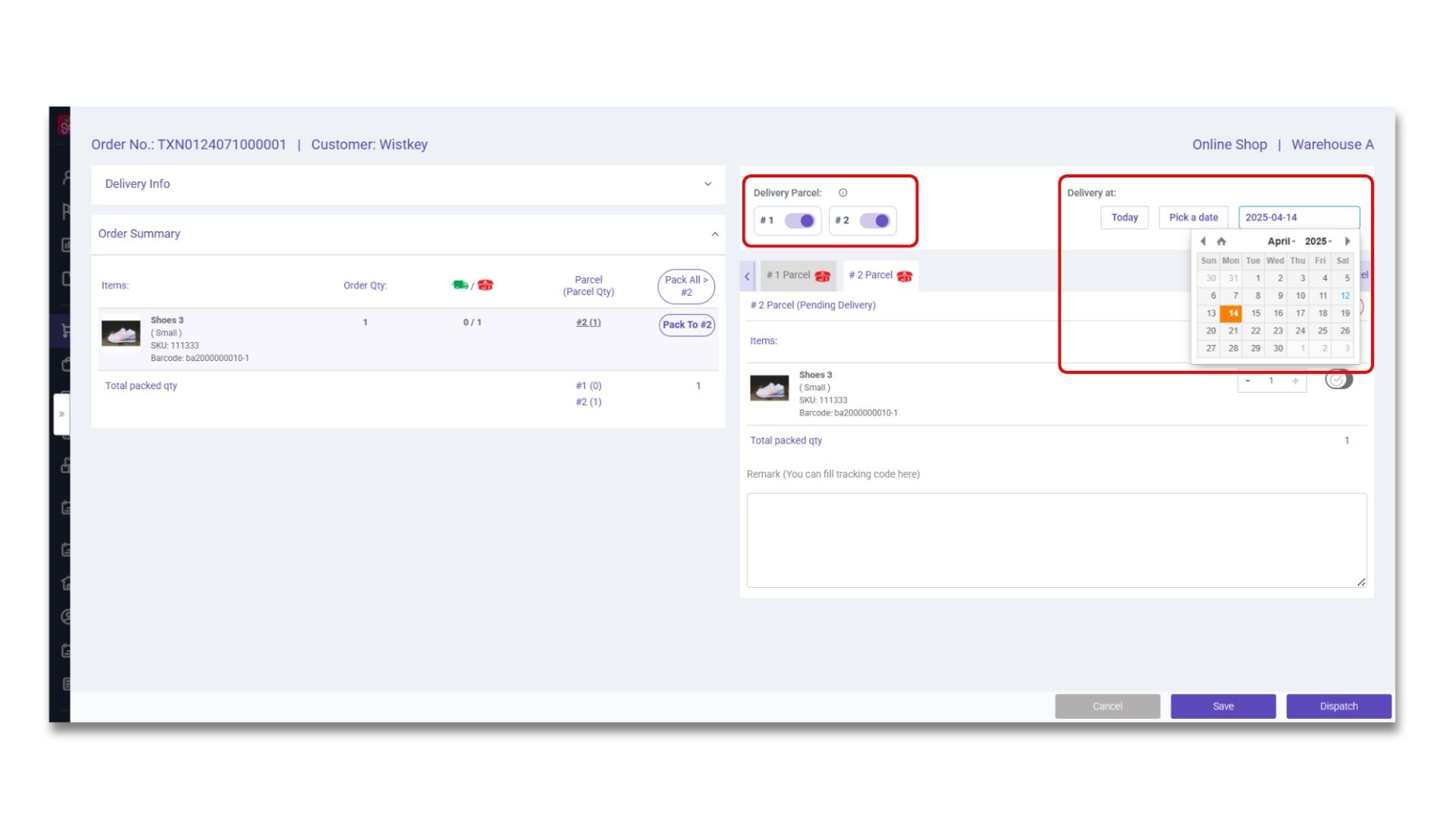
3)Update the shipping date of the order:\
Slide the button to select the package ready to ship, then select the day to confirm the delivery date.
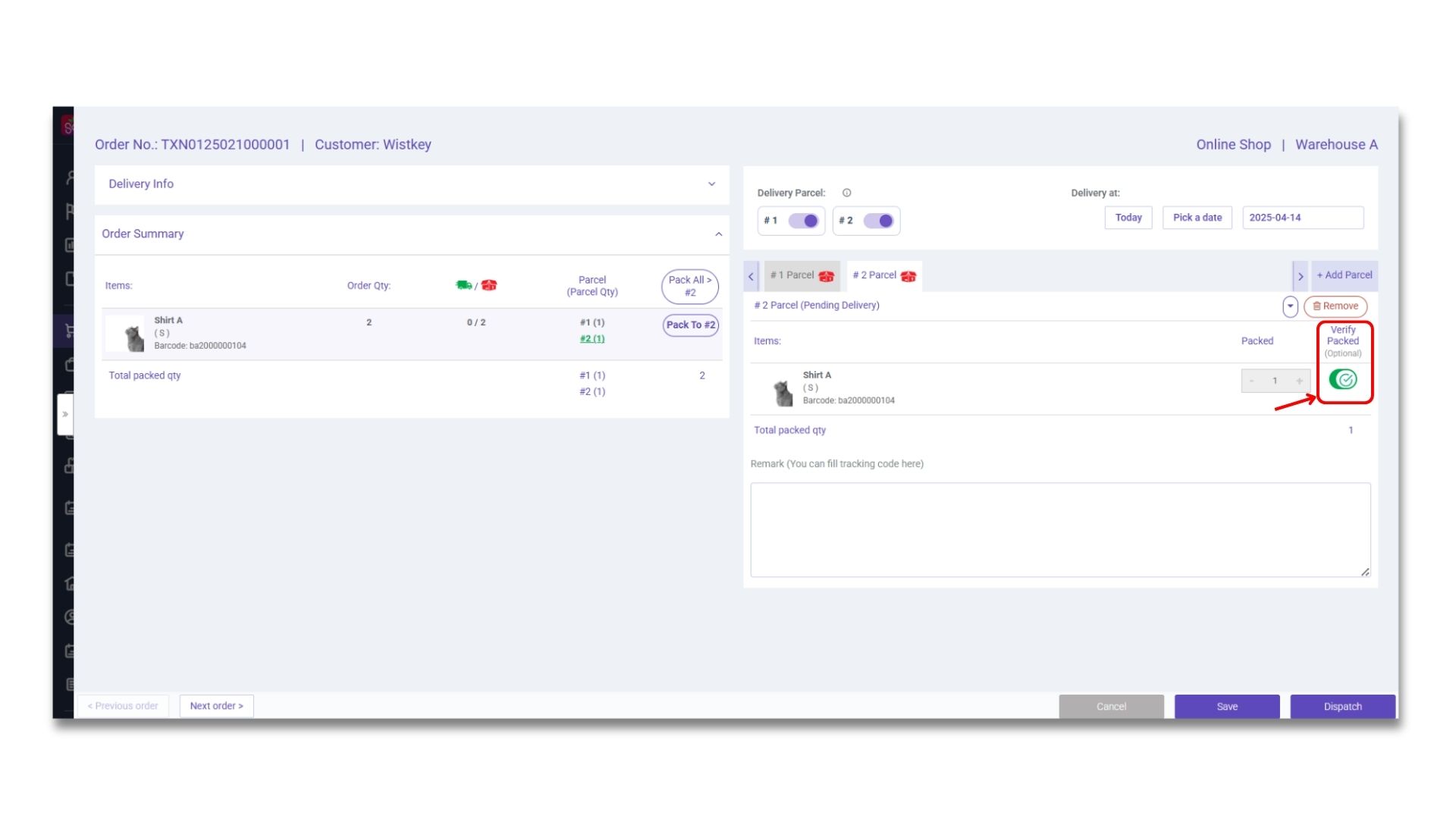
4)Confirm the items in the package:
\
Check the items in the package one by one. After sliding the
**「Verify Packed」**
button, the number of packed items cannot be modified.
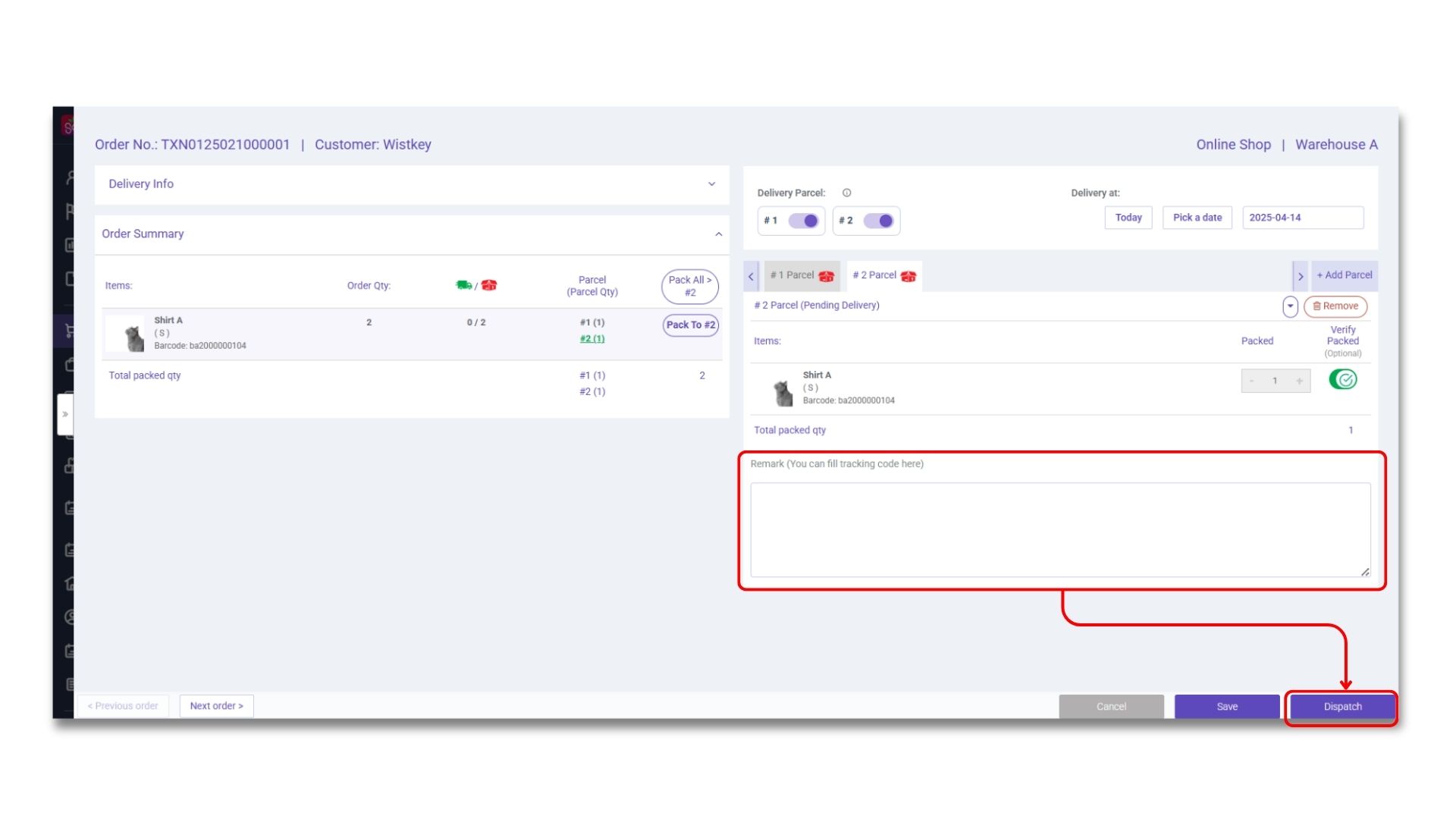
5a)Use general logistics service providers to complete the order delivery procedure:
\
You can fill in the logistics tracking code in the remarks for customers, then click
**「Send」**
to complete the order. Meanwhile, customers can instantly check the latest order status on the website.
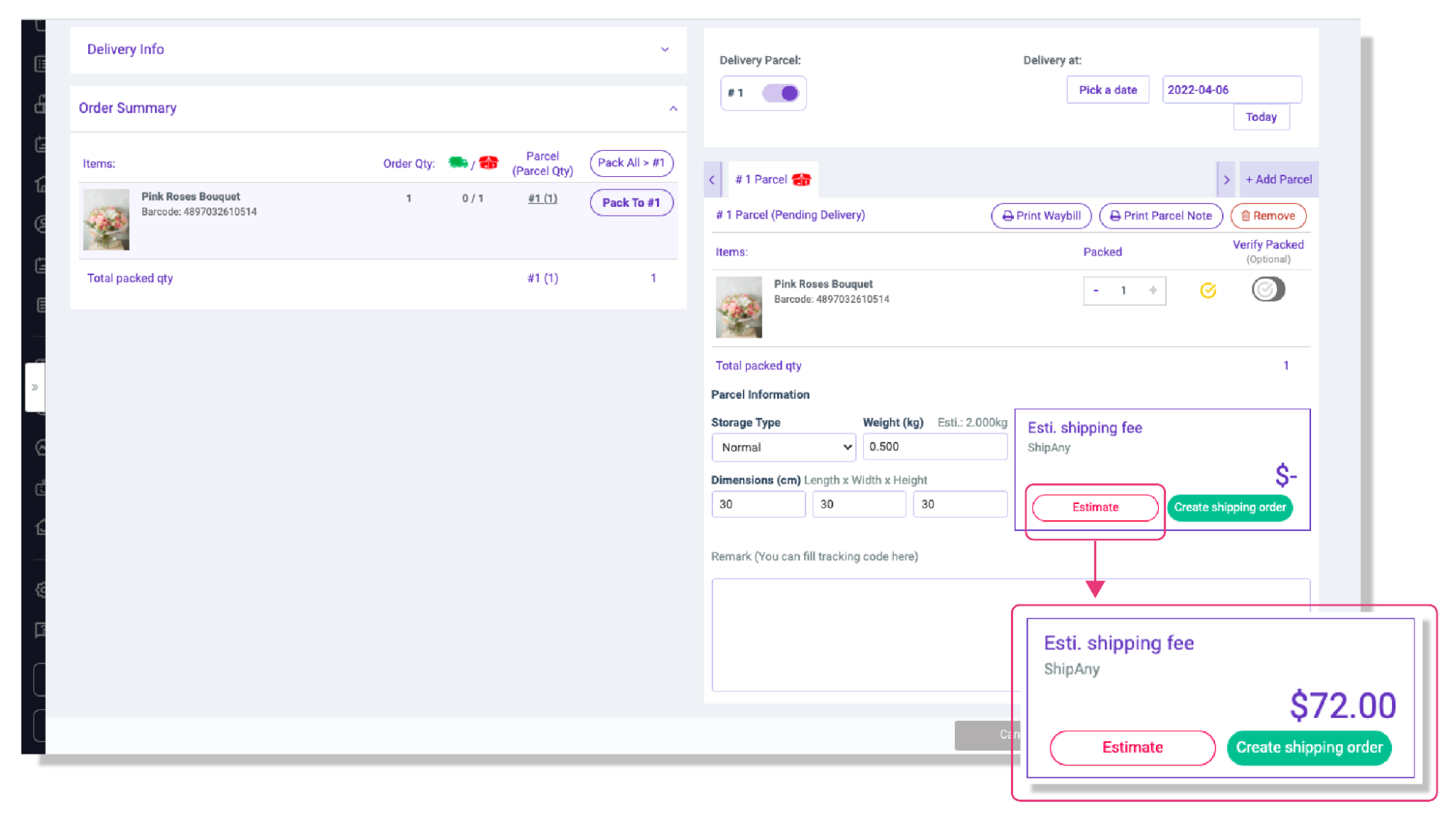
5b)Use ShipAny Smart Logistics Gateway to complete the order delivery procedure:\
The built-in shipping estimator is available for all orders with ShipAny as the shipping method. You can enter the weight and dimensions of the package here, and click **「Estimate」** to view the approximate shipping cost of your order.
Then you can click **「Create Shipping Order」** and **「Send Pick Up Request」** , the system will automatically create a waybill for you and notify the courier to pick up the package without manual operation.\
Finally, click **「Send」** to complete the order. Meanwhile, customers can instantly check the latest order status on the website.
\*For instruction on connecting to the ShipAny Smart Logistics Gateway, please [click here](/user-guide/en/online-store/2.3-shipping-settings.md).
**Bulk Dispatch**
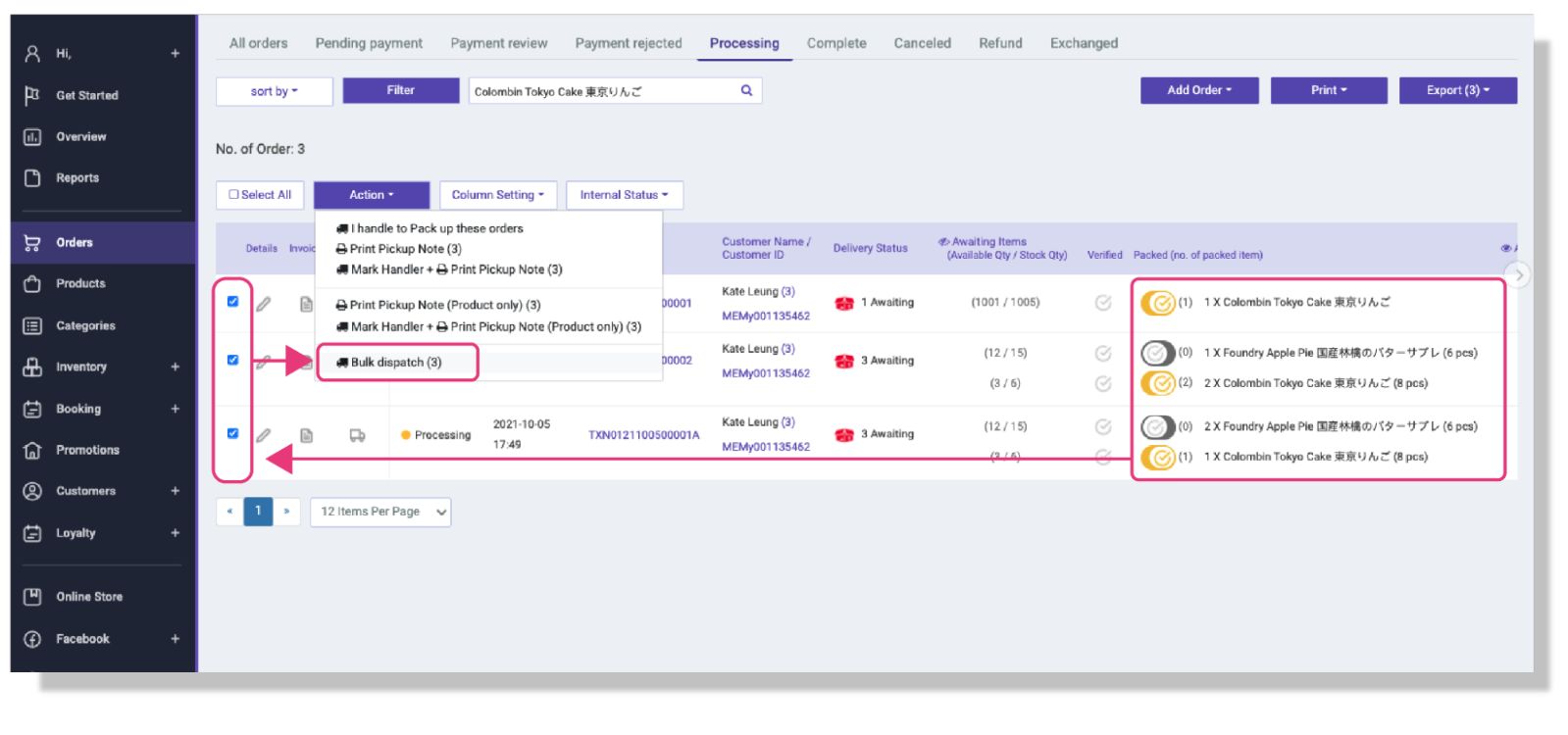
A bulk dispatch function can greatly reduce the operational work for you with a large number of orders! Whether you need to process multiple orders for the same customer, or process multiple orders for the same product --- in STOREBERRY, you can simply complete the delivery process with one click!
Process multiple orders for the same customer:
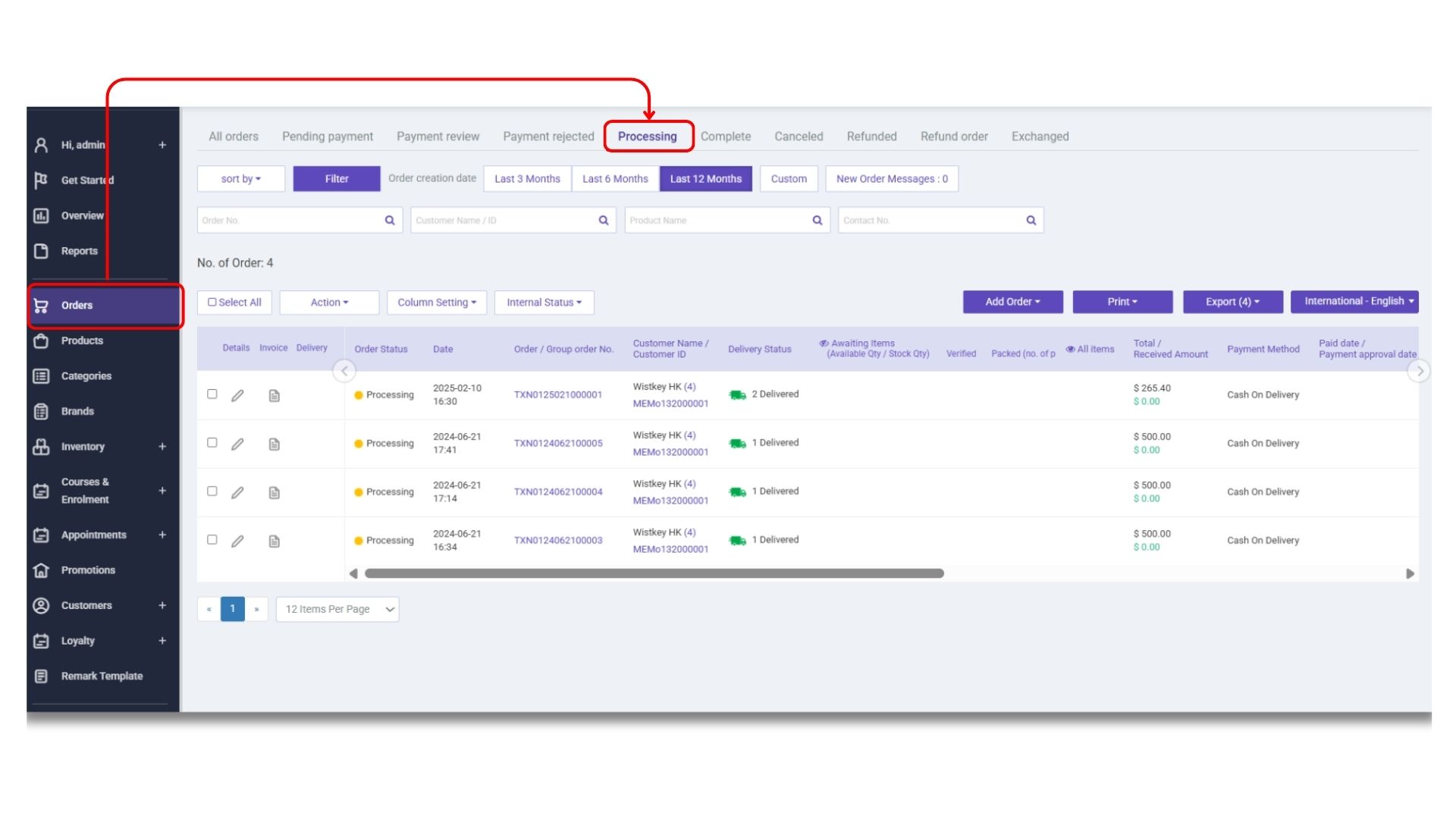
1)You can go to the **「STOREBERRY Admin Panel」**→ **「Orders」** and select orders in the **「Processing」** status at the top left, then enter the customer name/ID in the search bar.
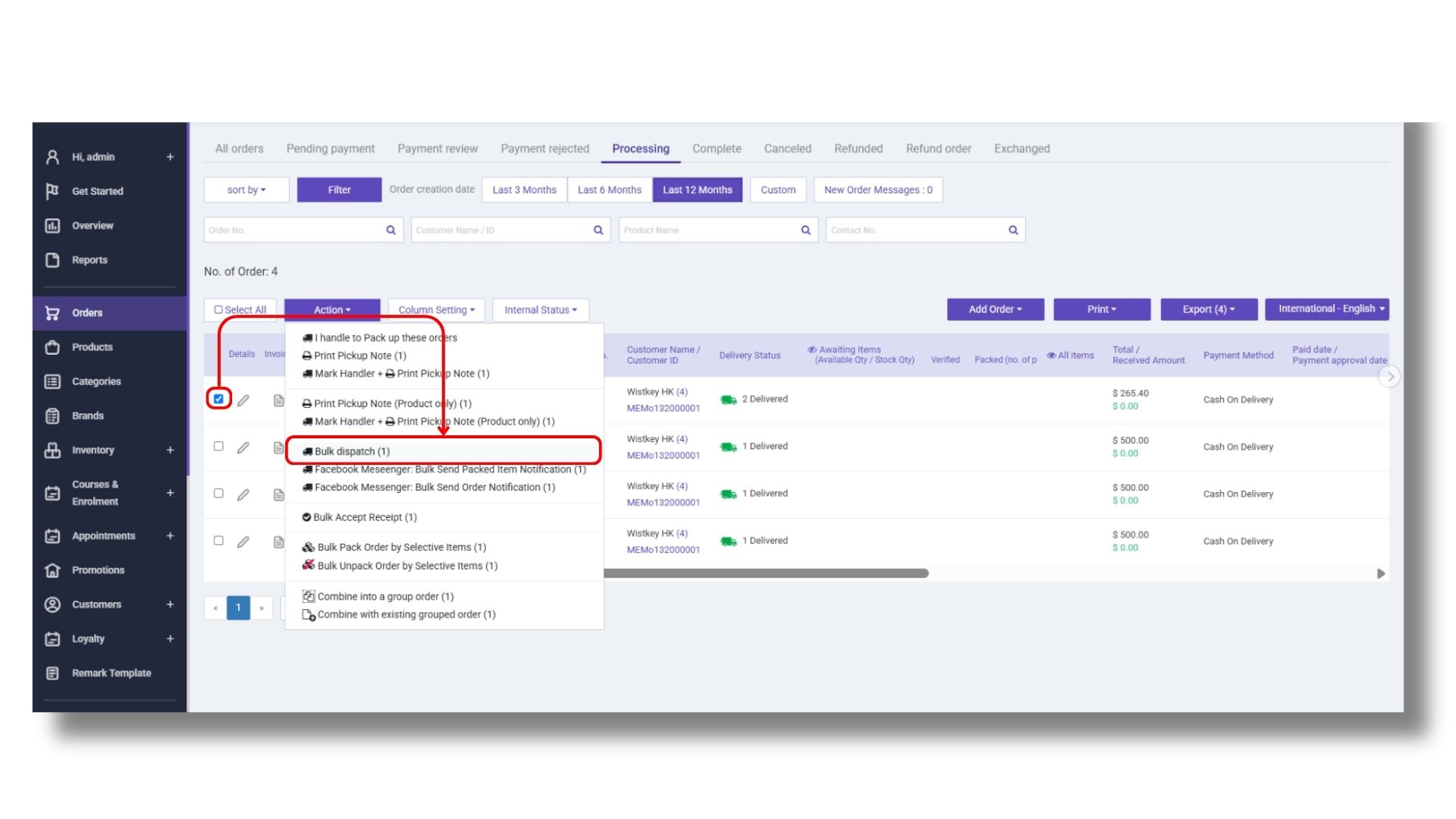
2)Select multiple orders that need to be shipped on the left hand side, then click
**「Action」** from the top and pick **「Bulk Dispatch」** from the drop-down list.
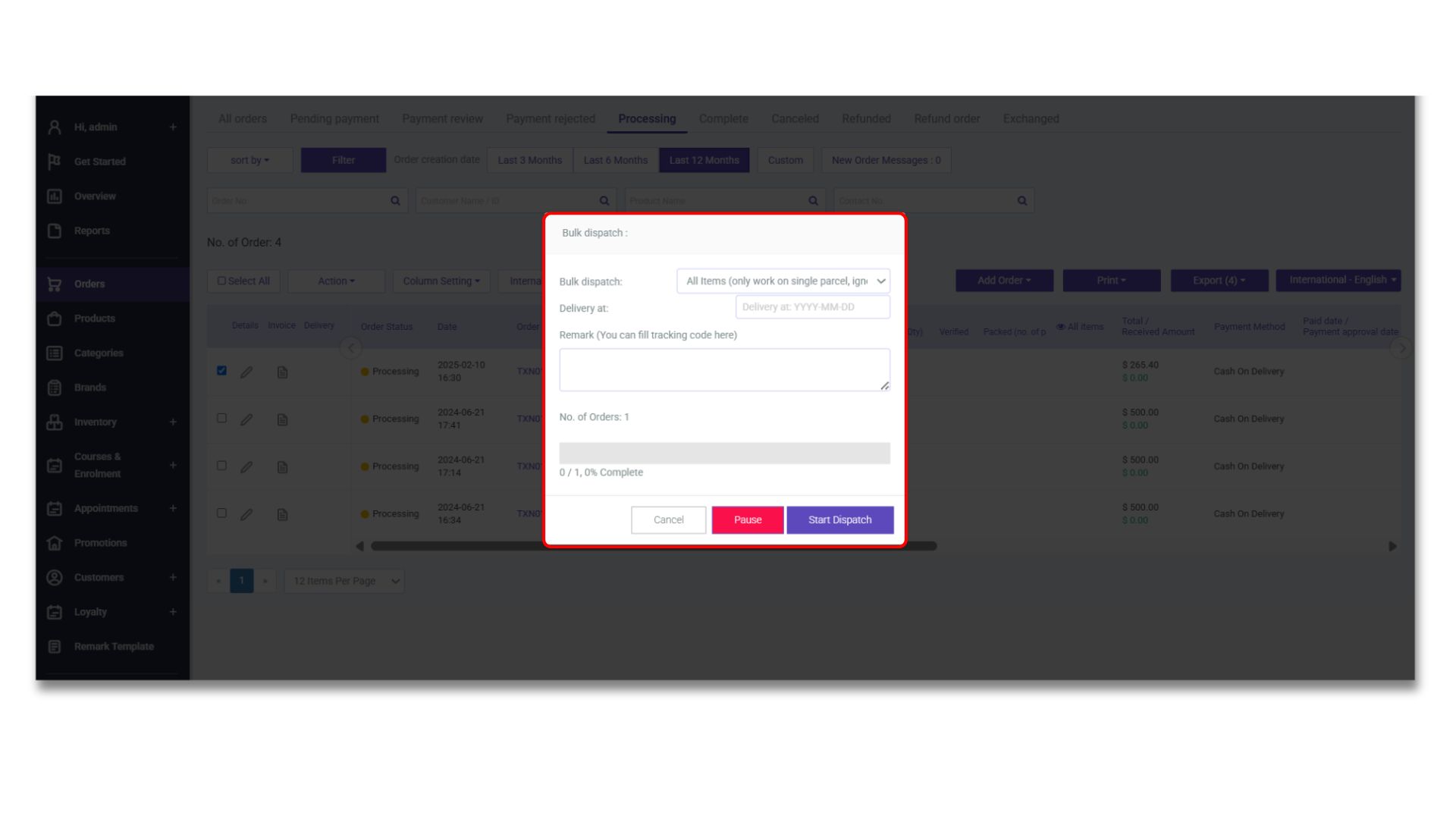
3)Choose **「All Items (only work on single parcel, ignore waybill)」** for bulk dispatch, and enter the delivery date. You can also enter the logistics tracking ID or other info in the remark for customers to view. Next, click
**「Start Dispatch」** , and the order status will be changed to
**「Complete」**
after the update procedure is completed.
Process multiple orders for the same product:
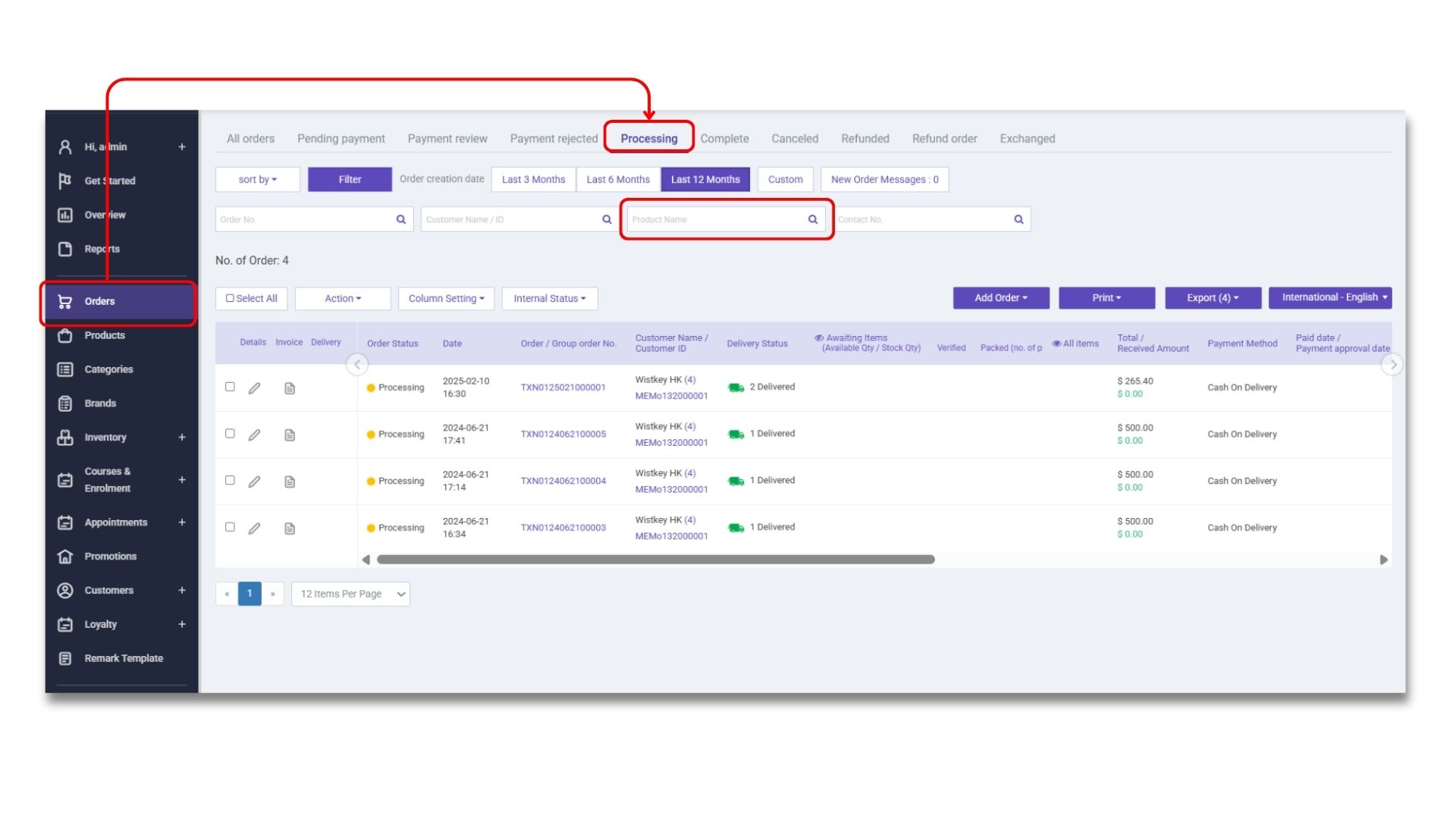
1)You can go to the **「STOREBERRY Admin Panel」** → **「Orders」** and select orders in the **「Processing」** status at the top left, then enter the product name in the search bar.
2)Select multiple orders that need to be shipped on the left hand side, make sure the relevant products have been packaged and the “Packed” button of each product has been turned on. Then click **「Action」**
from the top and pick
**「Bulk Dispatch」**
from the drop-down list.
3)Choose
**「Packed Items Only」** for bulk dispatch, and enter the delivery date. You can also enter the logistics tracking ID or other info in the remark for customers to view. Next, click
**「Start Dispatch」** , and the order status will be changed to
**「Complete」**
after the update procedure is completed.
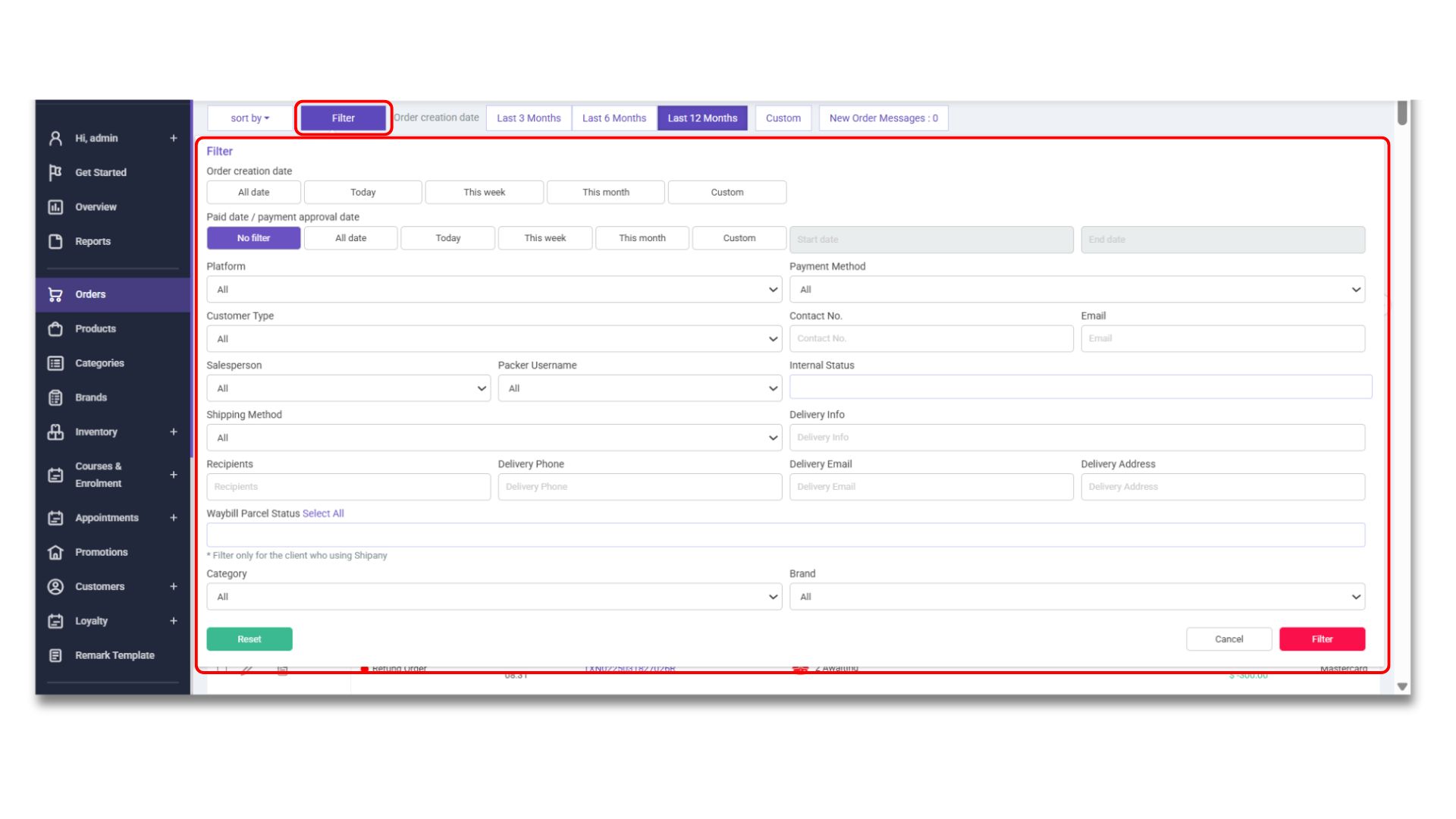
### (iii) Filter and Search Order
Need to find a specific order from a large number of orders? STOREBERRY's built-in search function allows you to search by order number, customer ID or name, product name and other information to help you easily find the order information you need!
.png)
.jpg)